
Separate sales pipelines, delayed automations, and lead actions in CRM
Build separate pipelines with their own statuses, schedule delayed CRM rules, create lead actions, and edit contacts faster in if.team.
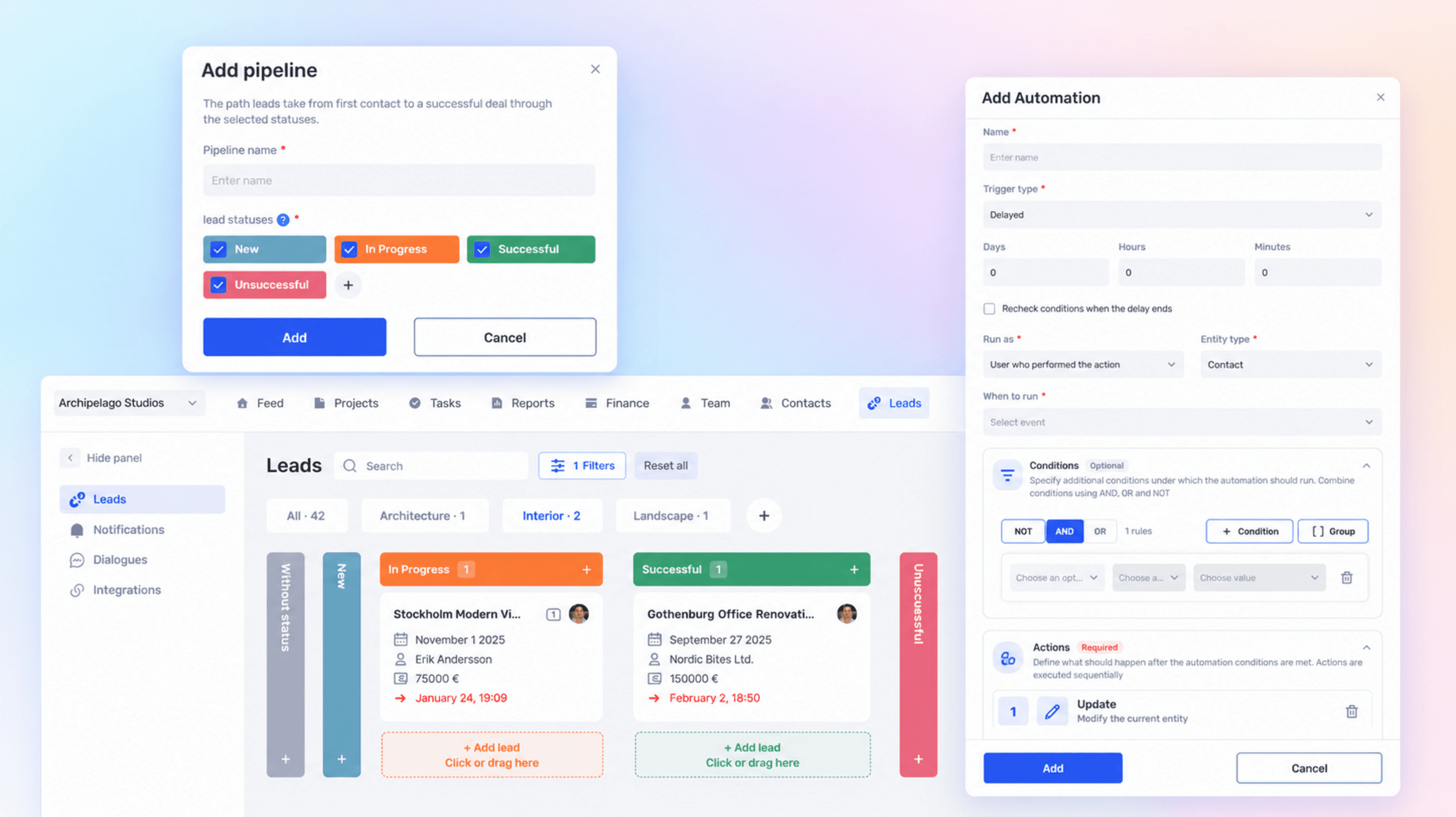
Selling different services doesn’t always follow the same stages. One order only needs the price agreed; another requires a brief, an estimate, and several meetings. In the if.team CRM, you can now split these processes into independent pipelines and hand over next steps and part of the contact work to automations.
Create a pipeline for each sales process
The CRM now has several independent pipelines. Each one can have its own set of statuses for a service, product, team, or business line.
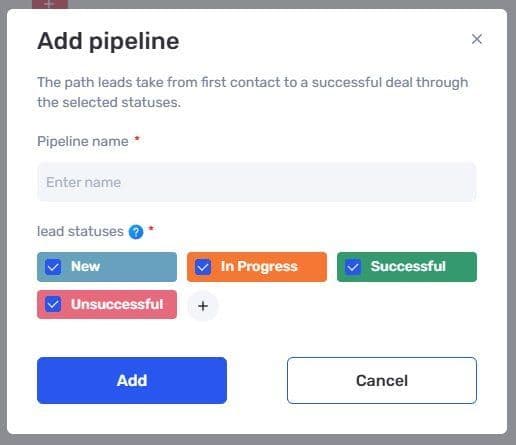
Creating a sales pipeline with its own set of statuses
For example, a studio can track interior design requests and design supervision separately. The team doesn’t have to mix different stages in one set of statuses, and all leads stay in if.team.
If you’re just getting started with the CRM, the Leads overview explains how the list, Kanban board, and inquiry handling work. The new pipelines help you adapt this work to several processes within the company.
Find a lead by the details you know
As inquiries pile up, a manager doesn’t always remember the name of the lead they need. Search now covers all lead fields, including phone number, messenger, and contact person.
So you can start with whatever information is at hand — for example, the number the client called from. There’s no need to first figure out what a colleague named the inquiry.
Update contacts right in the card
It’s also easier to tidy up a contact once you’ve found it. All fields in the contact card can now be edited with a click, without extra windows or navigation. Values can be copied quickly, and the card layout has been updated.
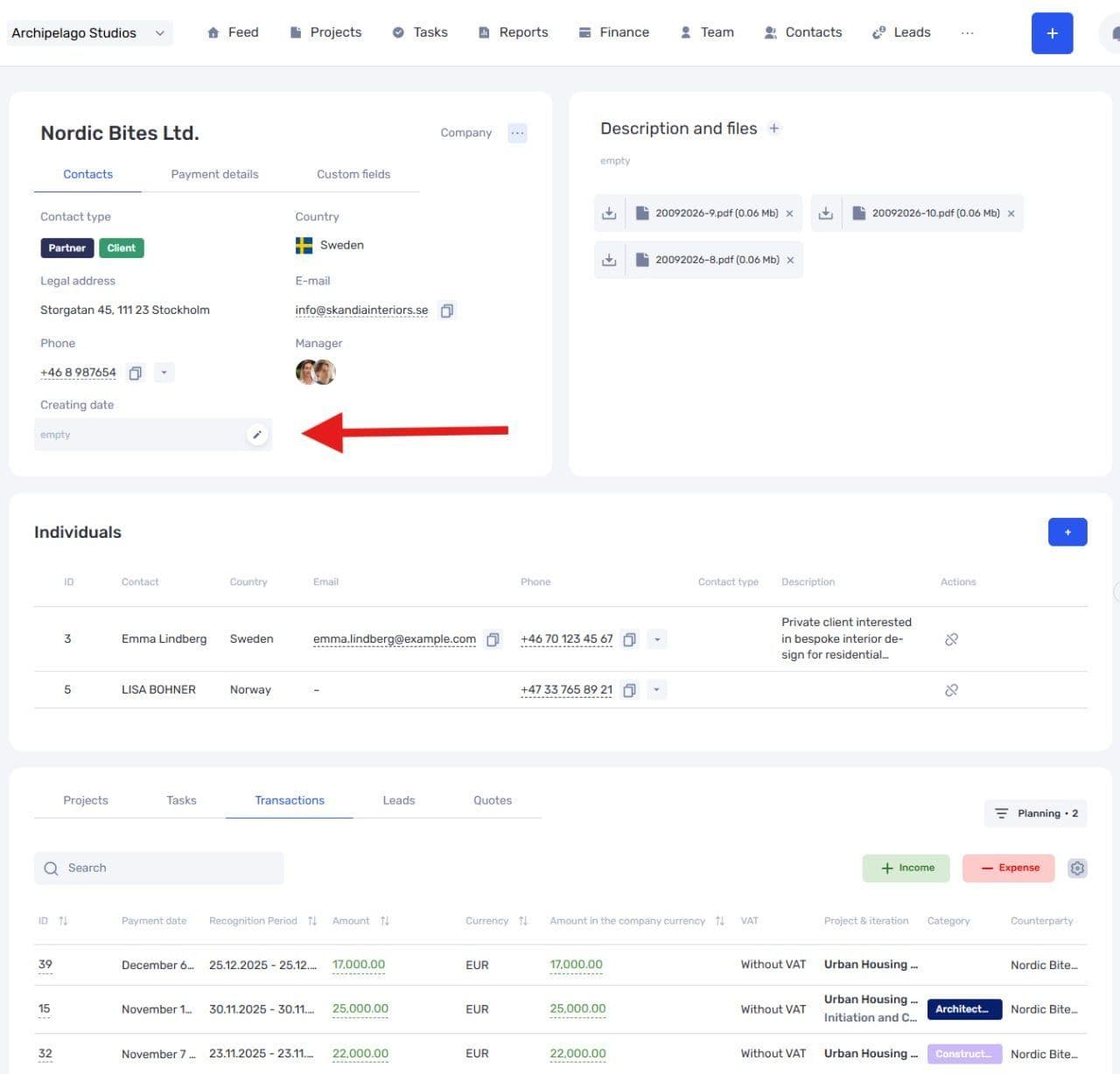
Editing data in a contact card
If a client shares a new number or clarifies the contact person’s job title, you can make the change during the call. When data needs to change according to a recurring rule, that’s a job for automation.
Fill in fields and assign owners automatically
The Automations module now works with contacts. Based on the rules you set, the system can fill in and change contact fields and assign responsible managers.
The principle stays the same: you define the conditions that trigger an action and what exactly the system should do. We described the basic rule logic in the article about the launch of automations. This update extends it to contacts and adds delayed execution.
Run a rule after a set time
An automation can run not only right after an event but also after a specified interval. Before running, if.team checks the conditions again.
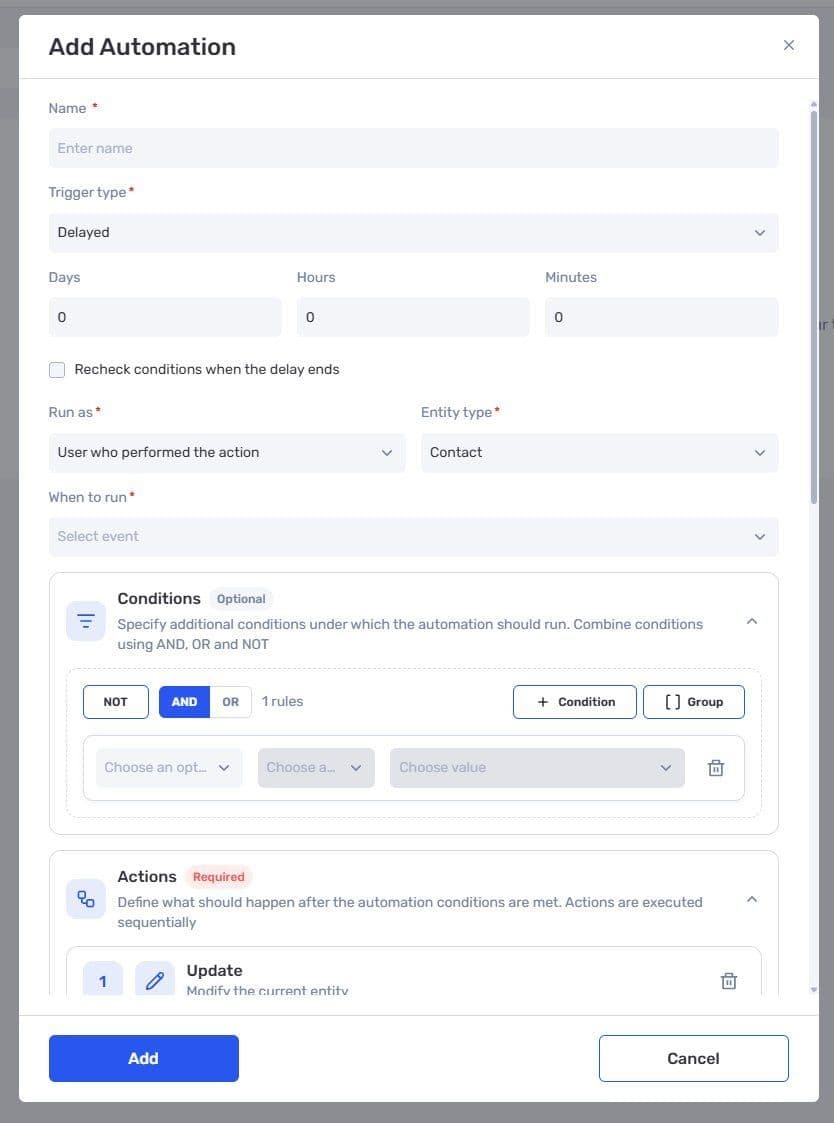
Setting up an automation with delayed execution
This matters when the situation may have changed during the wait. For example, a rule should change a lead’s status if there has been no activity for a long time. The repeat check takes the lead’s state at the time of execution into account.
Delayed rules are available for other scenarios too. For instance, you can set up completion of a task that has been idle for two weeks. Each company defines the conditions and delay to fit its process.
Schedule the next contact with a client
Automations can now also create lead actions — calls, emails, and other activities. They can be created with a delay: for example, to schedule a call three days after a lead appears or a follow-up after a proposal is sent.
The system creates the action for the manager’s follow-up work. The call itself and the content of the reply to the client remain part of the team’s work.
As a result, the pipeline shows what stage the negotiations are at, and the scheduled action shows what needs to happen next. One recurring scenario is enough to start: set up a rule, try it on a test lead, and make sure it creates the right action.
Author
Vladyslav ChesnokovPublished
Oct 20, 2026
Was this update helpful?
Your feedback helps us prioritise what to ship next.
See if.team in action for your company
We’ll show how projects, team time and finances connect in one system, using your processes as an example.