
The if.team Chrome extension and AI assistants via MCP
Work often starts outside if.team: you find a potential client’s page, notice a bug on a website, or want to analyze project data with an AI assistant. We added two ways to continue this work: a Chrome extension for tasks, leads, and time, and an MCP connection for Claude and ChatGPT.
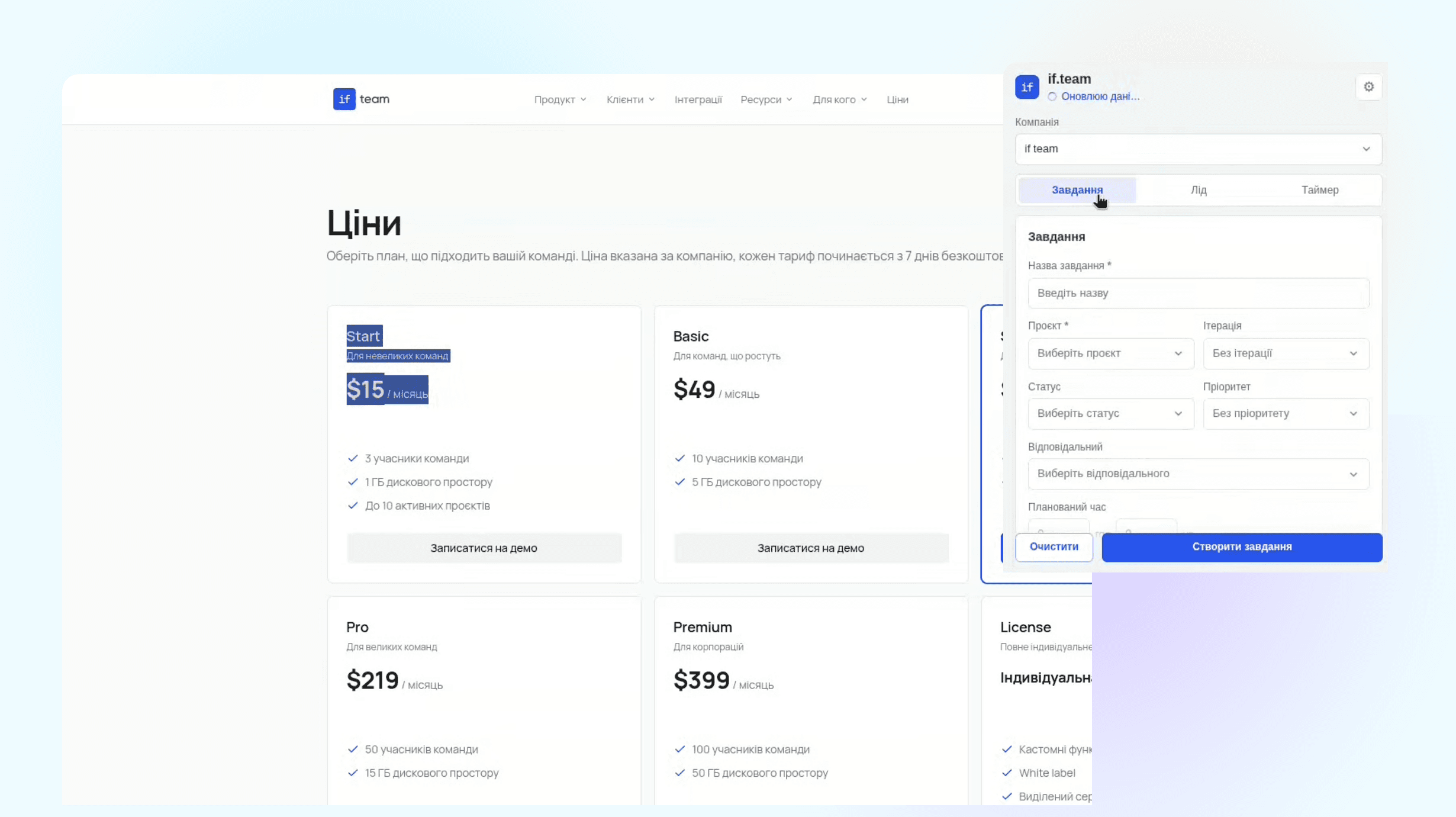
Work often starts outside if.team: you find a potential client’s page, notice a bug on a website, or want to analyze project data with an AI assistant. We added two ways to continue this work: a Chrome extension for tasks, leads, and time, and an MCP connection for Claude and ChatGPT.
Create tasks from the page you’re viewing
The Chrome extension lets you create a task or lead from the current page. Selected text and the link are pulled into the description. You can attach files or a screenshot — of the full screen or a selected area.
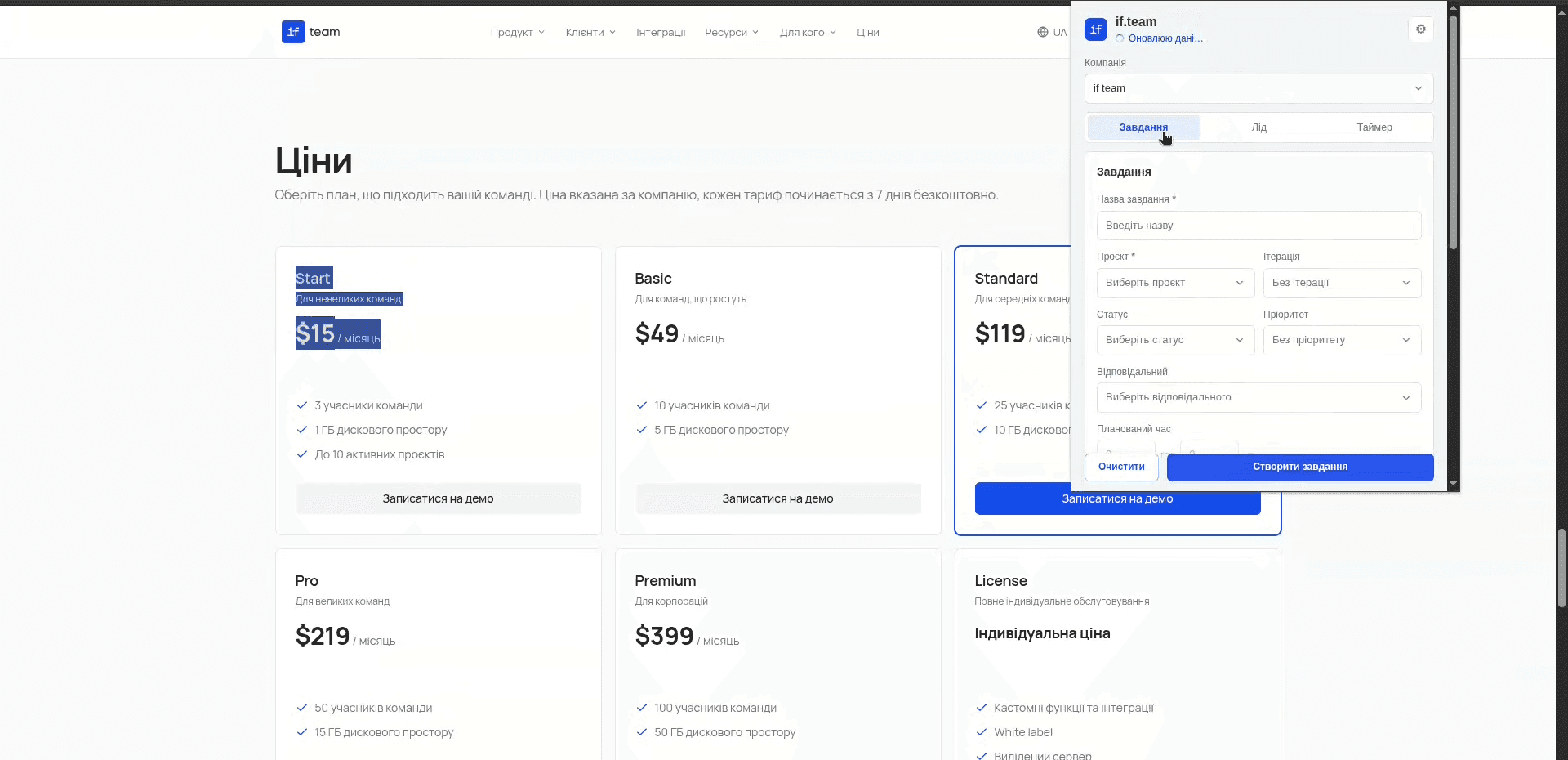
Creating a task from the current page with the if.team Chrome extension
For example, you’re checking a website and notice that a form doesn’t work. Select the relevant text, create a task, and add a screenshot. The card keeps a link to the page, so the assignee can go straight to the problem. You can also create a task from the right-click menu after selecting text.
Use AI Assist for a draft
AI Assist builds a draft from the page context. For a task, it suggests a title, description, estimate in hours, and due date; for a lead, contact details.
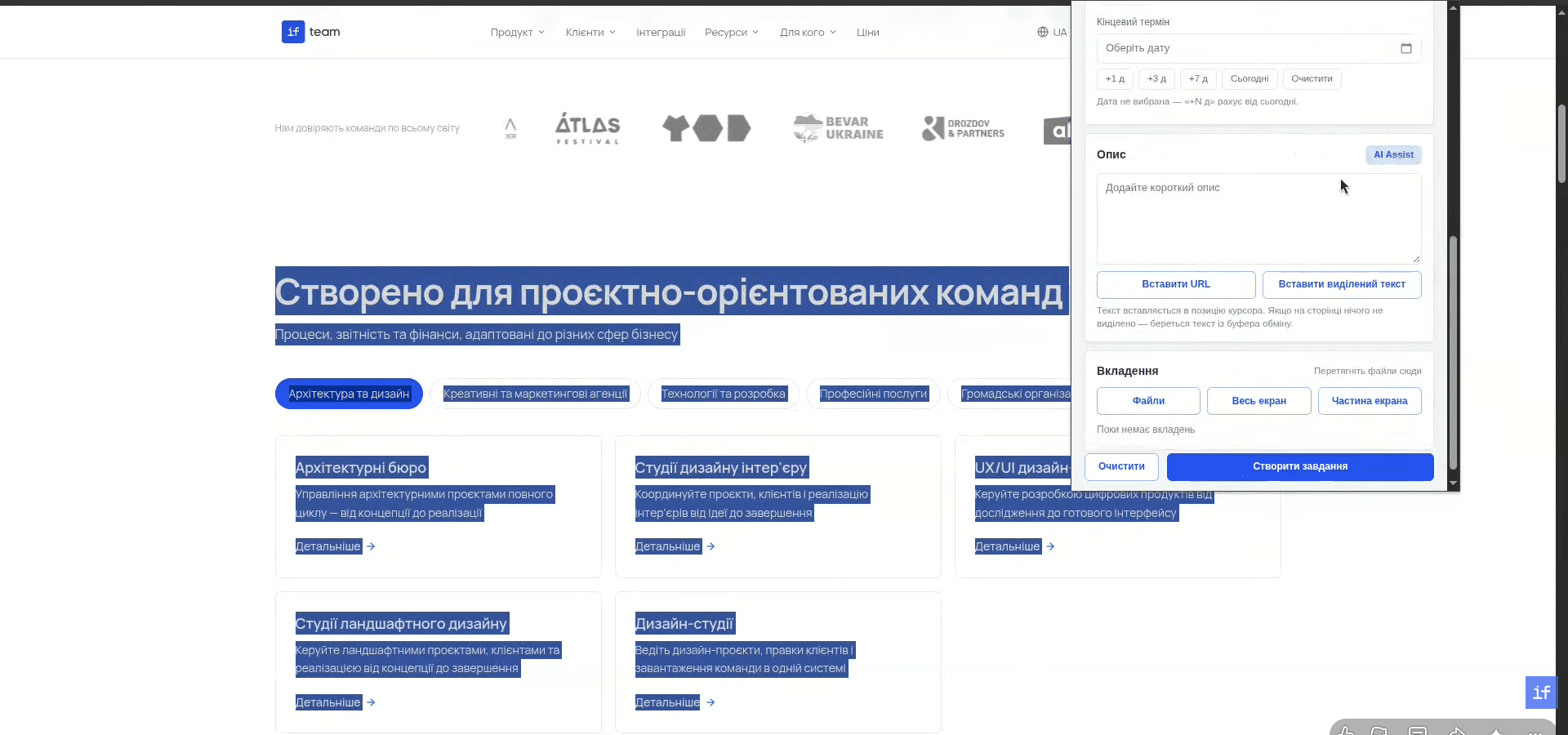
AI Assist prepares a task draft from page context
Review the result before creating the record. In particular, the suggested estimate and deadline should match your team’s agreements: the page itself doesn’t always contain information about the scope of work or the assignee’s availability.
If you’re still setting up your sales process, the Leads overview explains what happens to an inquiry after it is created.
Track time in the browser
The extension has a timer: you can start or stop time tracking for a task and add time manually. Today’s total and the total time for the task stay in view. The extension icon also shows how much time has been tracked today.
Sign-in works through your active if.team session. The extension supports multiple companies, saves unfinished drafts, and has Ukrainian and English interfaces.
The installation and main workflows are shown in the training video.
How to install and use the if.team Chrome extension
You can download the extension archive from the Telegram post. After installing it, try a simple scenario: create a test task from a page and check that the right text, link, and attachments were saved.
Ask your AI assistant about company data
To work with data you have already collected, we launched the if.team MCP server. It is the connection through which Claude or ChatGPT can access your company’s data.
For example, you can ask it to show overdue tasks by project, analyze team workload, or build a dashboard of time spent. The launch announcement also describes scenarios involving P&L, cash flow, and the lead pipeline.
For a useful answer, specify the period and the result you need: “Show time spent in October by project and compare it with the plan.” Check the conclusions against the source data. To verify standard metrics, you can use the report in if.team itself.
Decide on access before connecting
Start by creating an API key in the if.team admin panel. Then open the MCP connection page, paste the key, and choose a mode: read-only or read-and-write. Add the resulting link as an MCP connection in your AI assistant.
Read-only mode is suitable for search and analysis. Write access is needed when you want to create or edit tasks, leads, transactions, or projects. Changes should be made only after your approval.
The connection link works like a password: don’t publish it or share it with others. To revoke access, reissue the API key. After connecting, start with a read request — for example, ask it to find overdue tasks — and check the result before trying more complex actions.
Author
Vladyslav ChesnokovPublished
Oct 19, 2026
Was this update helpful?
Your feedback helps us prioritise what to ship next.
See if.team in action for your company
We’ll show how projects, team time and finances connect in one system, using your processes as an example.