Custom Fields for Contacts
If the standard fields are not enough, add your own—for example, “How We Met,” “Payment Terms,” or “Client-Side Contact.”
Where They Are Created
Go to Admin Panel → “Settings” → “CRM” → “Custom Fields for Contacts” → “+.” The “+ Create Additional Field” link directly in the contact creation or editing form produces the same result.
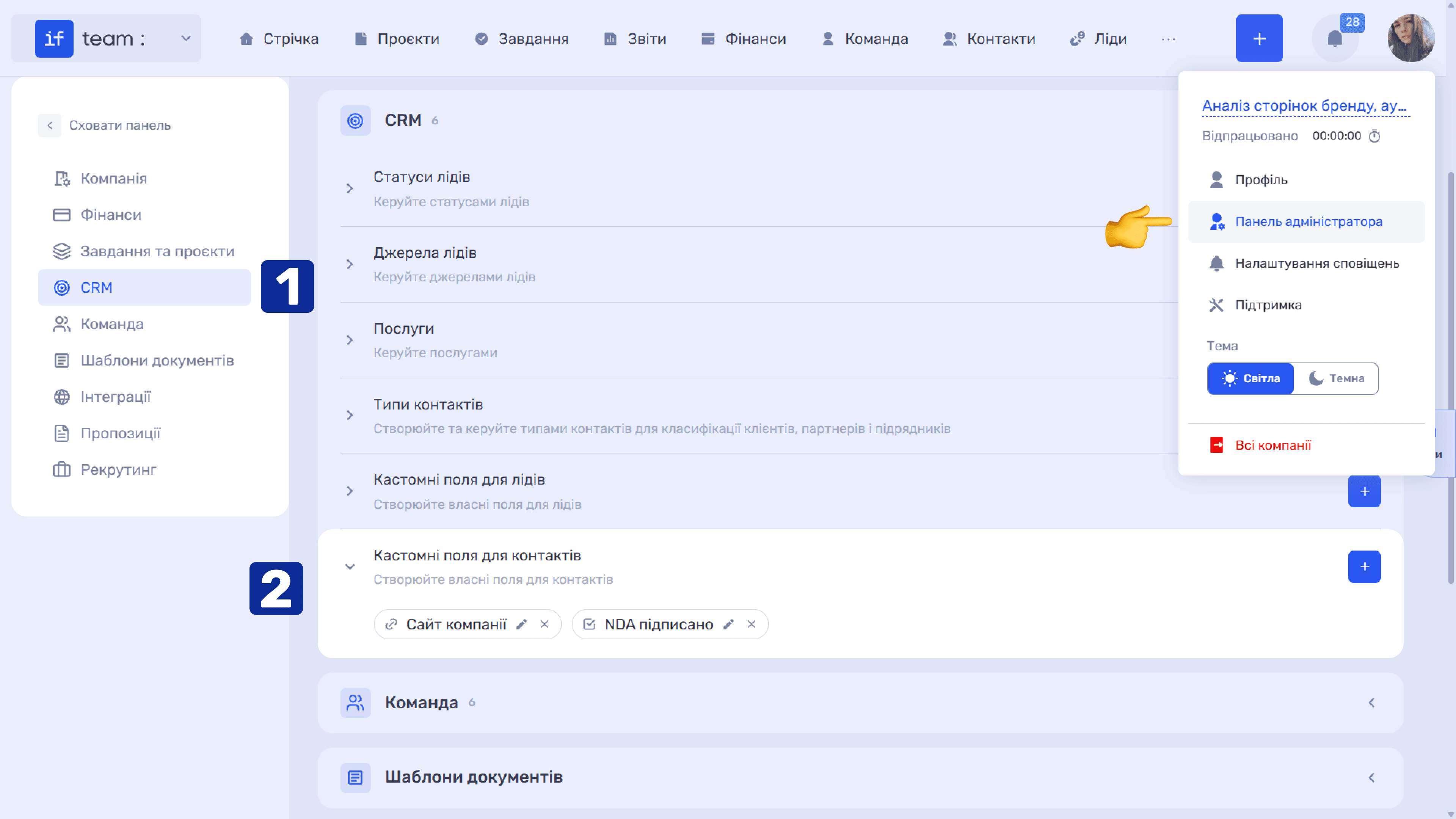
In the “Create Custom Field” window, complete the required Field Name and select a Field Type:
- Text for a short string;
- Description for multiline text;
- Checkbox for yes/no options;
- Number for a numeric value;
- Drop-down Menu for selecting one option from a list;
- Date for a calendar date;
- Date and Time for a date with a specific time;
- Time for a duration or time of day;
- Link for URLs;
- Labels for colored labels;
- Members for a specific company employee;
- Contacts for another contact in the database.
The last two types are especially valuable: they store an actual relationship between records rather than text. This relationship works in filters, reports, automations, and document templates.
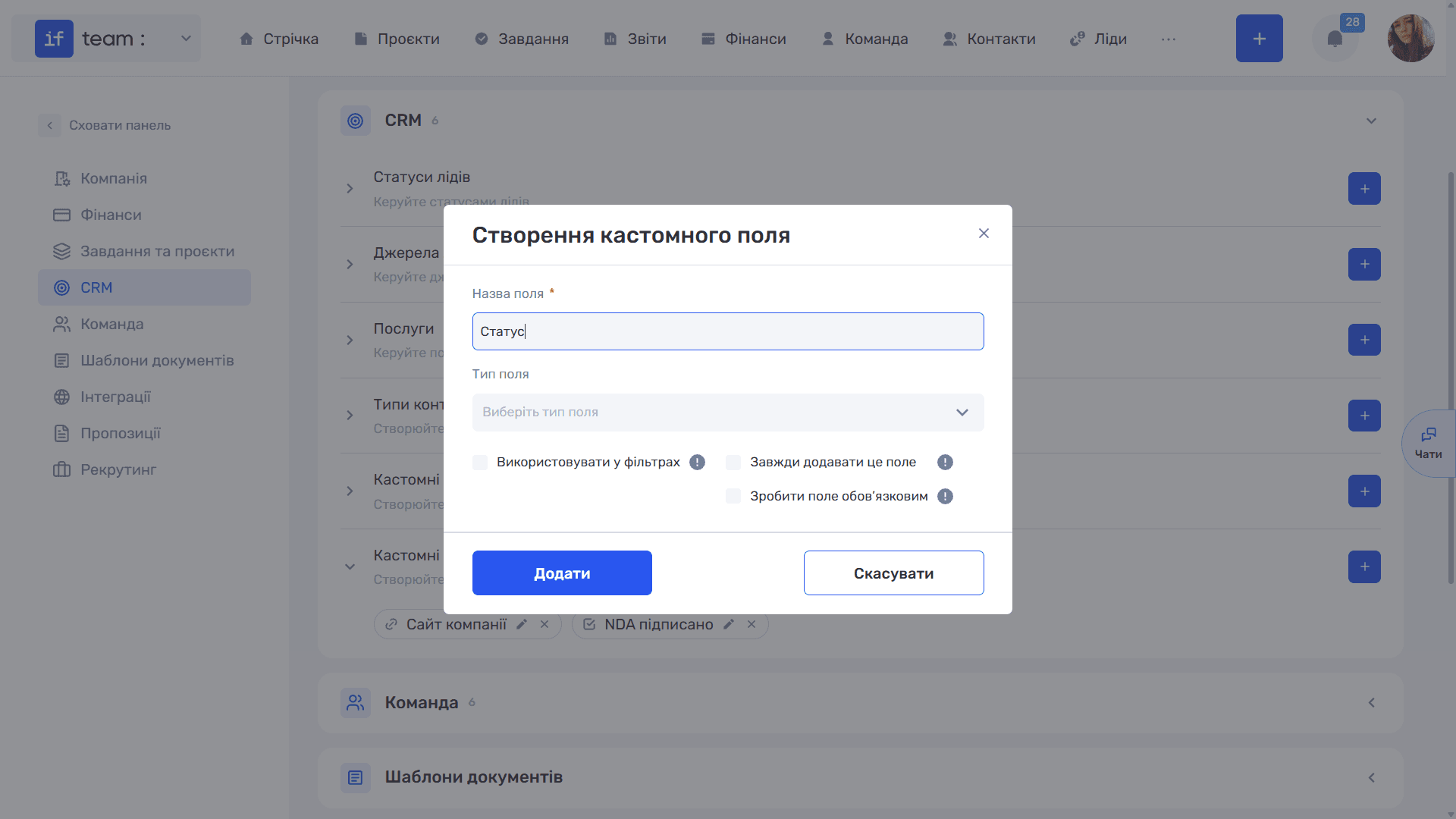
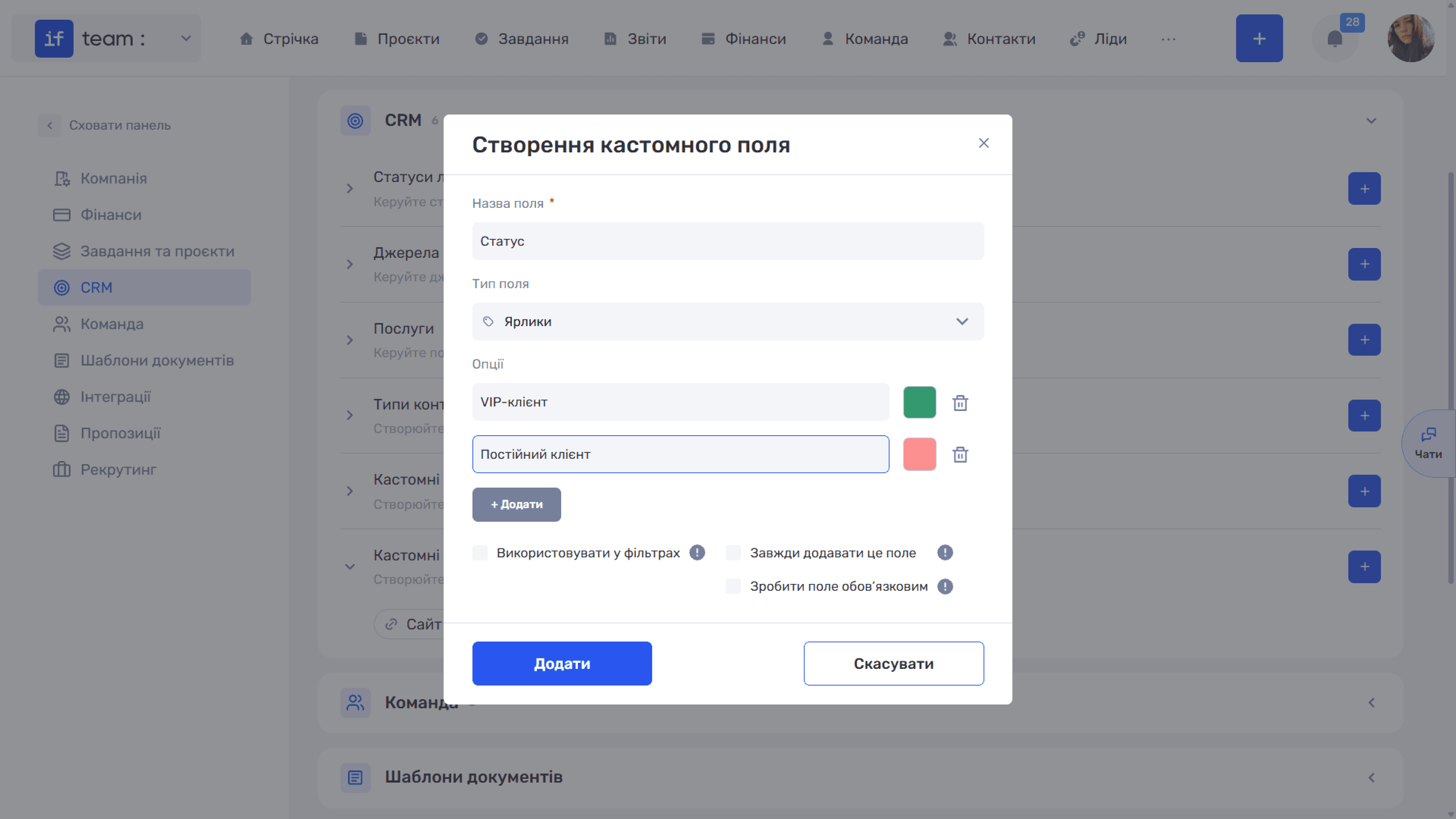
Below are three switches:
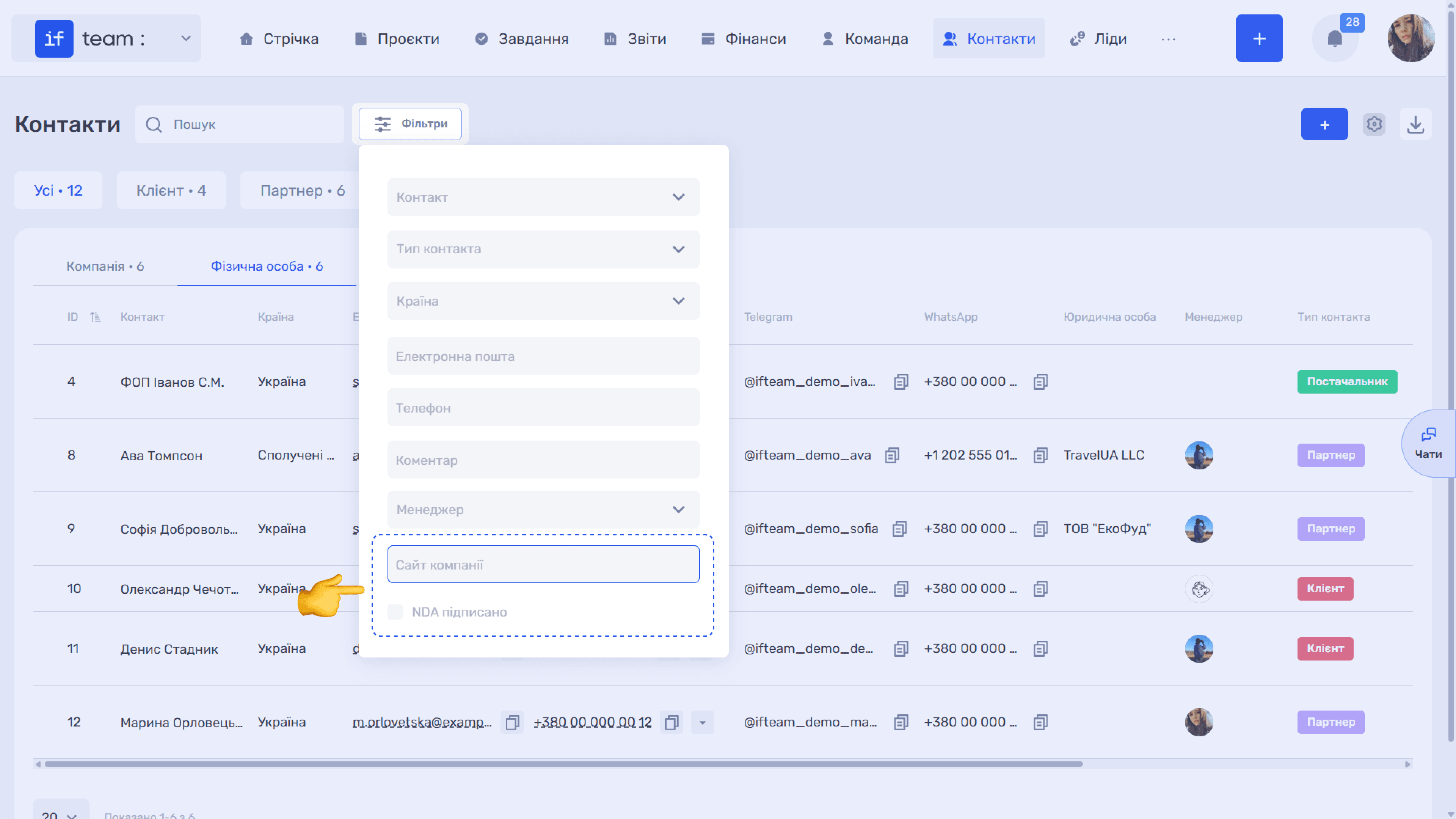
- “Use in Filters” makes the field available in the “Filters” panel.
- “Always Add This Field” automatically adds the field to every new contact.
- “Make This Field Required” prevents the record from being saved without it.
Click “Add.”
How to Use Custom Fields
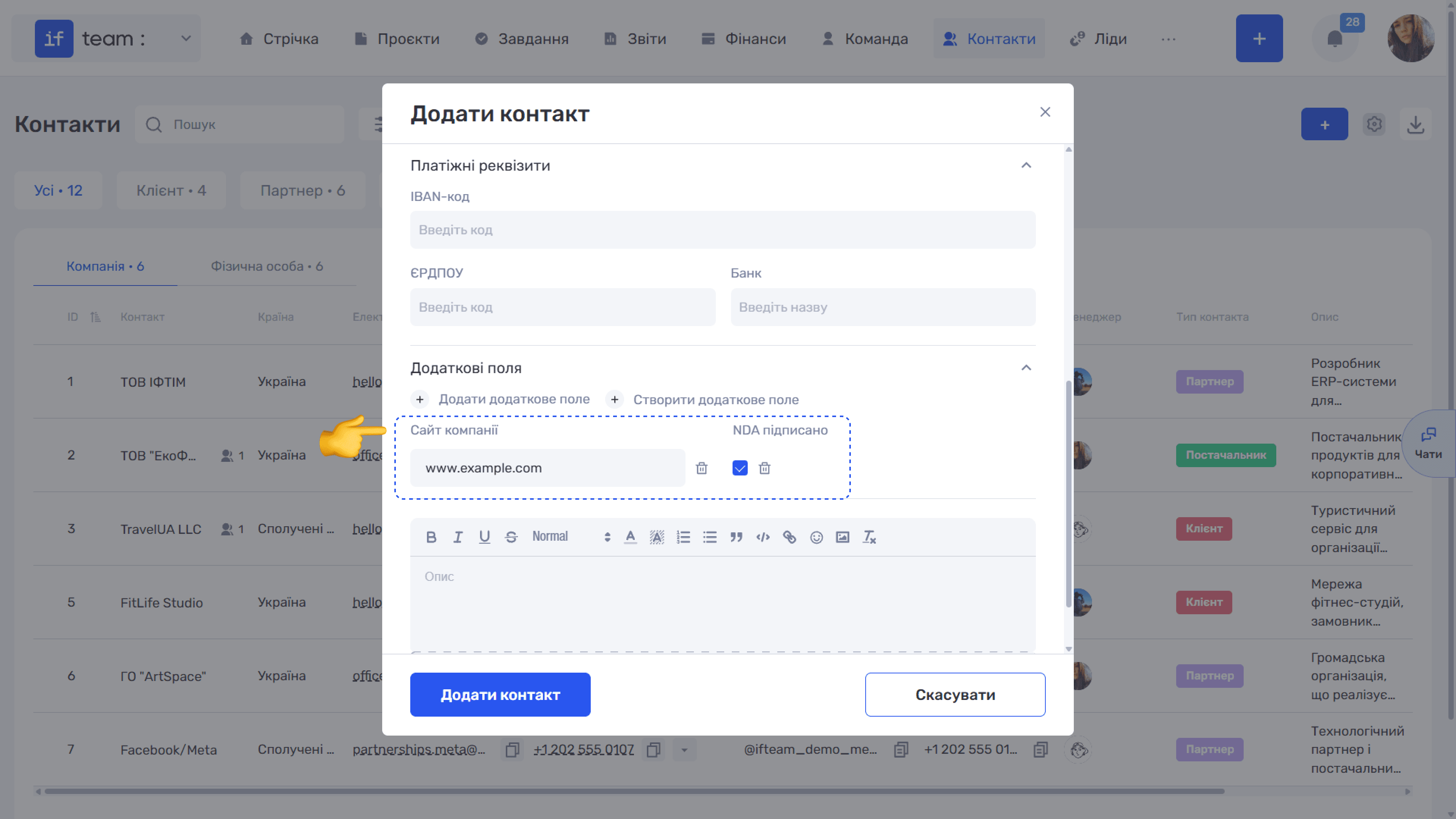
In the contact form, expand “Additional Fields” and click “+ Add Additional Field.” Select the required field from the list of fields already created.
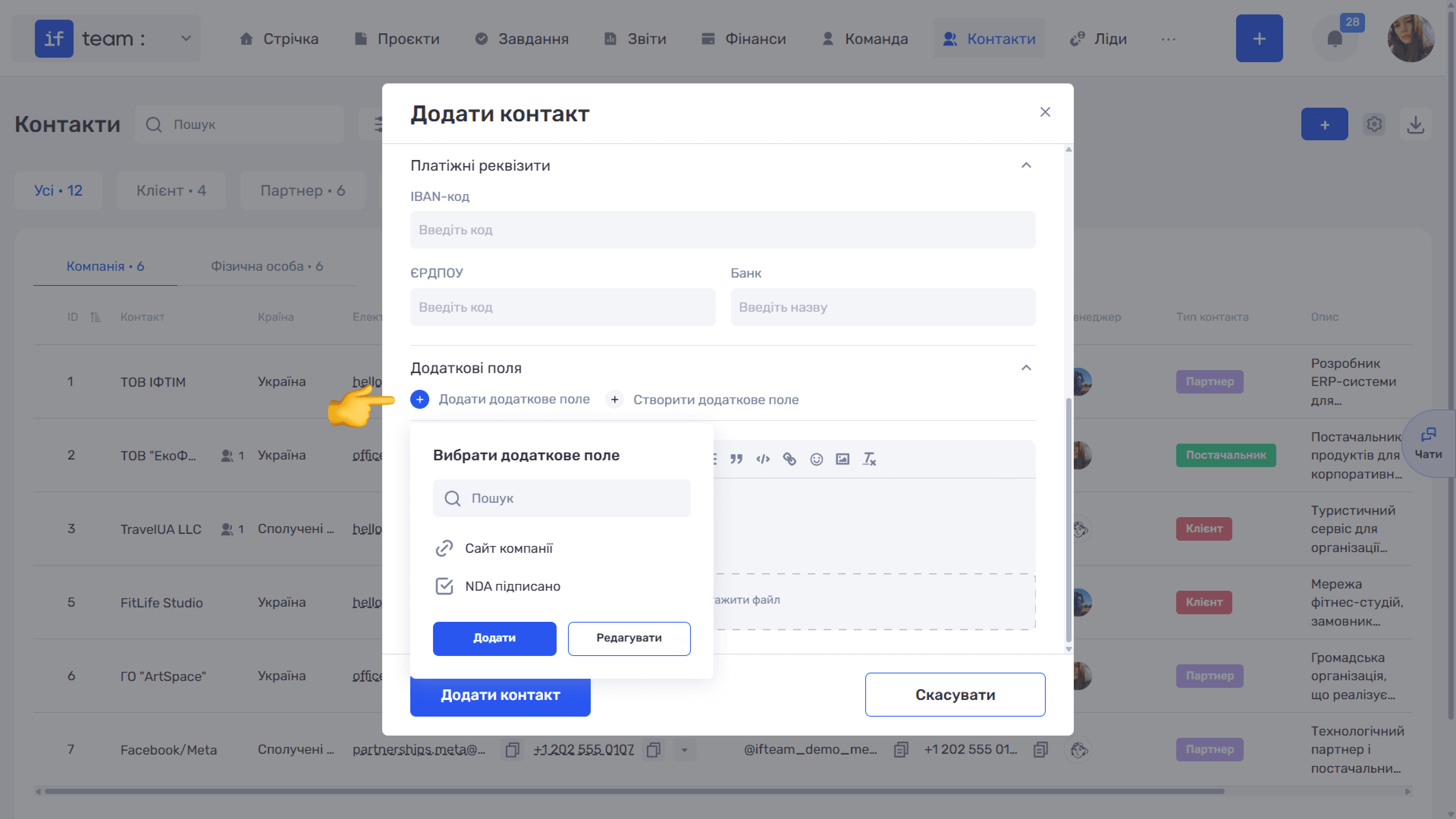
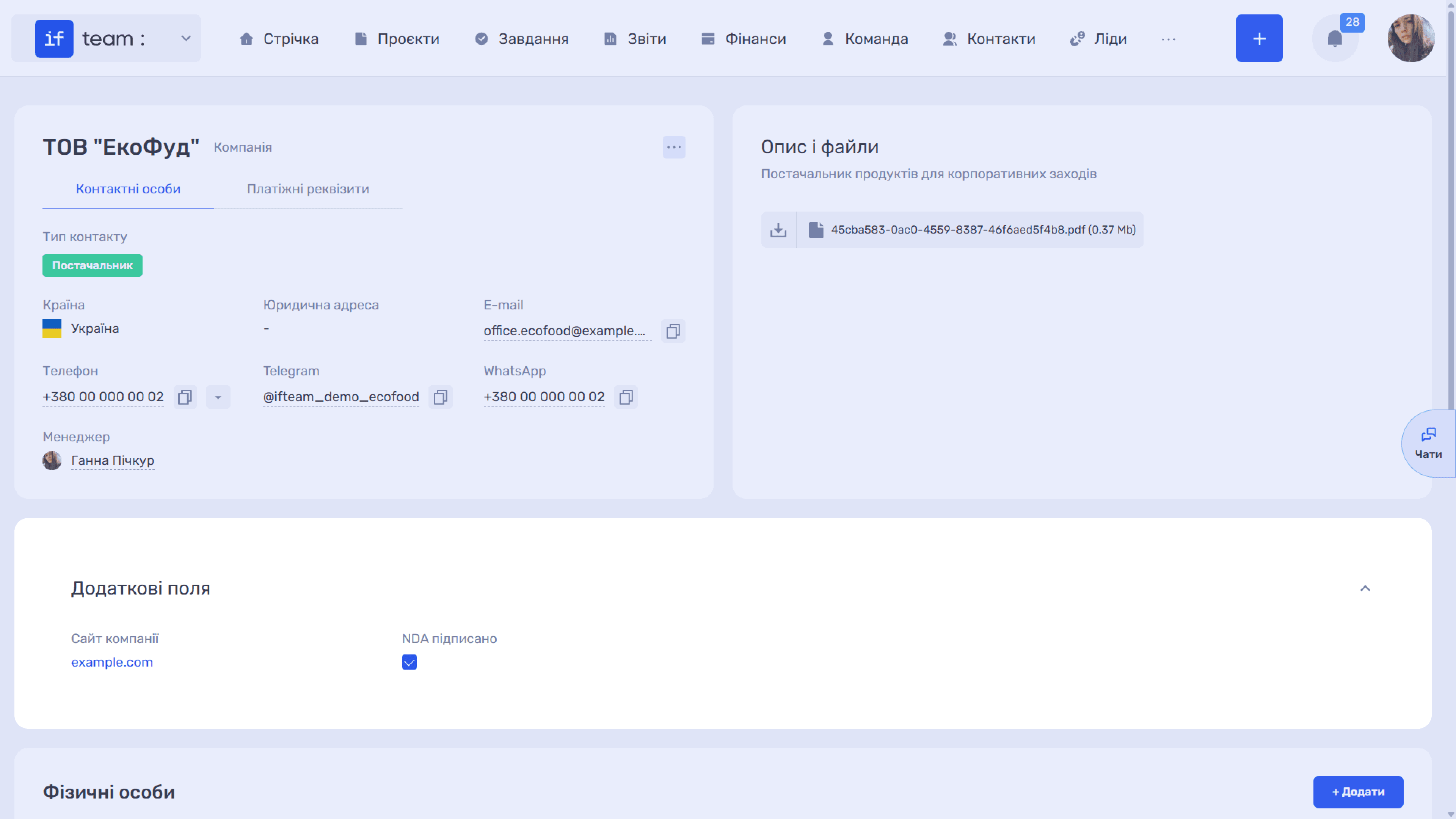
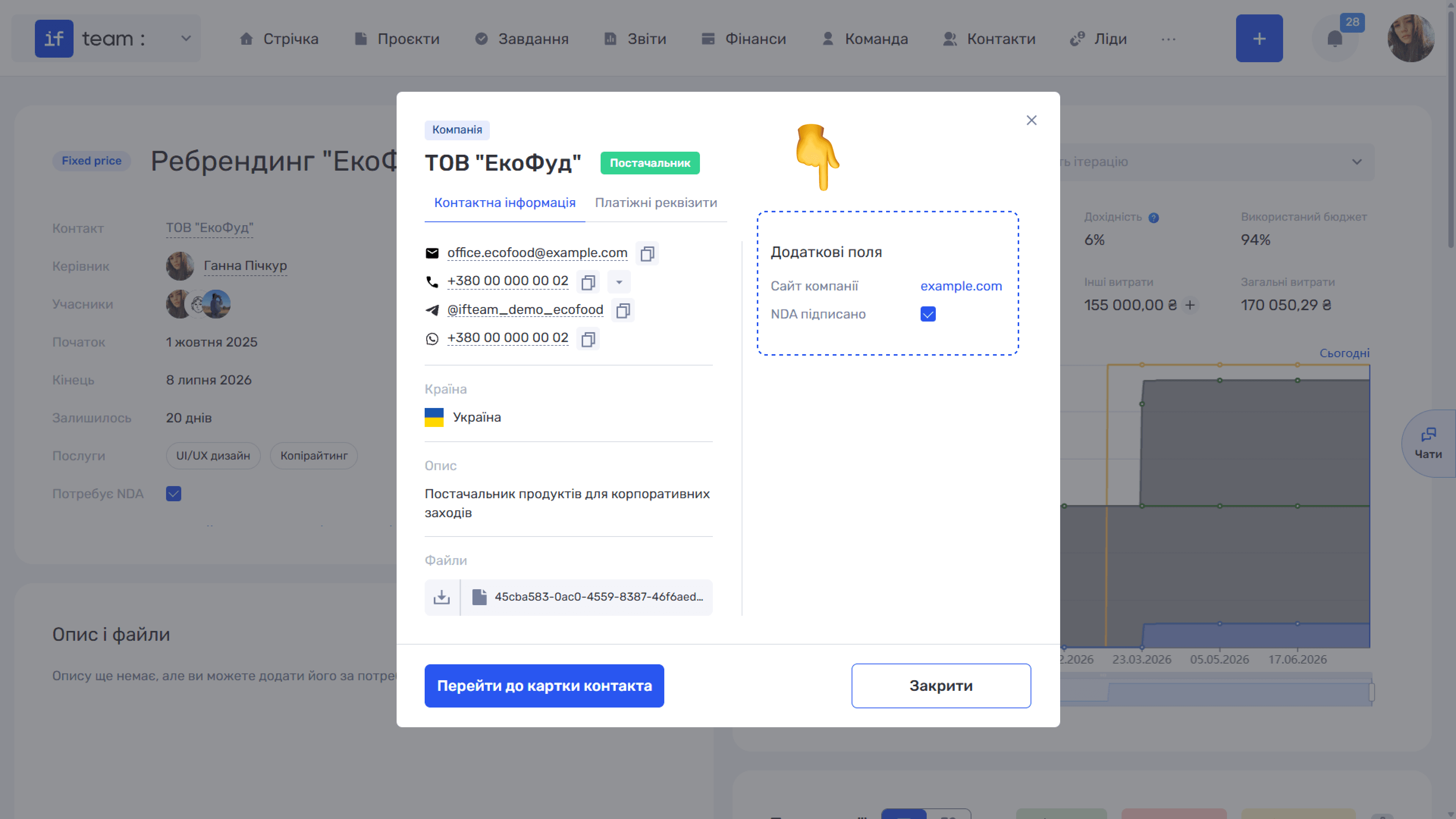
Values appear on the contact card and in the attached-contact pop-up under “Additional Fields” in a project, lead, or transaction. If the field is filterable, it also appears in the “Filters” panel.
Please note
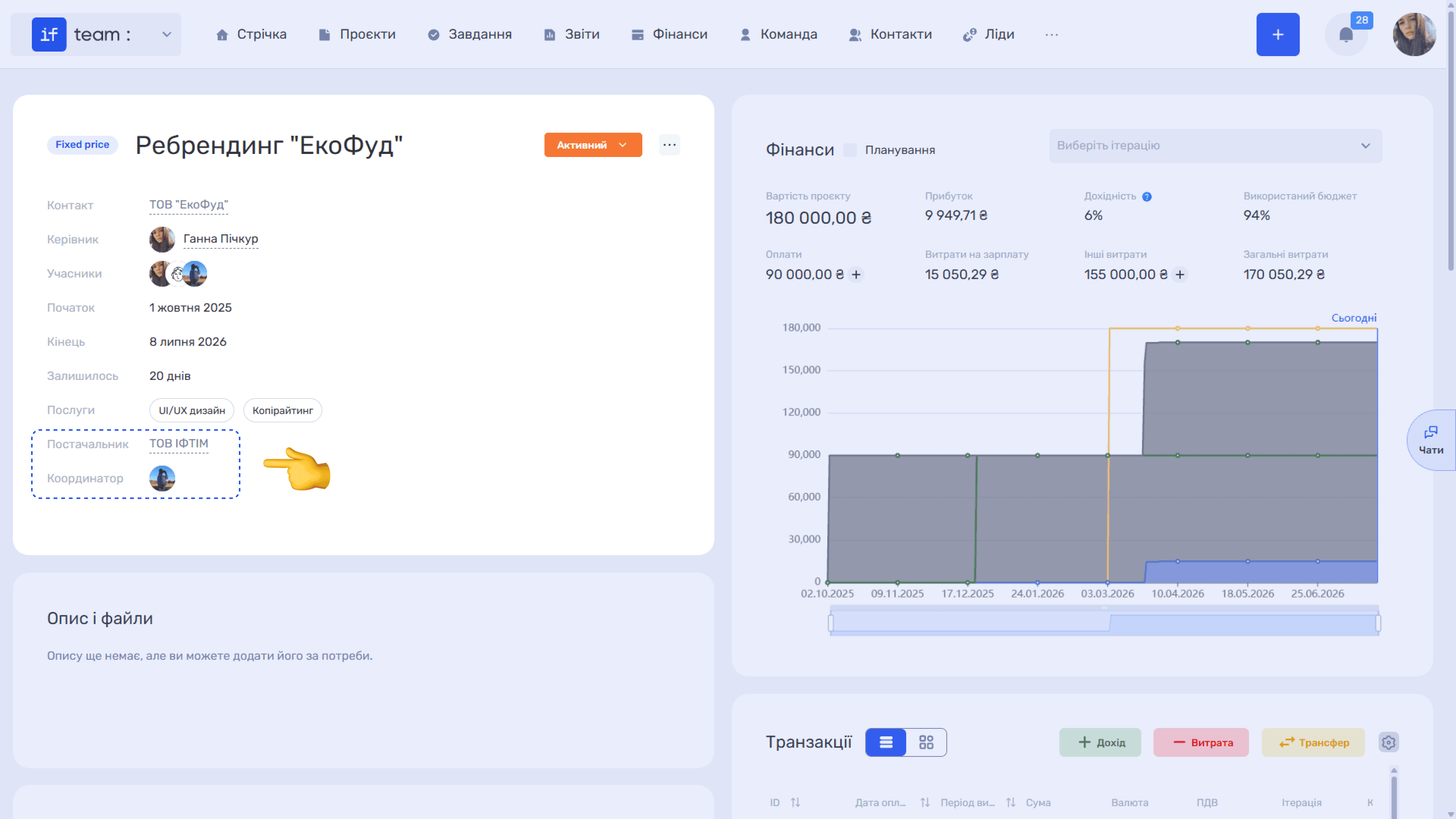
Example. Custom fields of the “Contacts” and “Members” types are available not only for contacts but also for other entities, and appear directly on their cards alongside system fields. For example, you can create a “Supplier” field of the “Contacts” type and a “Coordinator” field of the “Members” type in a project, then see the contractor and responsible employee immediately in the project header without opening other sections.
Please note
Custom fields are configured separately for each entity. Fields for contacts do not appear in leads, and vice versa; leads have their own “Custom Fields for Leads” section.
Still have questions?
Maybe we haven't added this information yet. But you can always reach out:
Request a demo
Submit a request and we'll show you how the service works and its capabilities.
Book a demo