Contacts Overview
The Contacts section is a single database of all companies and people the business interacts with: clients, partners, suppliers, and contractors. Contacts are linked to projects, leads, transactions, and quotes, bringing the complete history of cooperation together in one place.
Please note
This section was previously called Clients. It was renamed because it contains a database of all counterparties, not only customers.
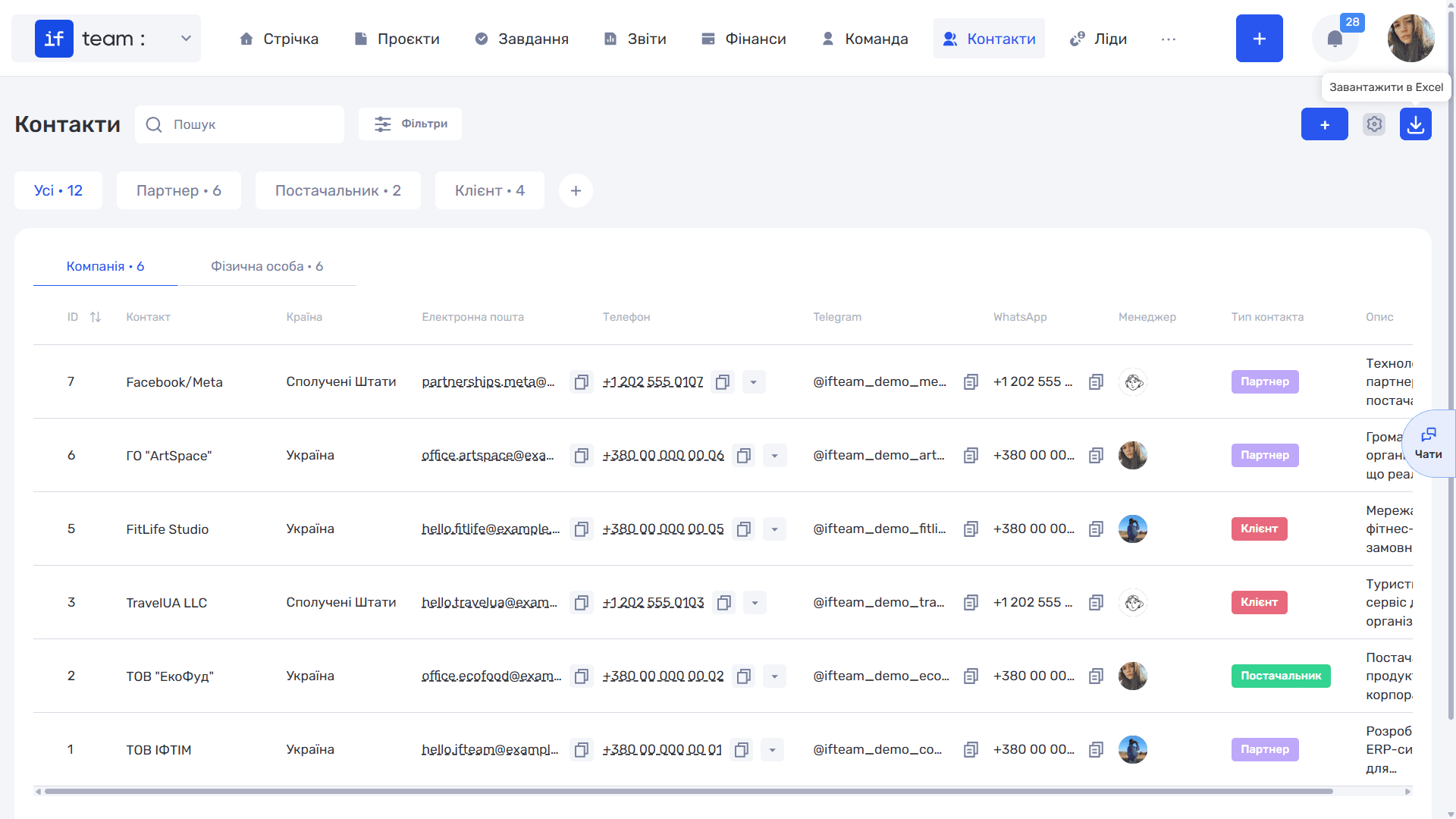
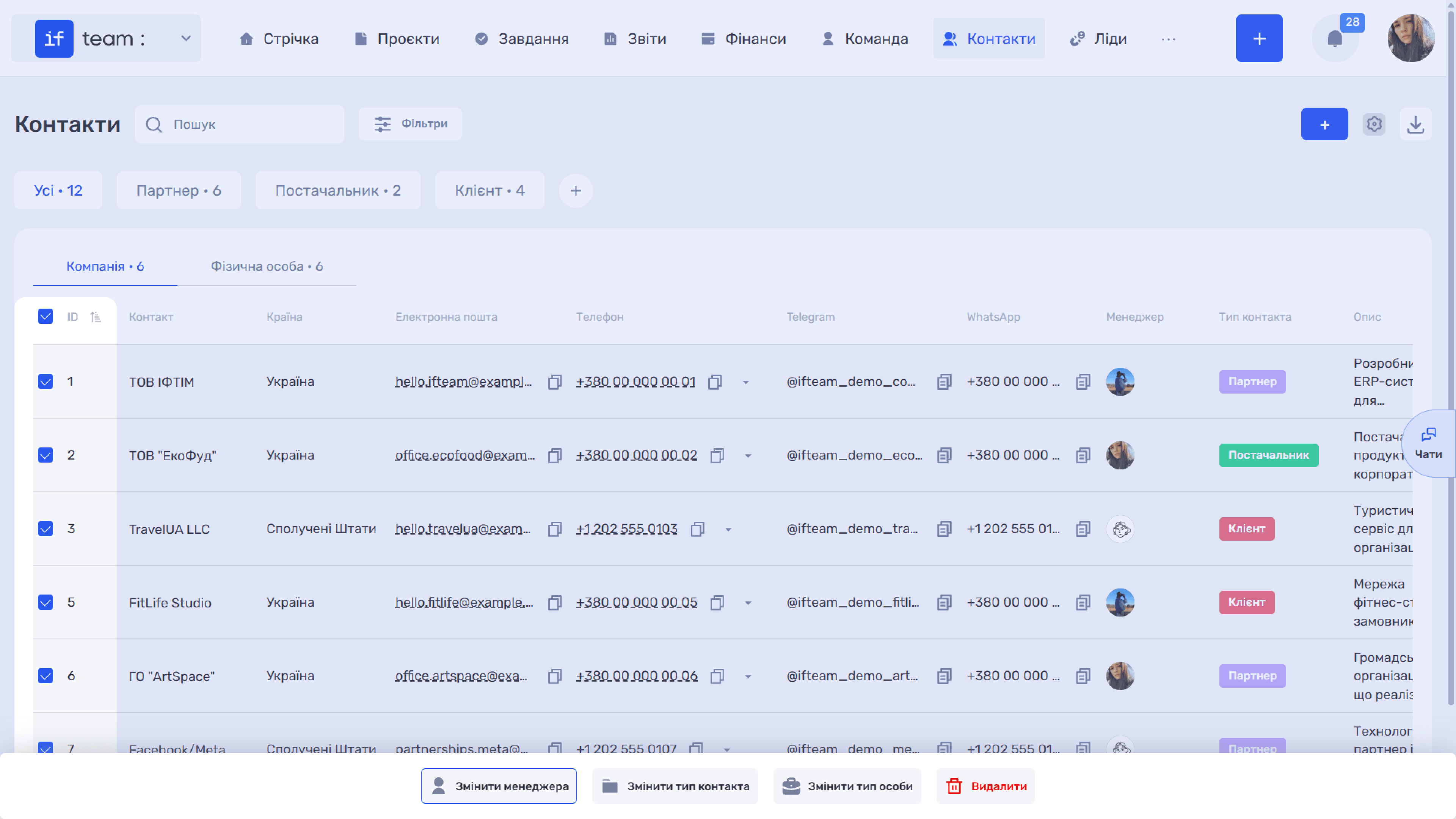
At the top are Search and the Filters button, which lets you filter by contact, contact type, country, email, phone, comment, and manager. On the right are three buttons: + to create a contact, a gear icon to configure table columns, and a download icon with the Download to Excel tooltip.
Two Contact Forms
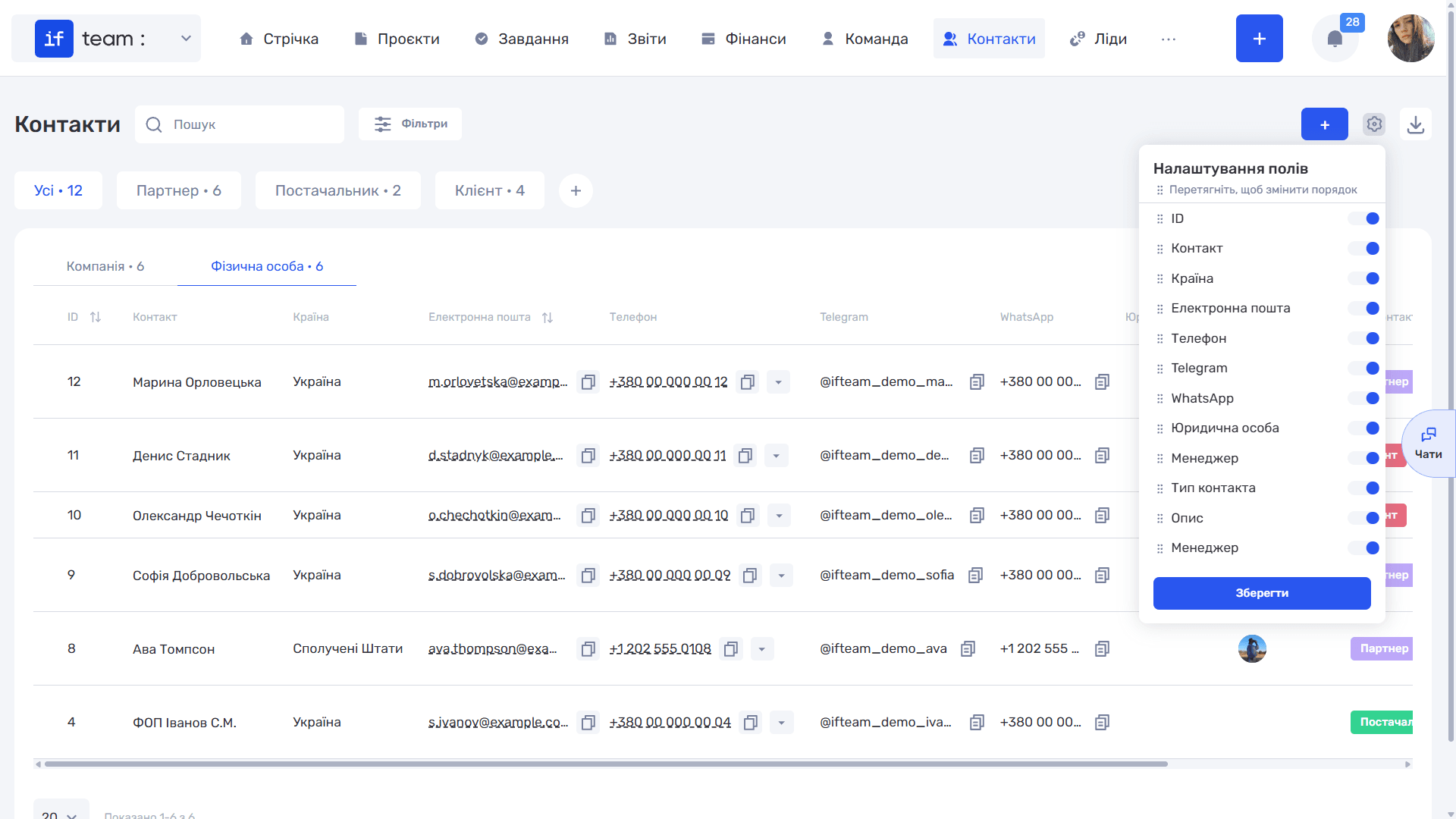
The table is divided into the Company and Individual tabs, each with an entry counter. Their sets of fields differ: a company has a registered address and company registration number, while an individual has a date of birth and personal address.
Individuals can be linked to a company. This is useful when a customer has several contact people. See Contact Card.
Filtering by Contact Type
If at least one type has been created in your company—client, partner, supplier, or another type—a row of tabs appears above the table: All, followed by one tab for each type, with counters. The + button next to them creates a new type without leaving the section. See Contact Types.
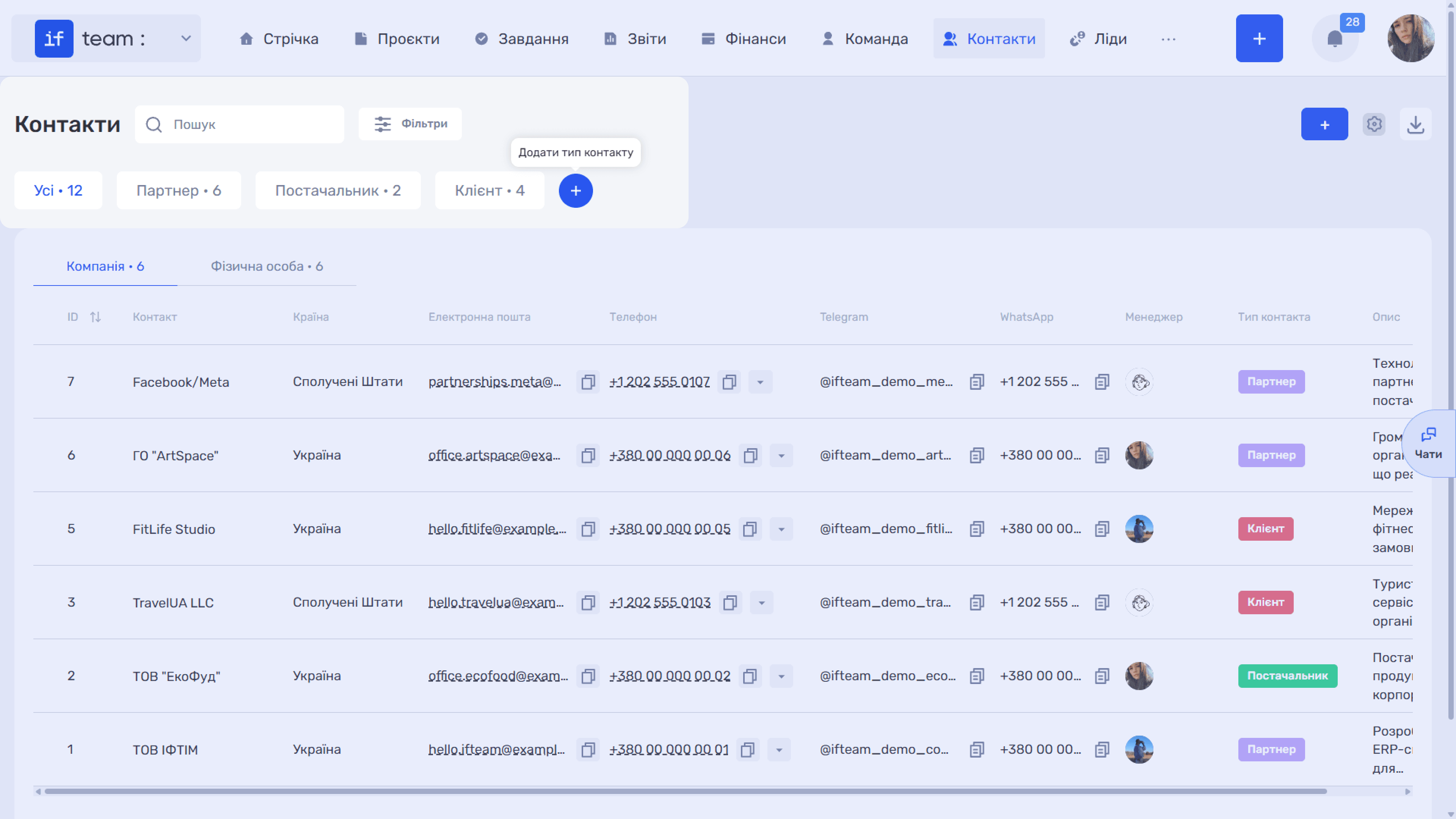
Table Columns
The standard set includes the ID, Contact, Country, Email, Phone, Telegram, WhatsApp, Manager, Contact Type, and Description columns. The Individual tab also includes Legal Entity, which is the company the person is linked to.
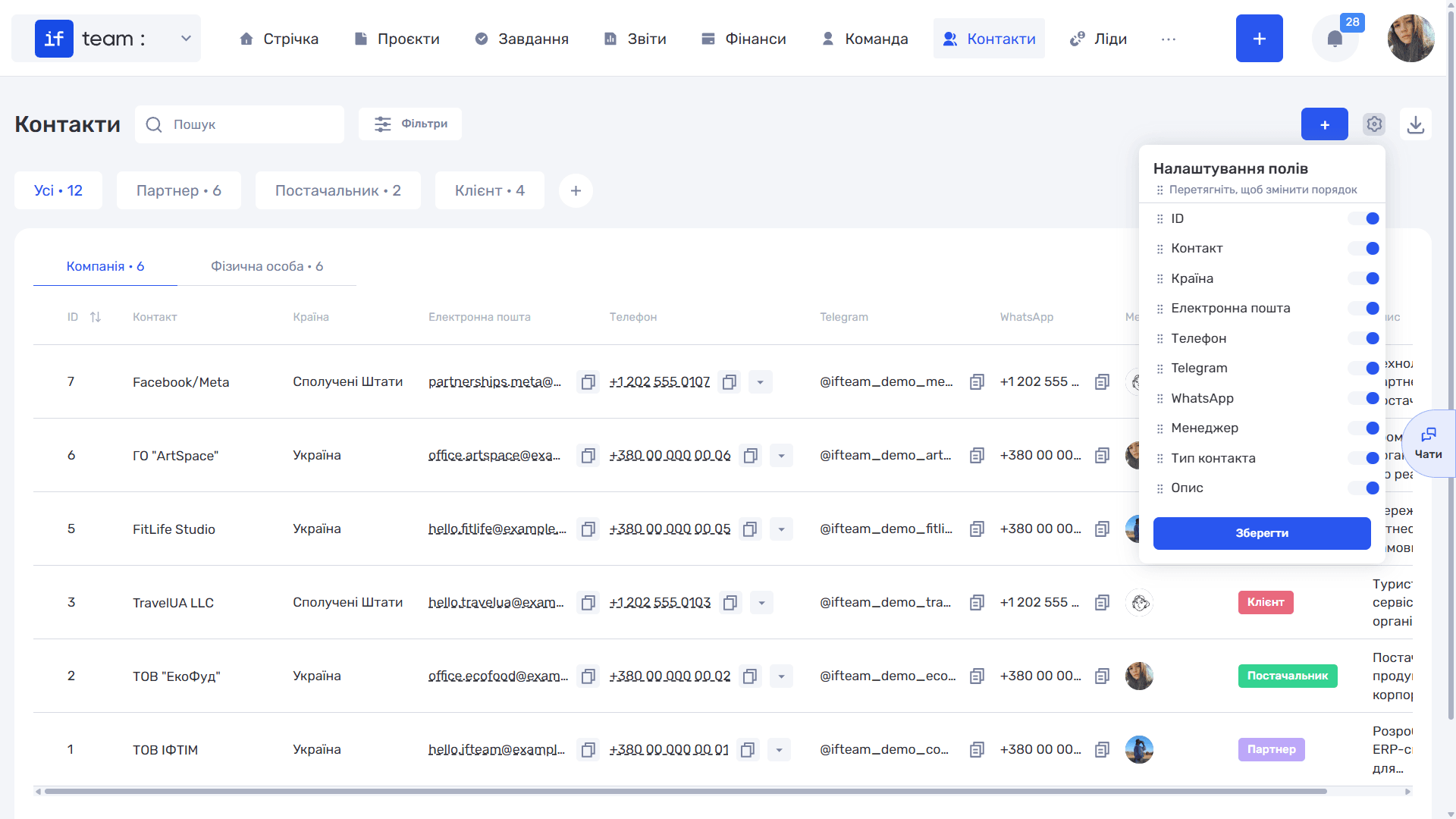
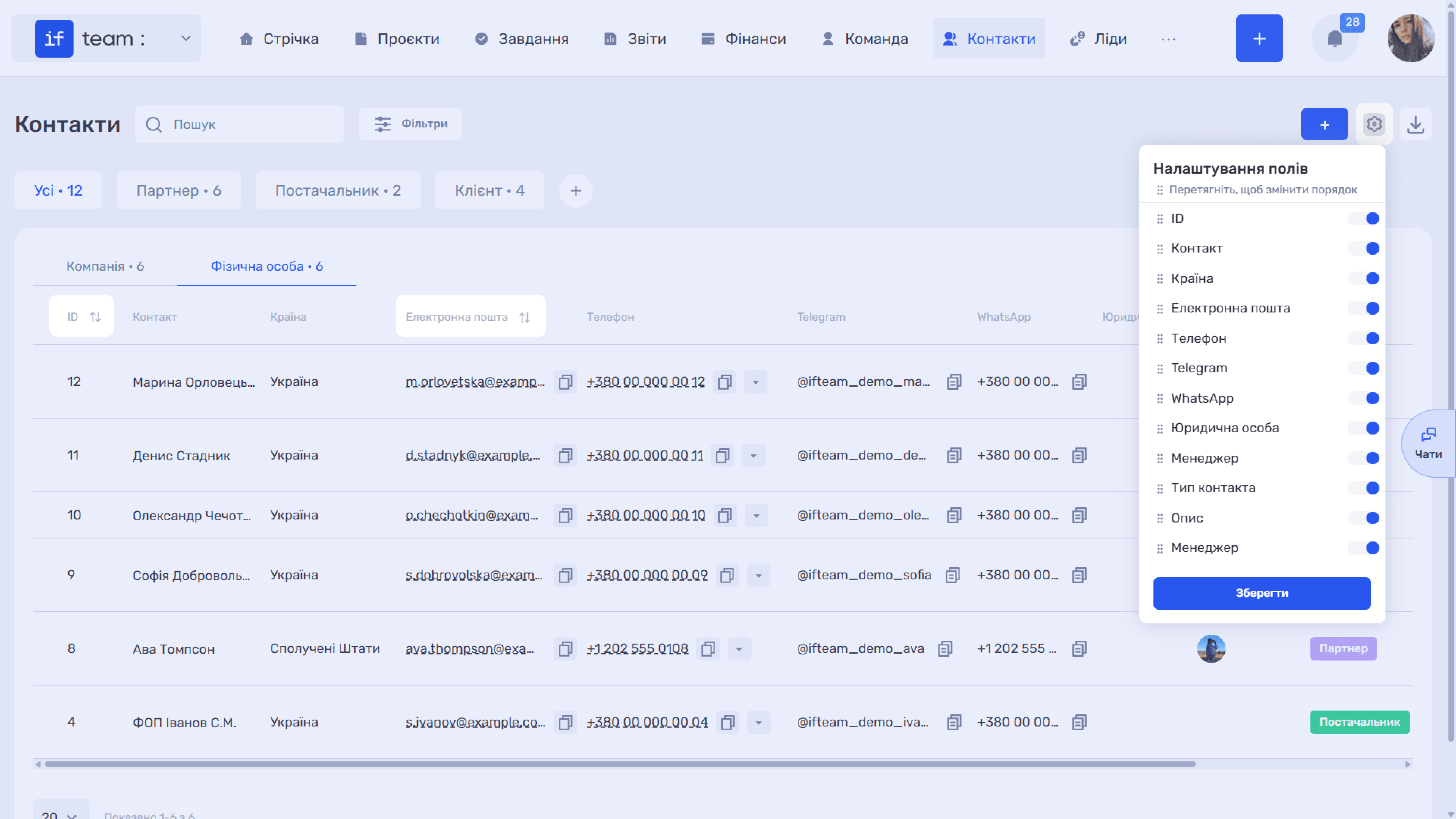
You can sort the list by ID and email using the arrows in the column headings. Configure the set and order of columns using the gear icon. In the Field Settings panel, enable, disable, or drag the required columns, then click Save.
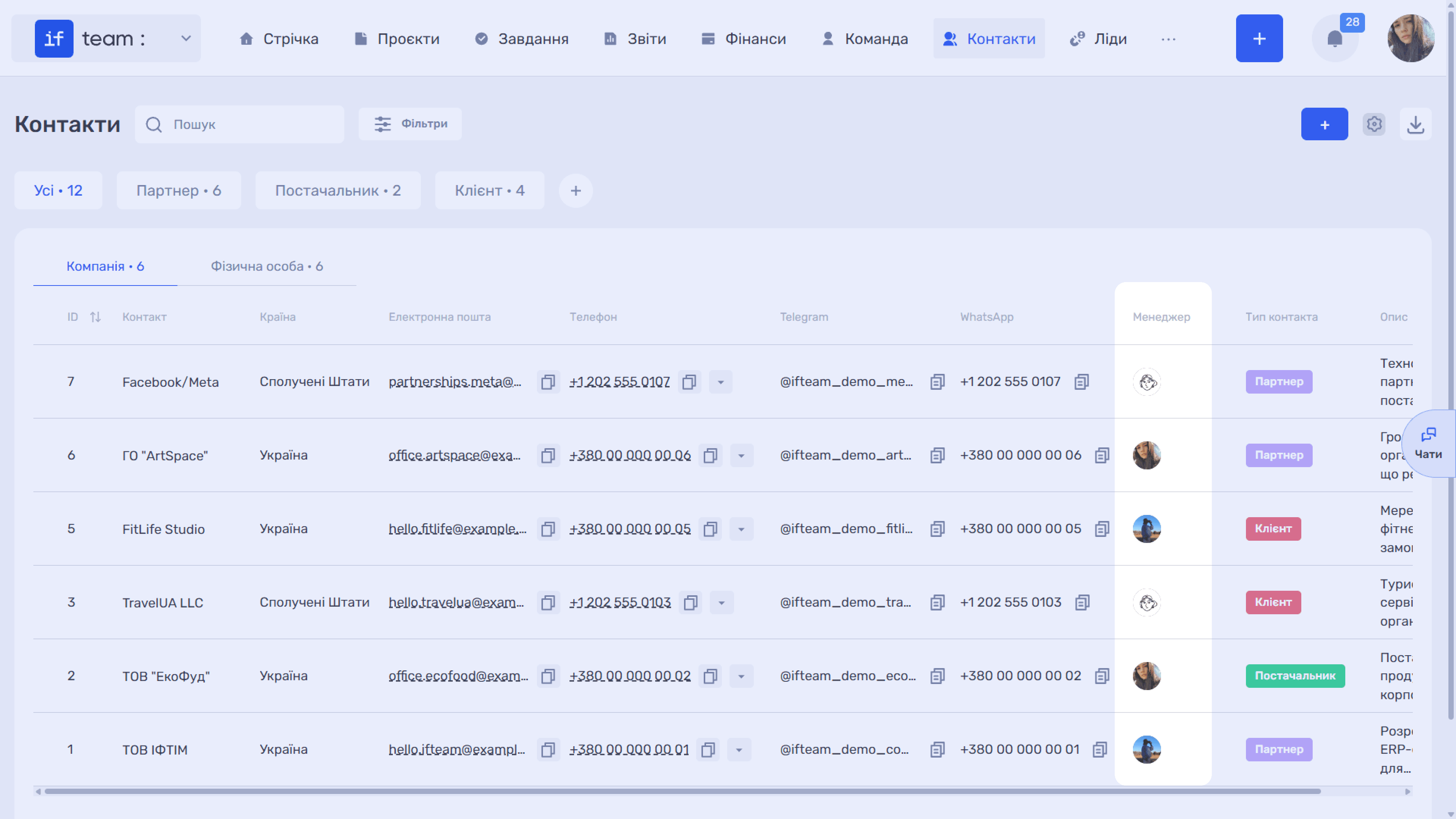
The Contact Manager is the employee responsible for working with this counterparty. In addition to reports and selections, this affects access permissions: in role settings, the Responsible access level for contacts limits viewing and editing to the manager’s own database, while a manager can see all entries. See Team → Access Permissions.
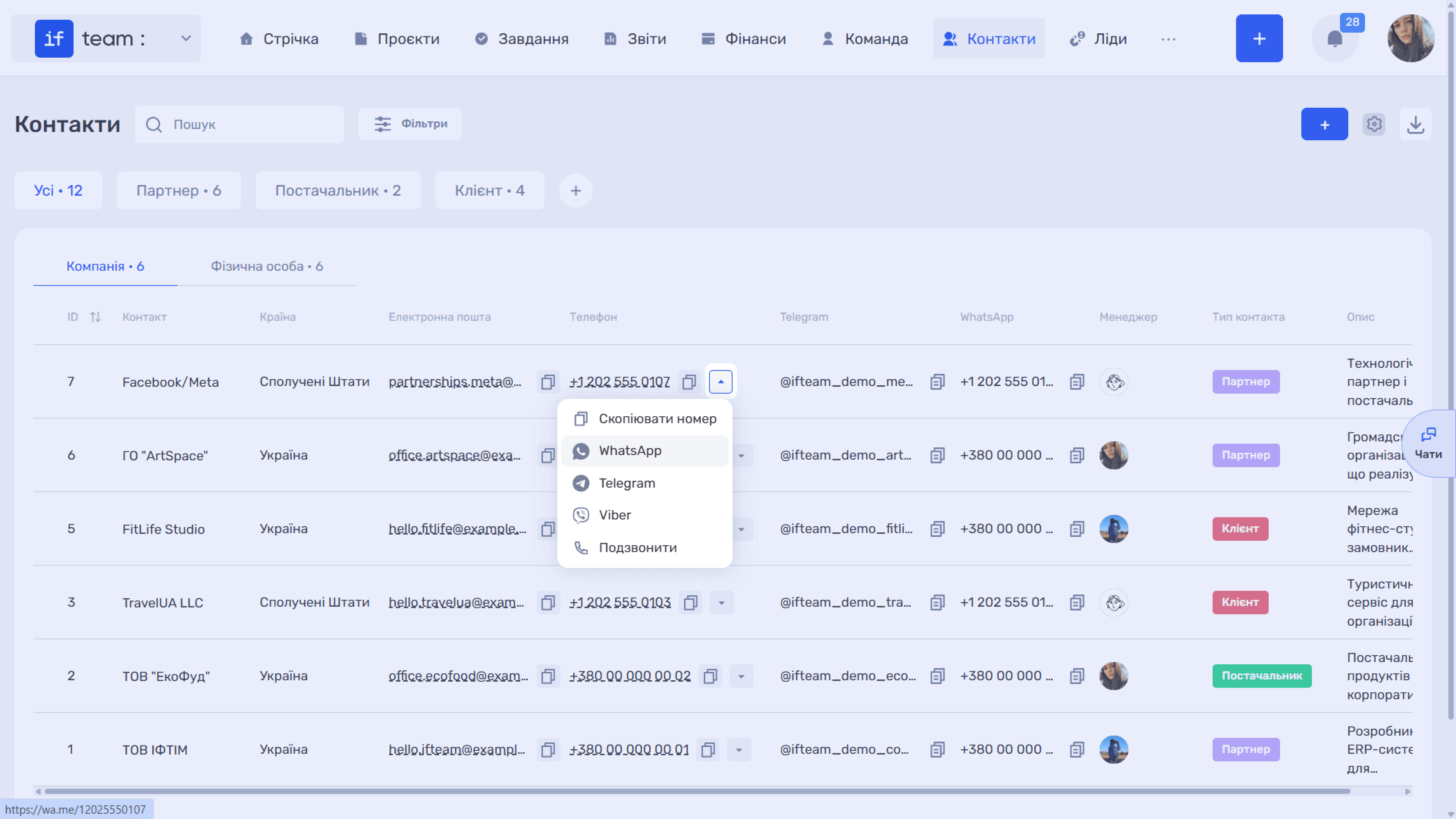
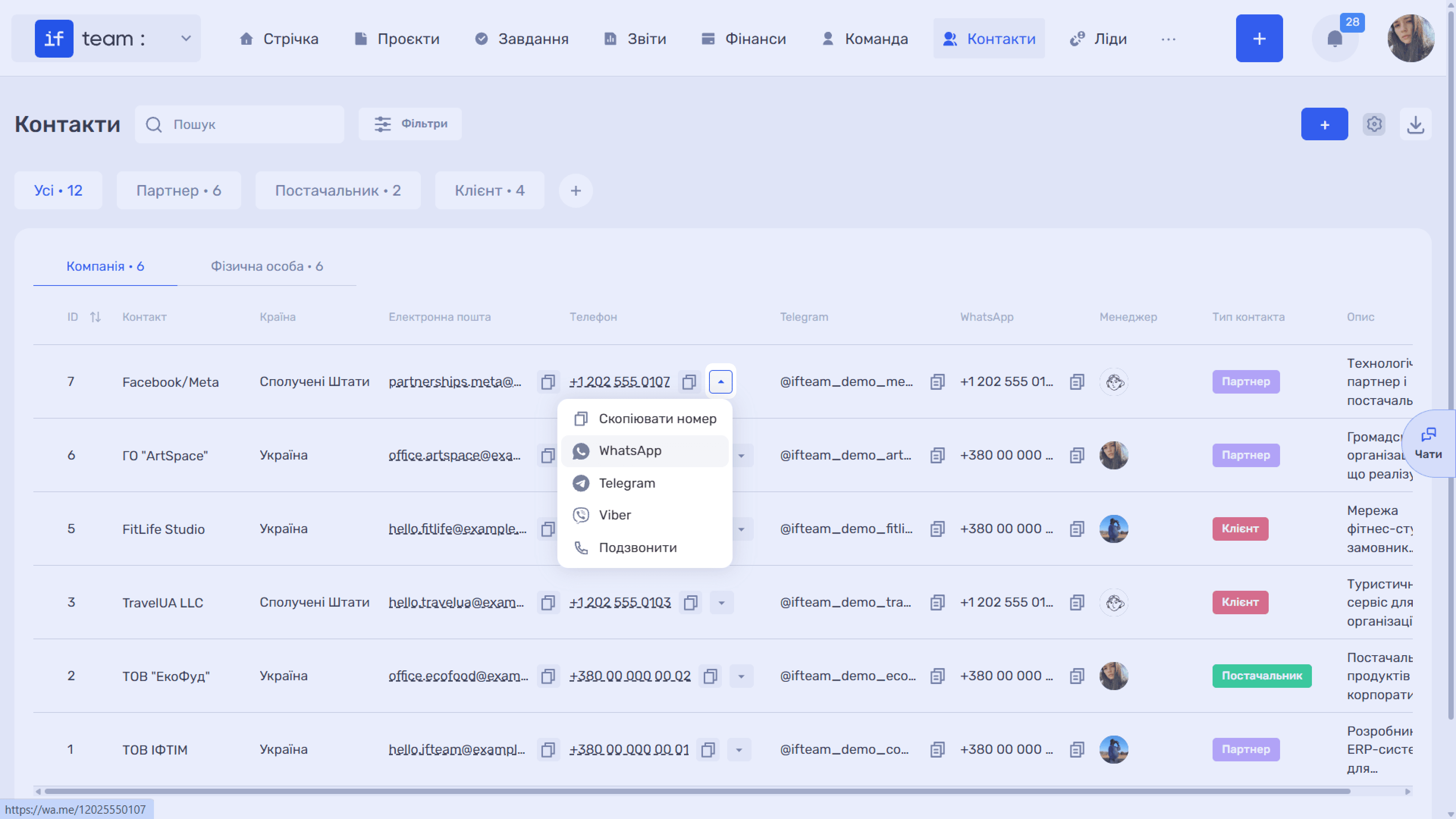
Quick Phone Actions. The arrow next to a phone number opens a menu with Copy Number, WhatsApp, Telegram, Viber, and Call. The same menu is available in the contact card and lead card, so you can contact the person without leaving the system.
Bulk Actions
Select several rows using the checkboxes. A bulk actions panel appears at the bottom, where you can Change Manager, Change Contact Type, Change Person Type (company ↔︎ individual), or Delete the selected entries.
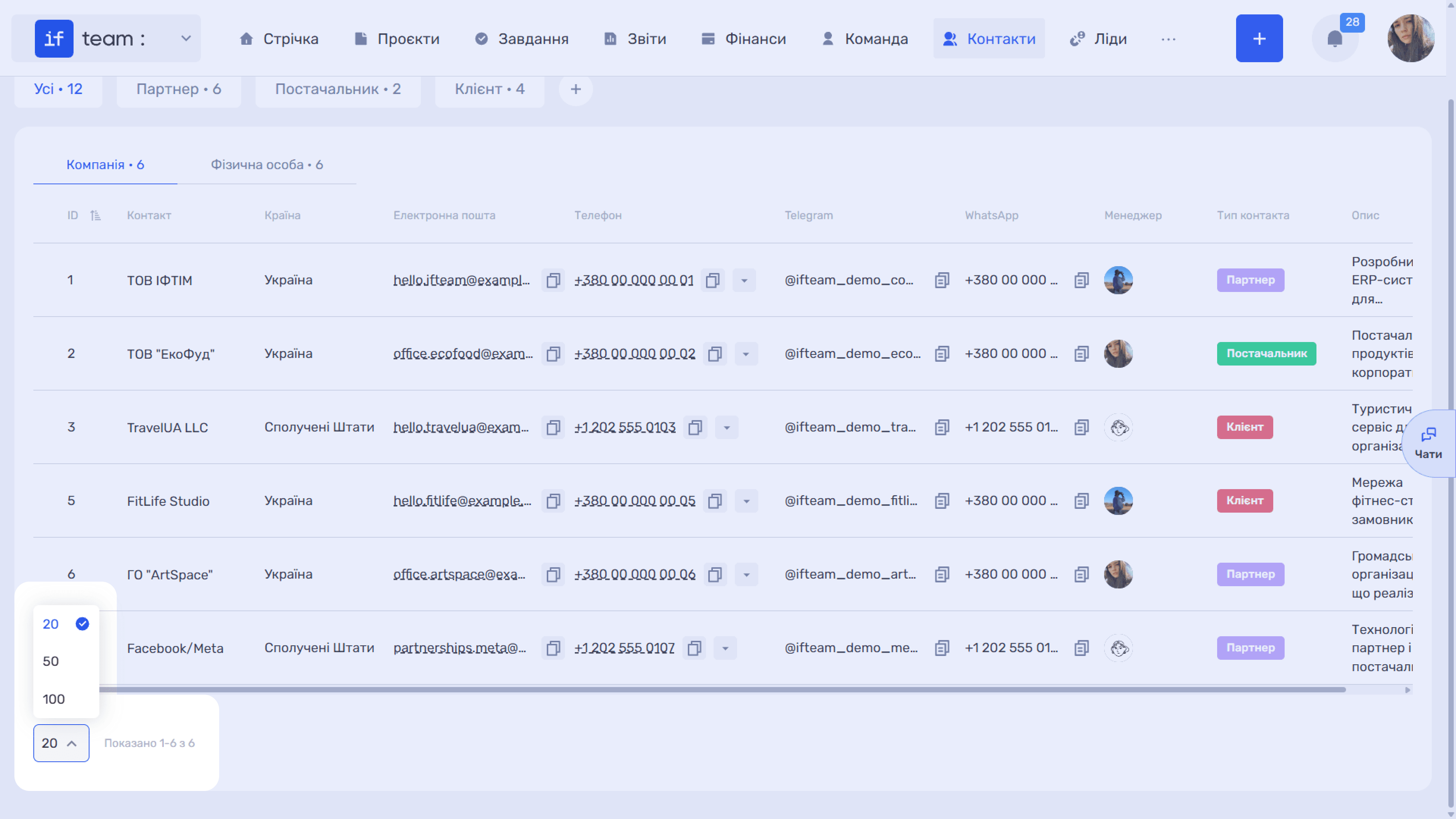
At the bottom of the table, you can select the number of entries per page and see a counter of the displayed contacts.
Still have questions?
Maybe we haven't added this information yet. But you can always reach out:
Request a demo
Submit a request and we'll show you how the service works and its capabilities.
Book a demo