Contact Card
Click a contact’s name in the table to open their card, which contains all information about the counterparty and the history of your work with them.
Card Header
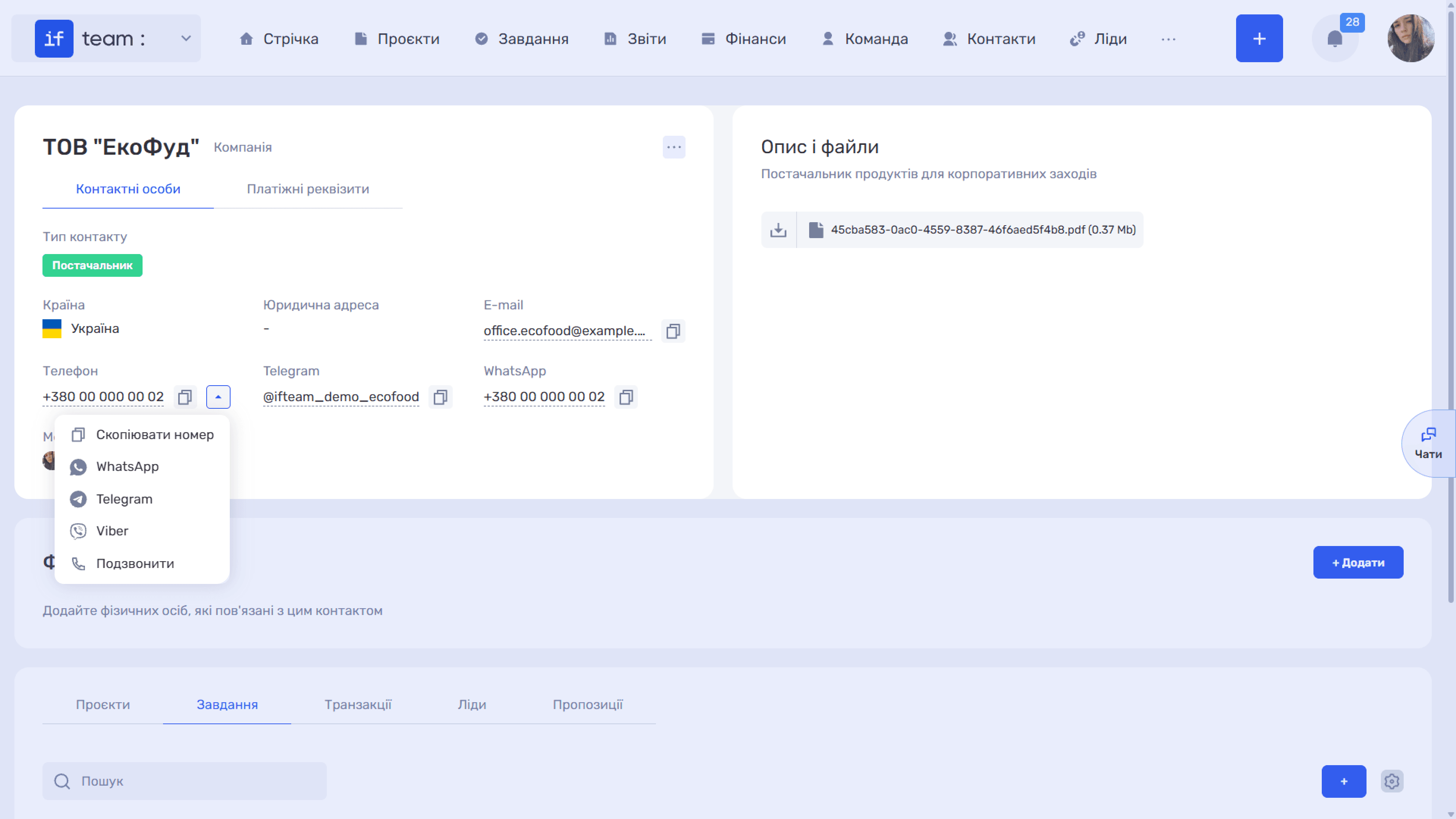
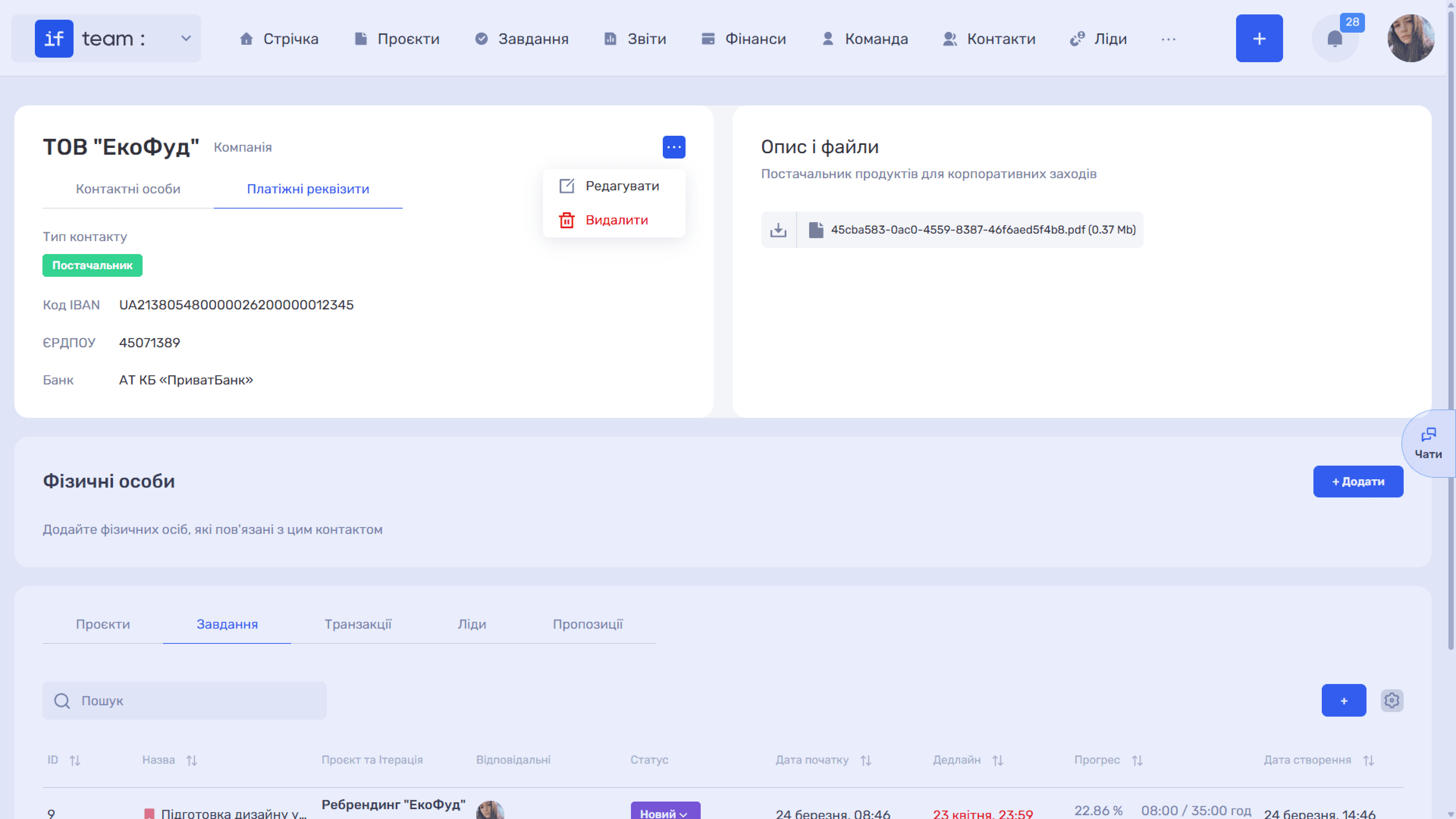
The header contains the contact name, the person type—“Company” or “Individual”—and colored contact-type labels. The “…” button on the right opens “Edit” and “Delete.”
Below the card name are two tabs: “Contact Persons” with the main details—Country, Registered Address, Email, Phone, and Manager—and “Payment Details” with IBAN, EDRPOU company code, and Bank. Copy icons appear next to the email and phone, while the arrow next to the number opens quick actions: “Copy Number,” WhatsApp, Telegram, Viber, and “Call.”
On the right is “Description and Files,” containing the contact description and attached documents.
“Individuals” Section
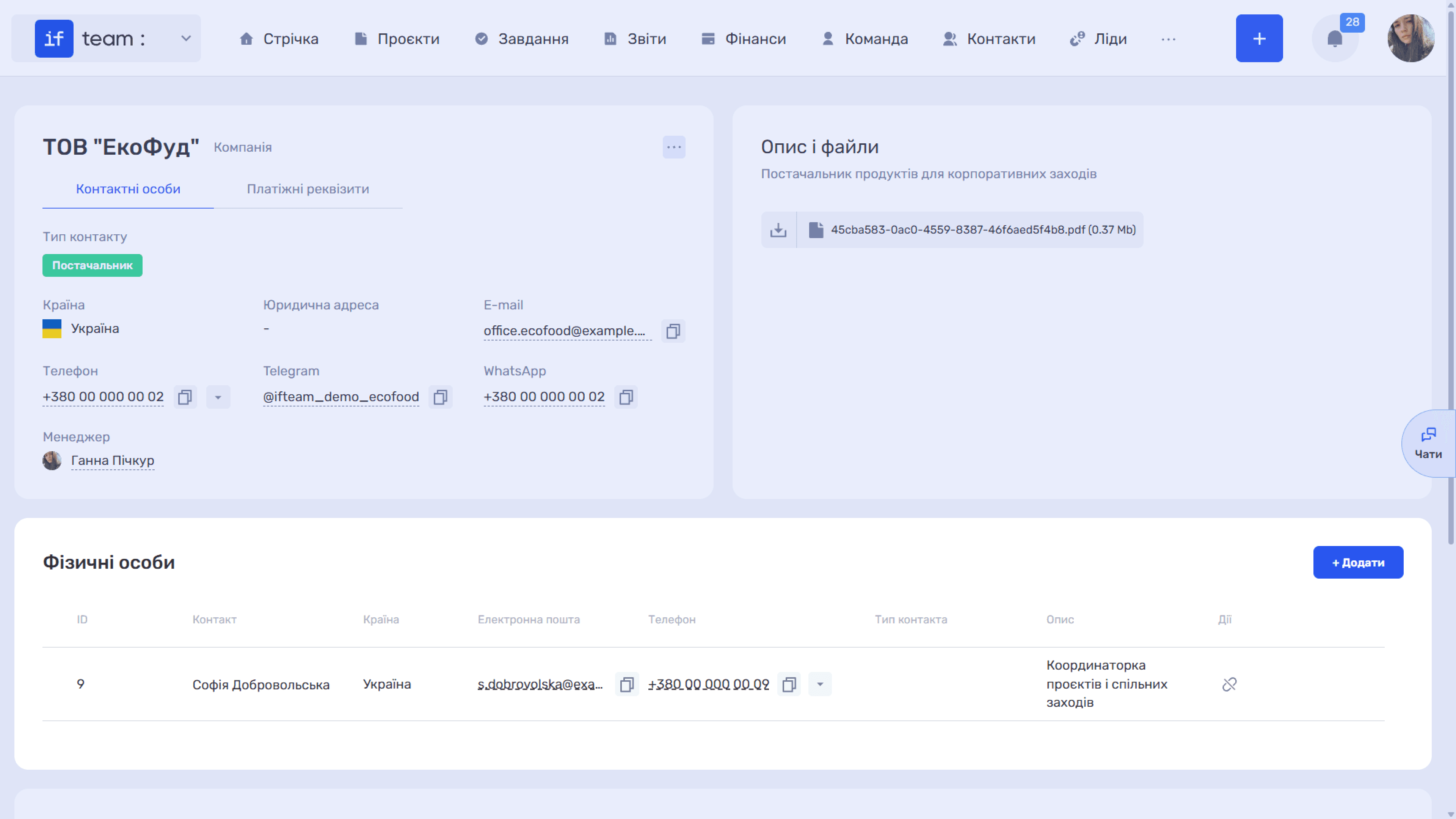
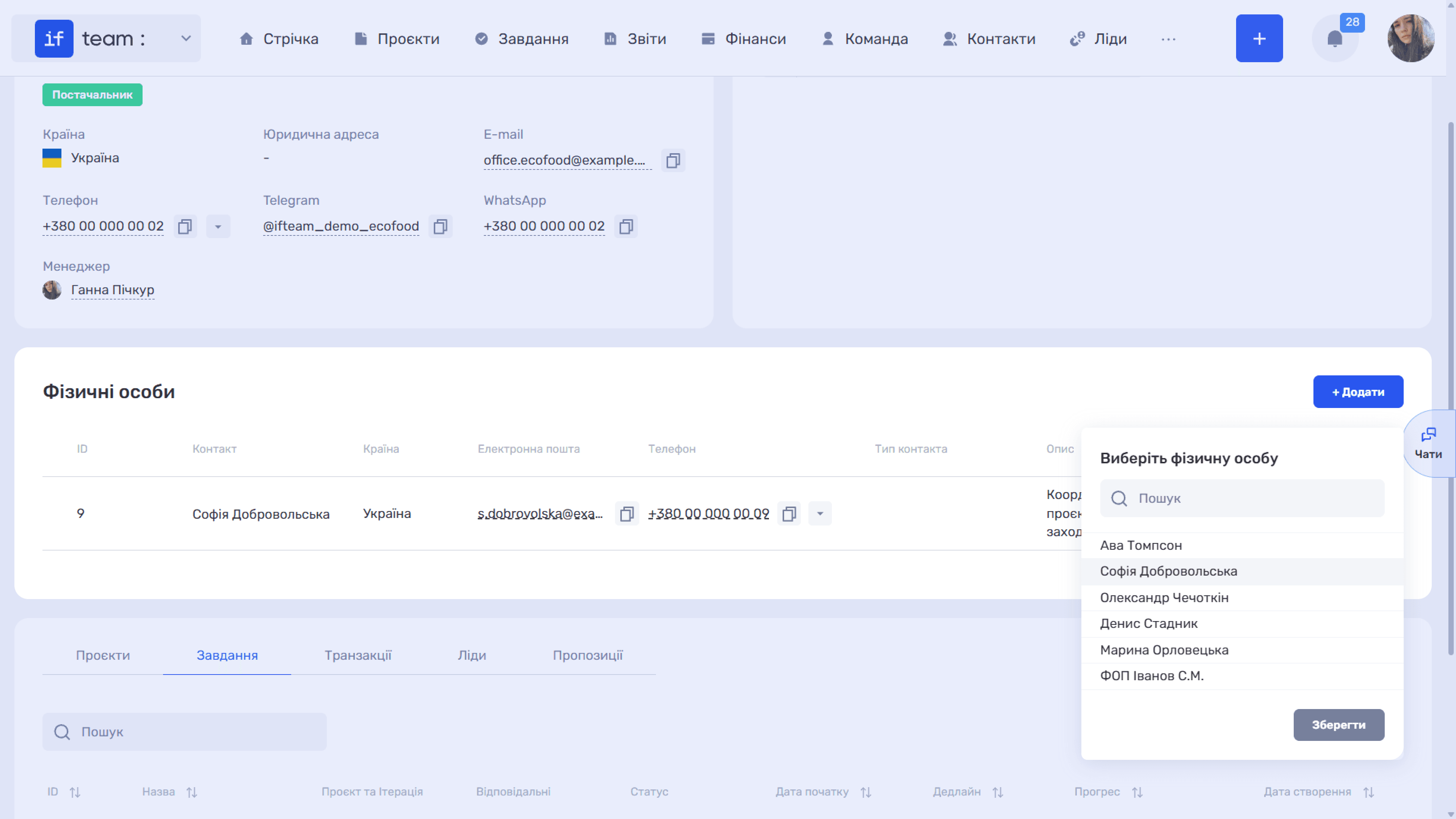
This section appears only on a company card. It lists people linked to the counterparty, which is useful when the client organization has several contact persons.
The “+ Add” button opens the familiar “Add Contact” window, where a new record is created already linked to this company.
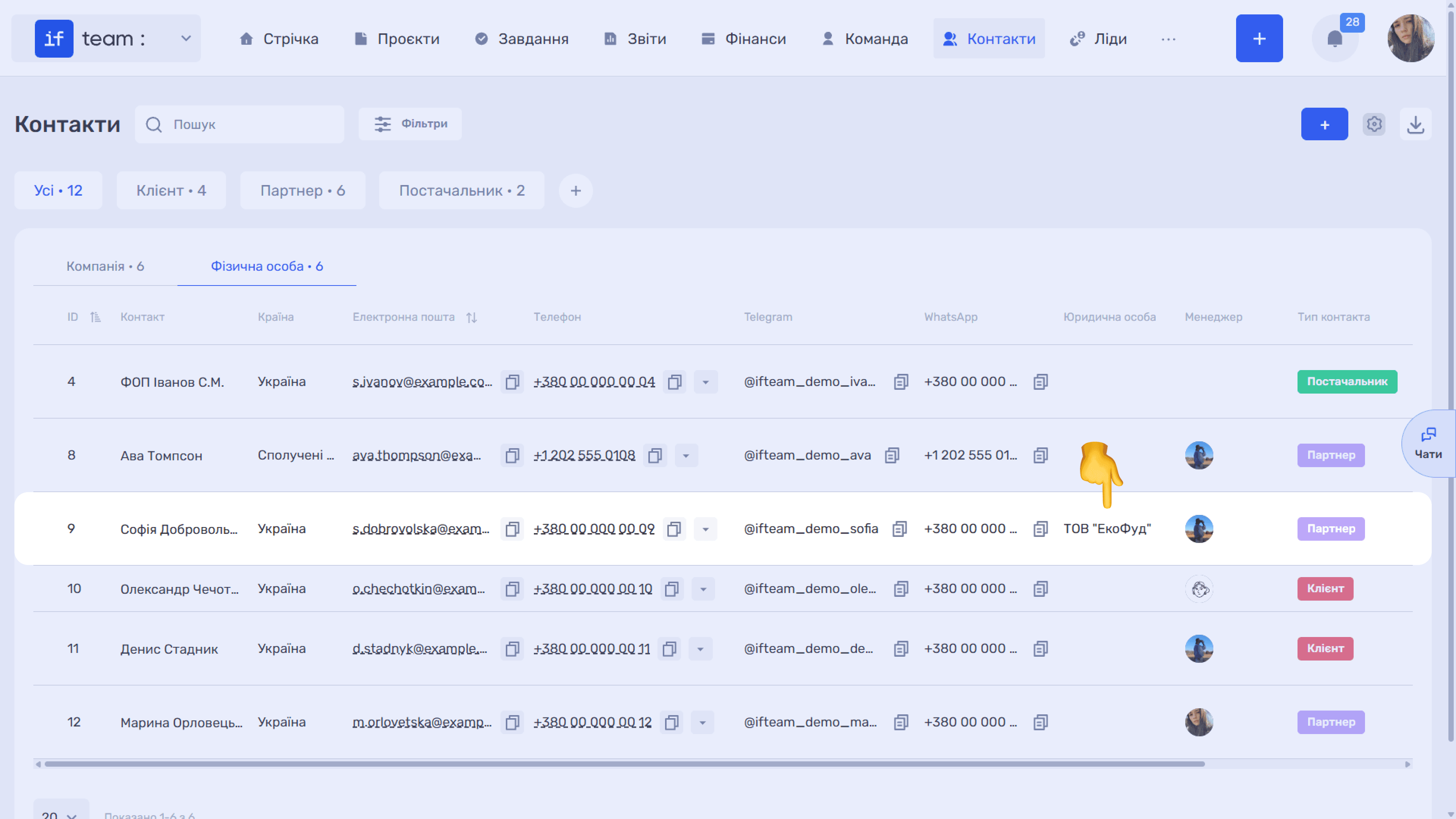
In the section table, this person appears on the “Individual” tab, with the company shown in the “Legal Entity” column.
Related-Record Tabs
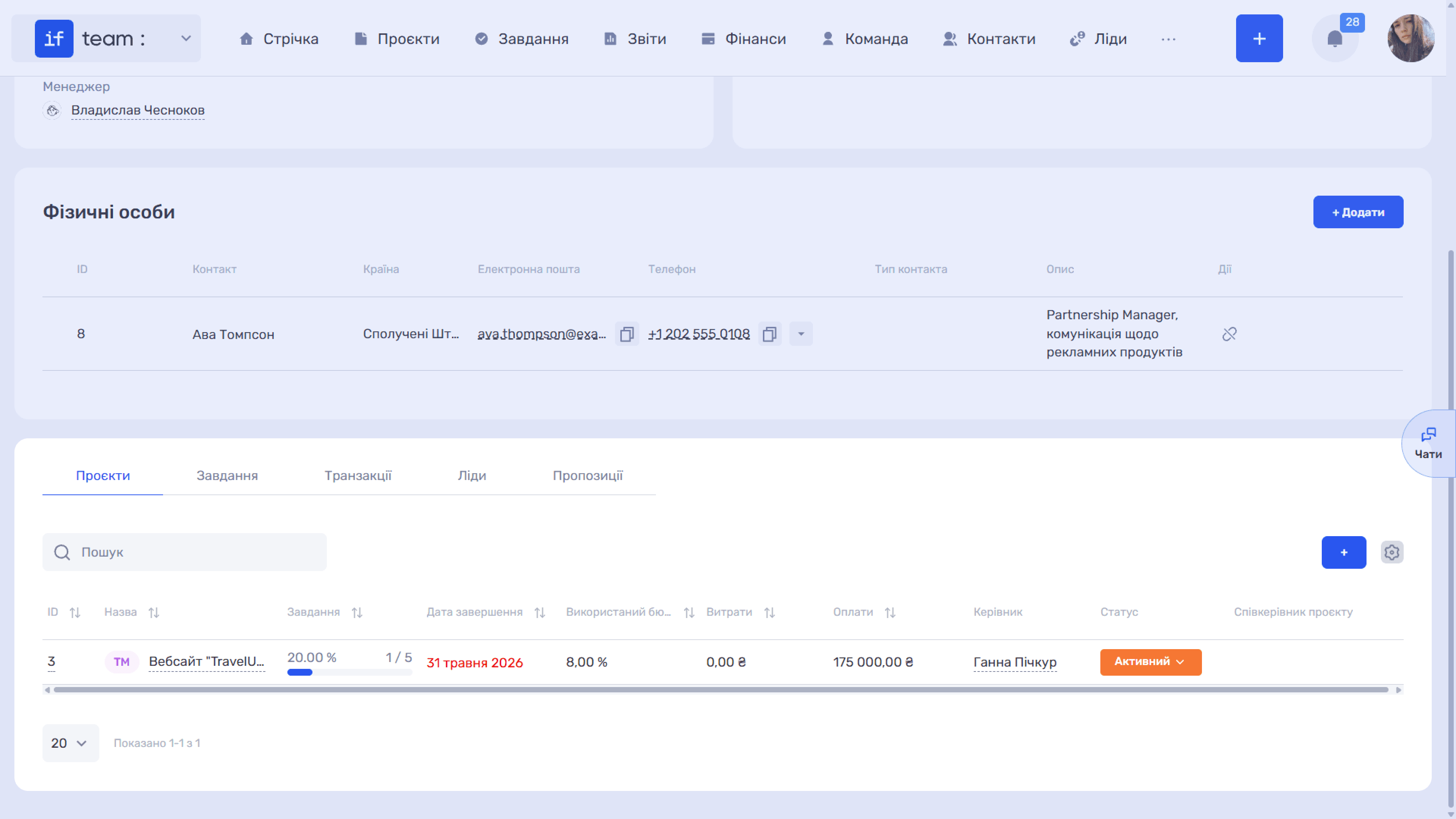
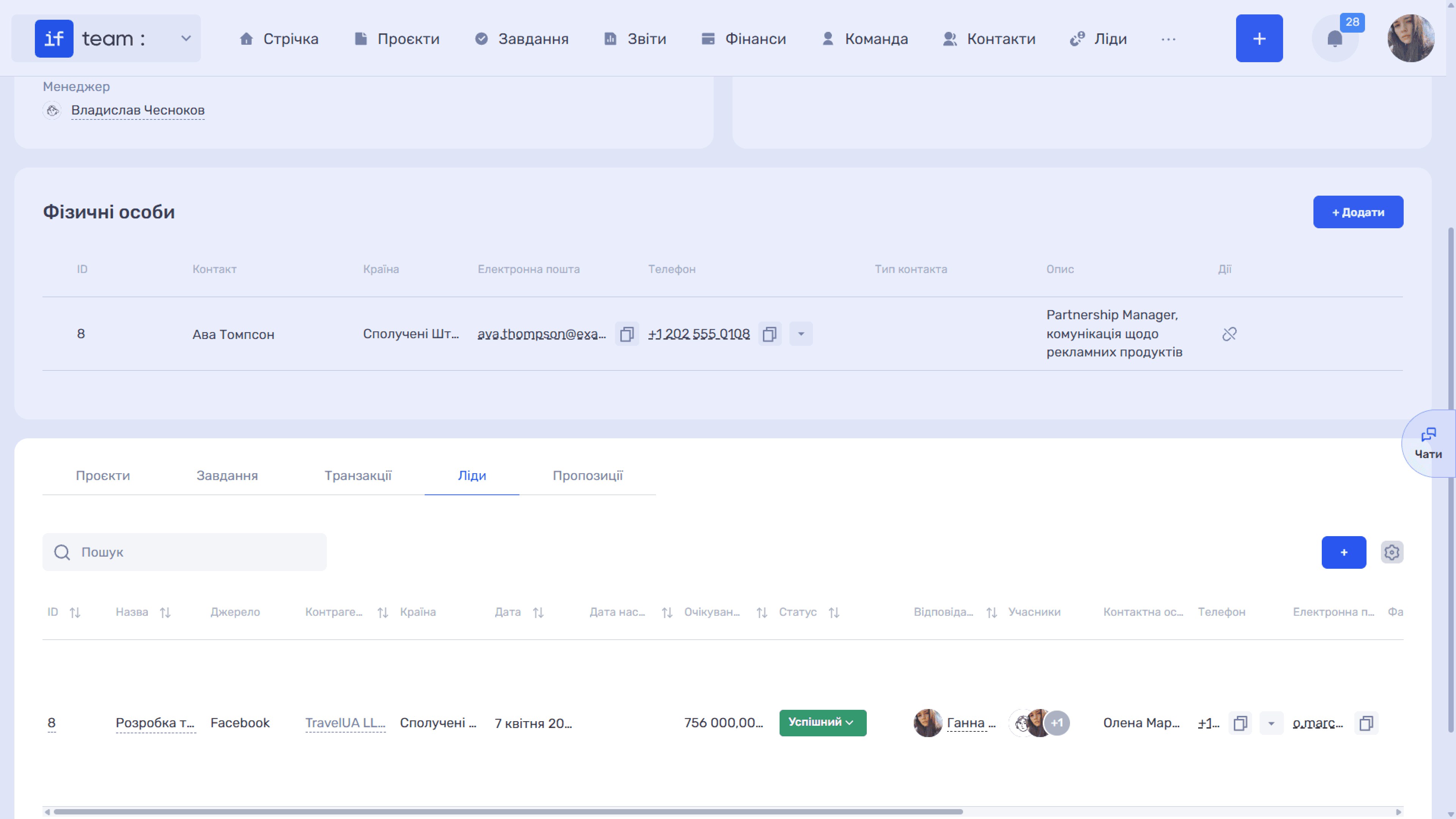
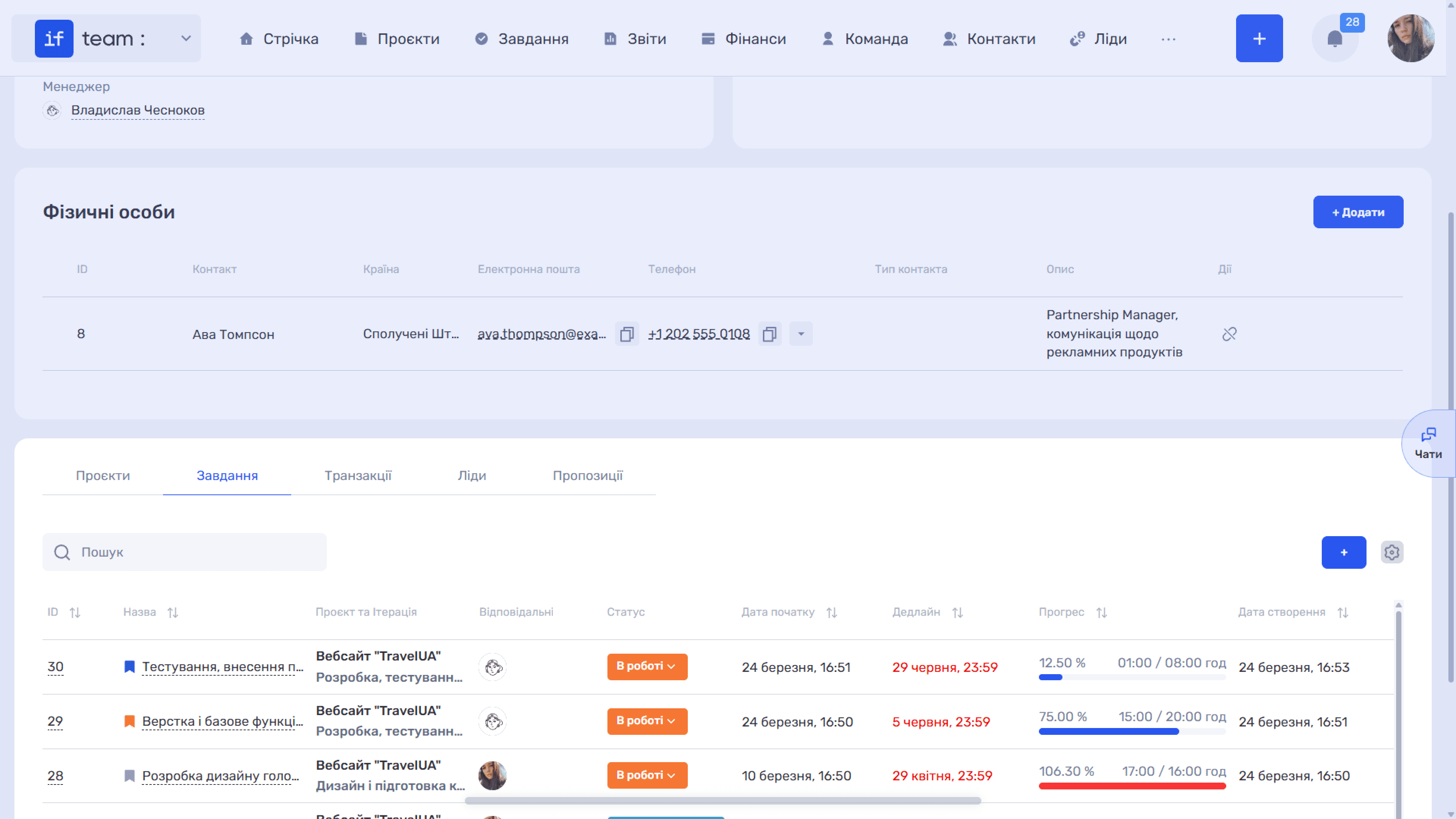
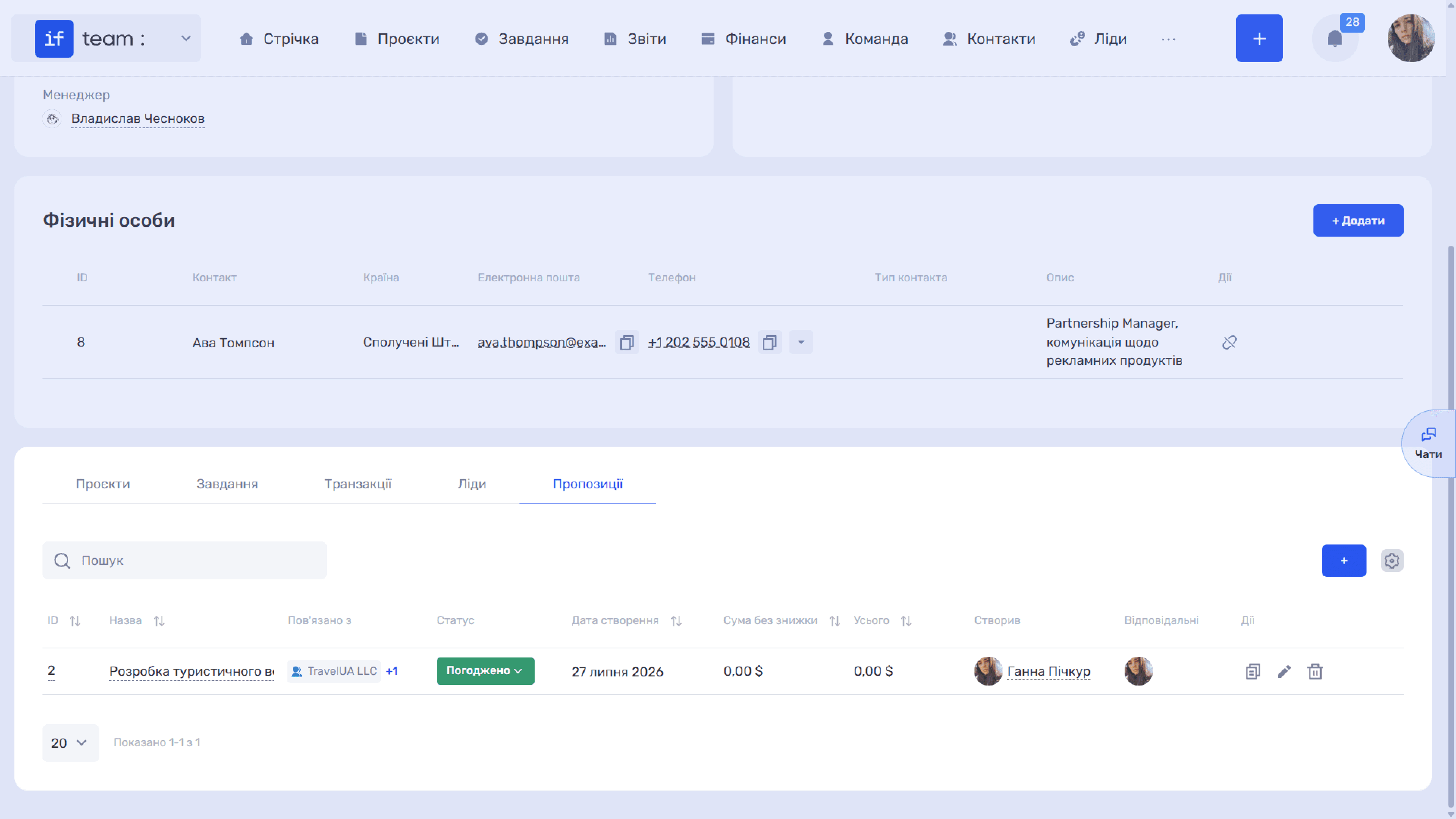
The bottom of the card contains everything related to the contact: “Projects,” “Tasks,” “Transactions,” “Leads,” and “Quote.” Each tab is a separate table with search, a “+” button for creating a record directly from the card, and a gear icon for configuring columns using the same “Field Settings” mechanism as in the contact list.
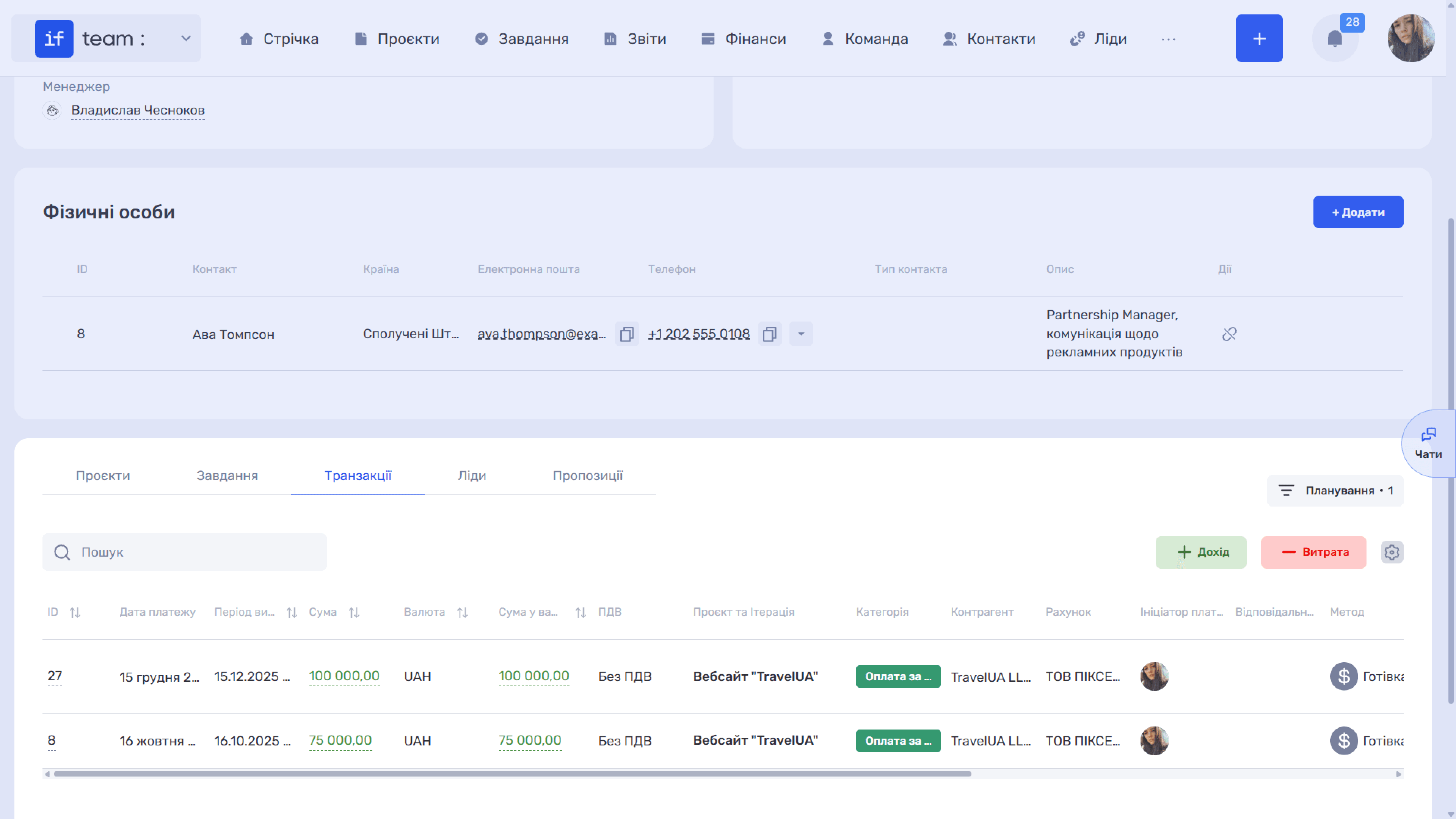
The “Transactions” tab has two creation buttons instead of one—“+ Income” and “− Expense”—as well as a “Planning” switch for planned payments.
Contacts in Other Sections
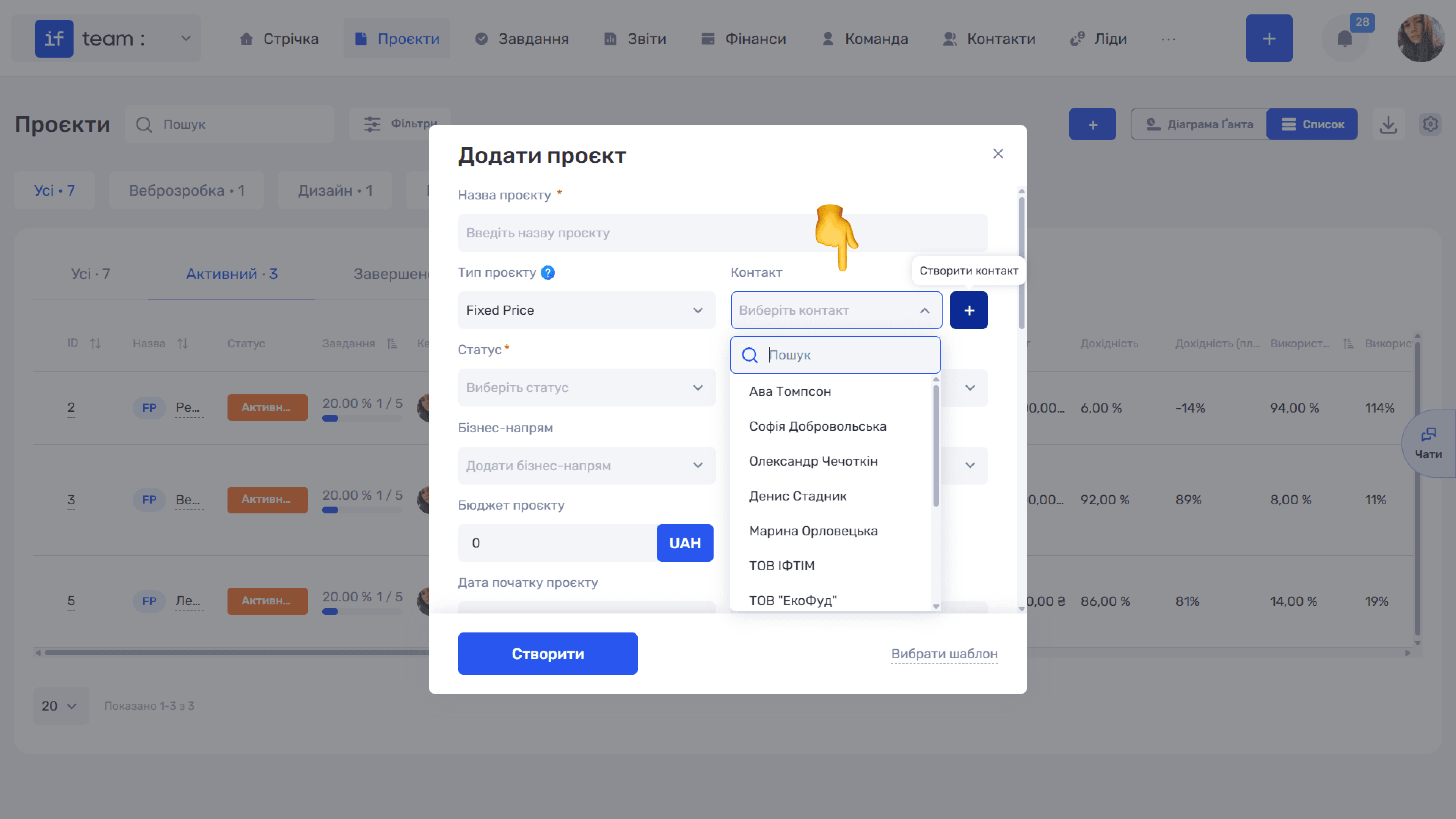
You can attach a counterparty to a project, lead, or transaction using the searchable “Contact” field. If the required record does not yet exist, click the adjacent “+” to open the contact creation form.
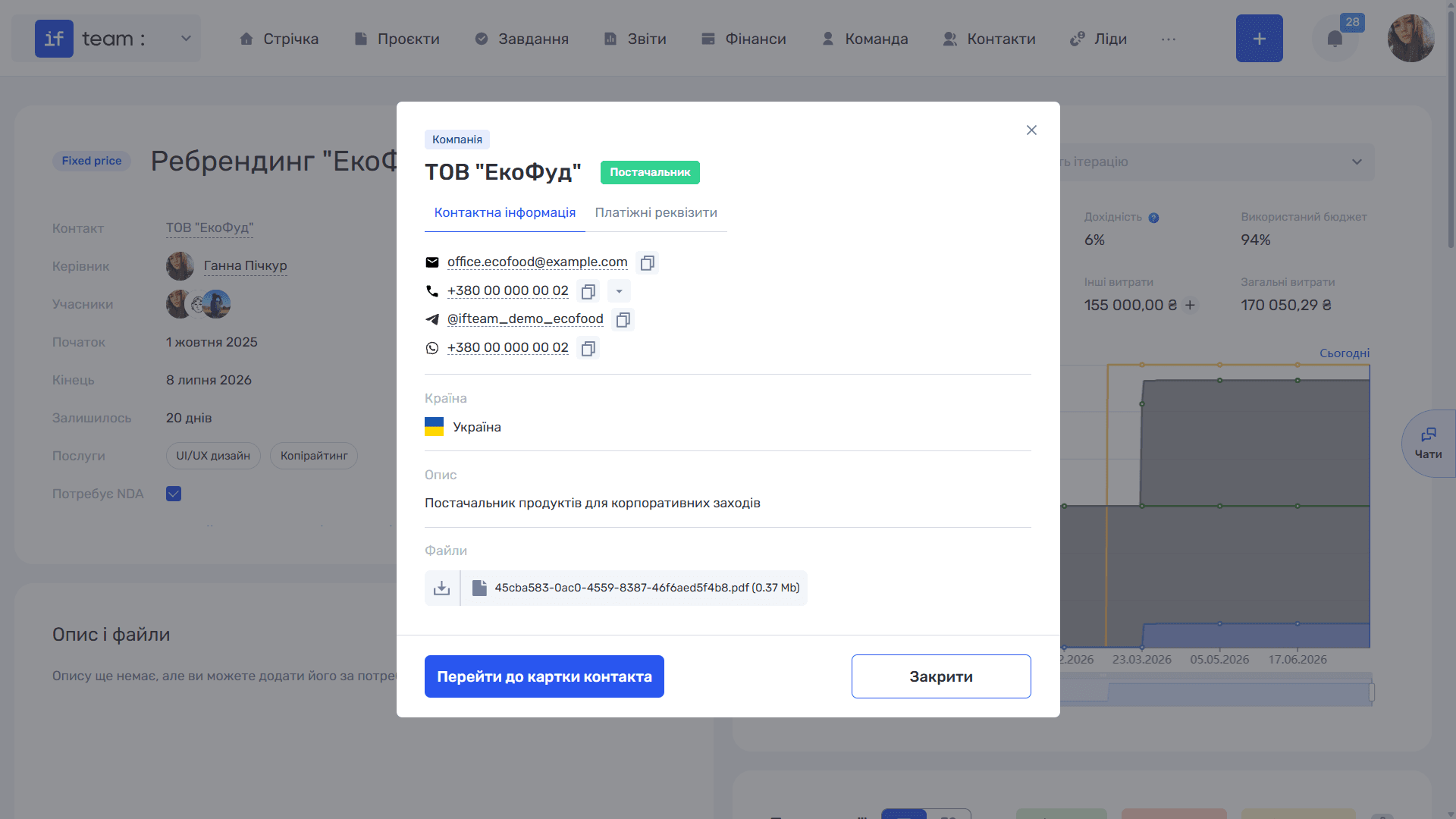
Click an attached contact’s name to open a compact pop-up showing the person type and contact type, email and phone with quick actions, country, description, files, and custom-field values. “Go to Contact Card” opens the full card, while “Close” returns you to your work.
Still have questions?
Maybe we haven't added this information yet. But you can always reach out:
Request a demo
Submit a request and we'll show you how the service works and its capabilities.
Book a demo