Adding a Contact
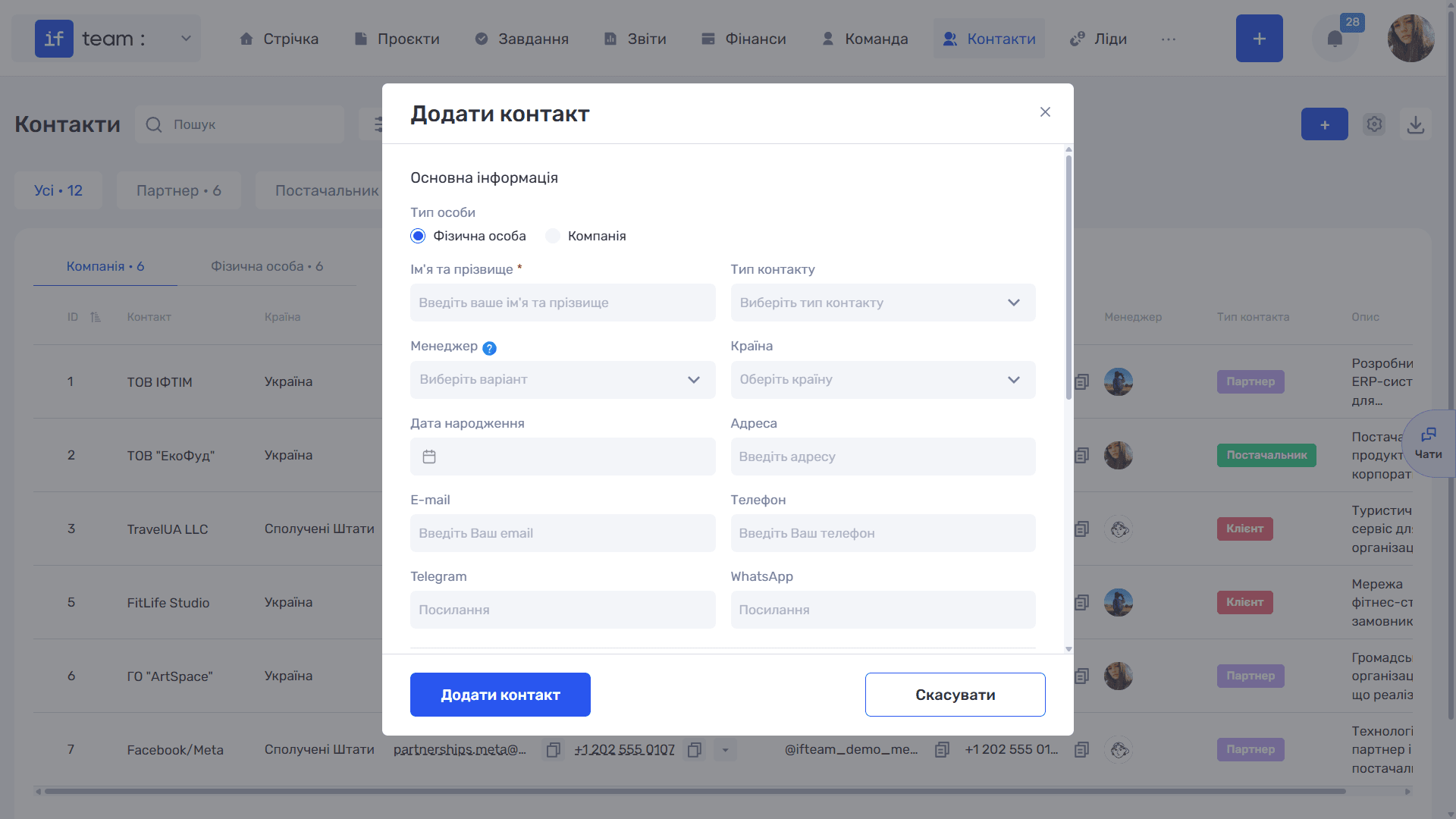
To create a contact, click “+” in the upper-right corner of the section. The “Add Contact” window will open.
Step 1. Person type. The “Individual” / “Company” switch determines which fields appear next, so select the type first.
Step 2. Basic information.
- Name for a company, or First and Last Name for an individual, is the only required field.
- Contact Type can be client, partner, supplier, and so on. You can select several types.
- Manager is the employee responsible for the contact.
- Country.
- Creation Date and Registered Address are available for a company.
- Date of Birth and Address are available for an individual.
- Email, Phone, Telegram, and WhatsApp. Enter links for messaging apps.
Step 3. Payment details. Expand this section using the arrow. It contains IBAN, EDRPOU company code, and Bank. These details are populated when working with transactions and documents.
Step 4. Additional fields. “+ Add Additional Field” adds an existing custom field to the card, while “+ Create Additional Field” creates a new one immediately; see Custom Fields for Contacts.
Step 5. Description and files. At the bottom are a text editor for the description, with formatting, lists, links, and images, and a “+ Upload File” area for contracts, payment details, or briefs.
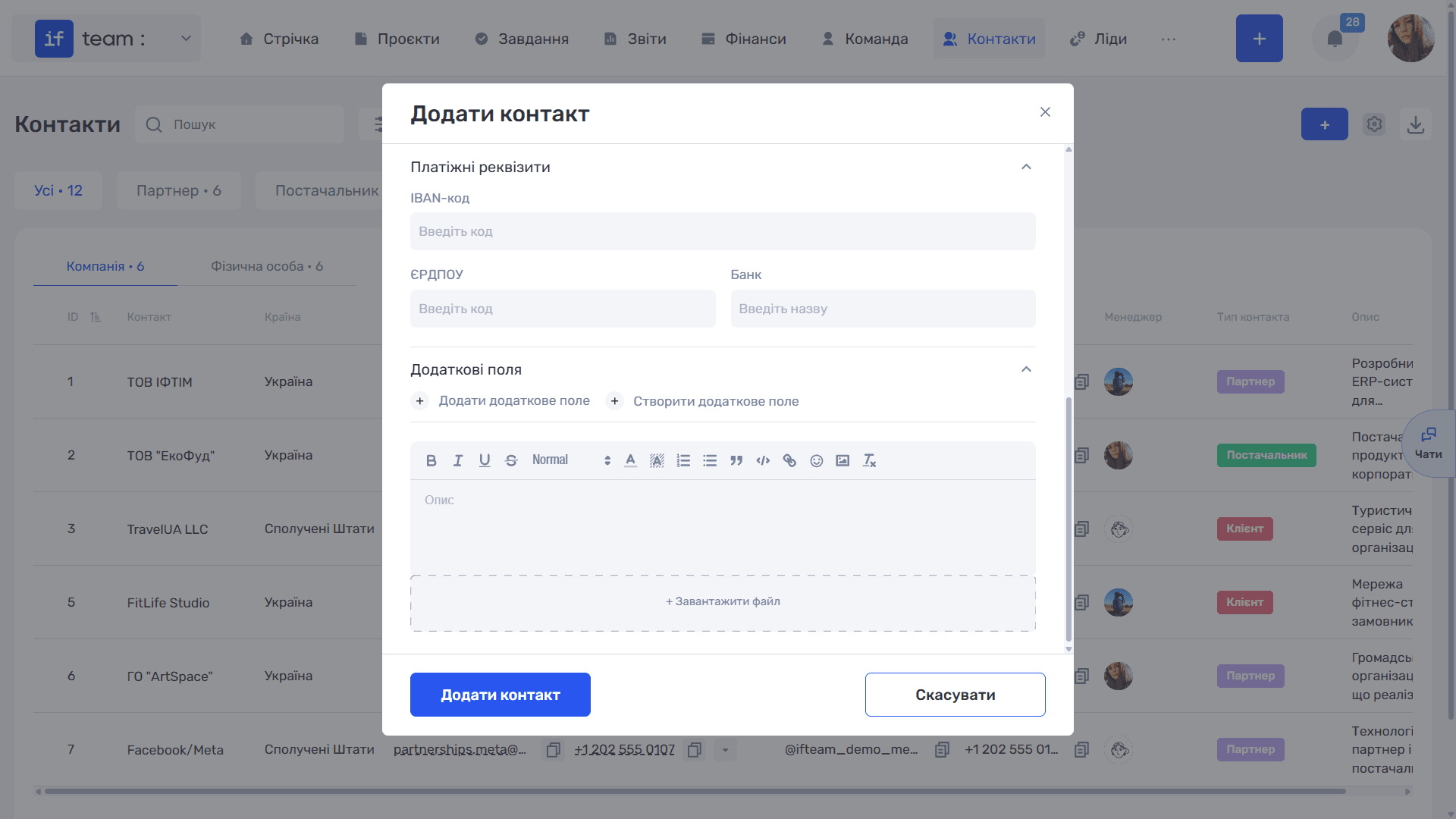
After completing the form, click “Add Contact.”
Editing and Deleting
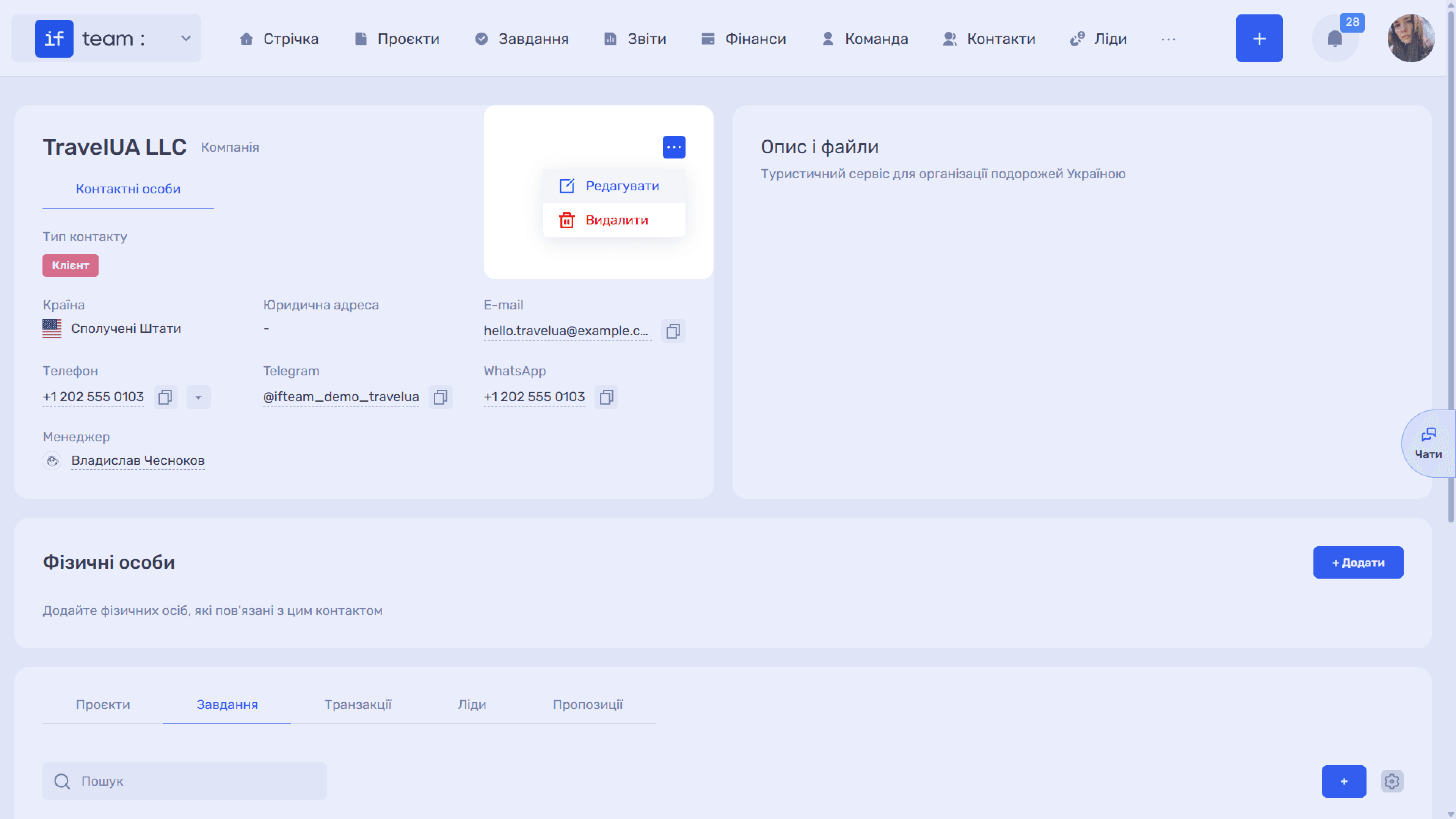
Open the contact card and click “…” to the right of the name. “Edit” opens the same window with its fields, while “Delete” removes the contact from the database.
Please note
A contact is not a system user. A contact you create is a record in the database and does not receive access to if.team. If a client needs to view project and task progress and post comments, invite them as a user: go to “Team” → “Invite Employee” and assign a separate role with restricted permissions, such as access to view only their own projects and tasks.
For information about configuring such a role, see Access Permissions.
Still have questions?
Maybe we haven't added this information yet. But you can always reach out:
Request a demo
Submit a request and we'll show you how the service works and its capabilities.
Book a demo