
Group chats and notification settings in if.team
Not every discussion belongs to a single project or the whole company. You can now create your own group chat in if.team for a department, a temporary group, or a specific topic. And to keep new discussions from turning into unnecessary notifications, we added a choice of channels and message types.
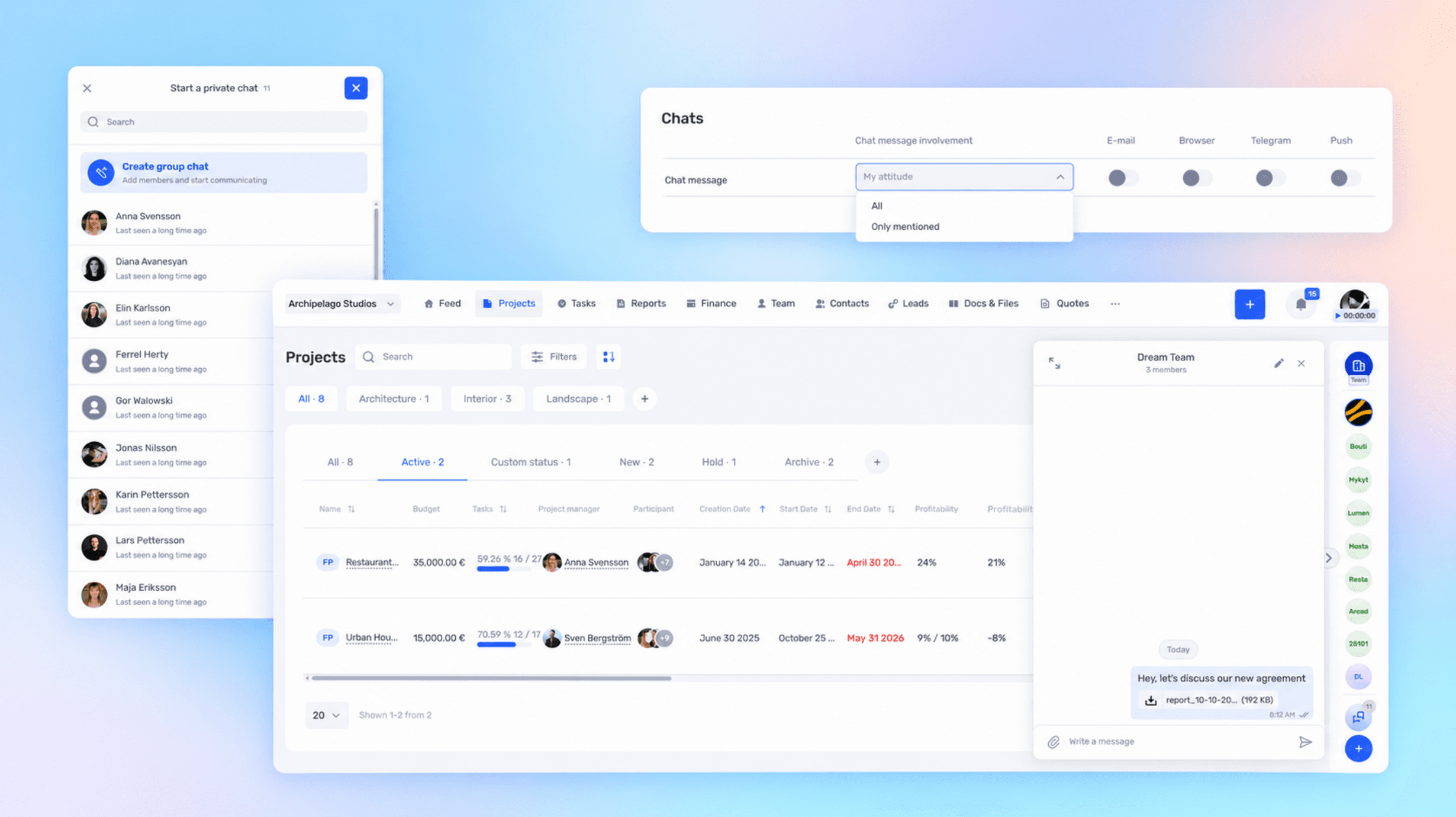
Not every discussion belongs to a single project or the whole company. You can now create your own group chat in if.team for a department, a temporary group, or a specific topic. And to keep new discussions from turning into unnecessary notifications, we added a choice of channels and message types.
Bring the right people into a separate chat
Custom group chats complement private, project, and company chats. You create a separate discussion and add the participants who need it.
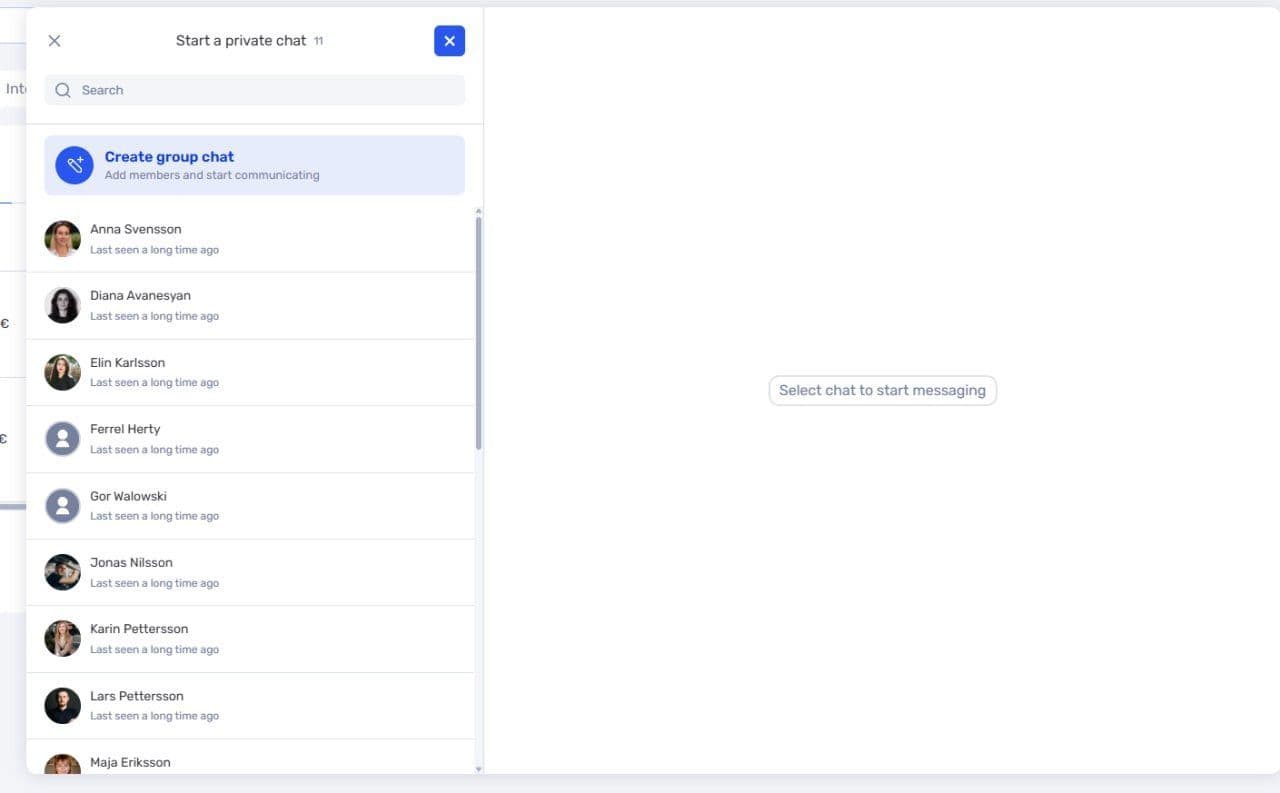
Creating a group chat in if.team
For example, managers of several projects can discuss the team’s shared workload. Such a conversation doesn’t have to belong to a single project, and not every employee in the company needs to read each clarification.
In the same way, you can set up a chat for a department or for a working group preparing an event. You choose the participants for each specific conversation.
Choose where notifications arrive
You can be notified about new messages via Telegram, email, or push notifications in the mobile app. In the settings, you choose the channels that suit you.

Notification channels and message selection in chat settings
Separately, you can decide what to be notified about: all new messages or only mentions and replies to your messages. The second option helps you keep track of messages addressed to you while the general discussion is active.
Set notifications to match your role in the work
If you coordinate the discussion and need to see every clarification, choose all messages. If you join in only when needed, you can keep just mentions and replies.
For example, a specialist takes part in a working group but isn’t responsible for coordinating it day to day. They can read the conversation at a convenient time and get notified when colleagues address them.
Phone notifications require the mobile app. The iOS and Android documentation shows how to sign in and get started. Start with one chat for a real working group and choose which messages need your immediate attention.
Author
Vladyslav ChesnokovPublished
Oct 13, 2026
Was this update helpful?
Your feedback helps us prioritise what to ship next.
See if.team in action for your company
We’ll show how projects, team time and finances connect in one system, using your processes as an example.