Quote List
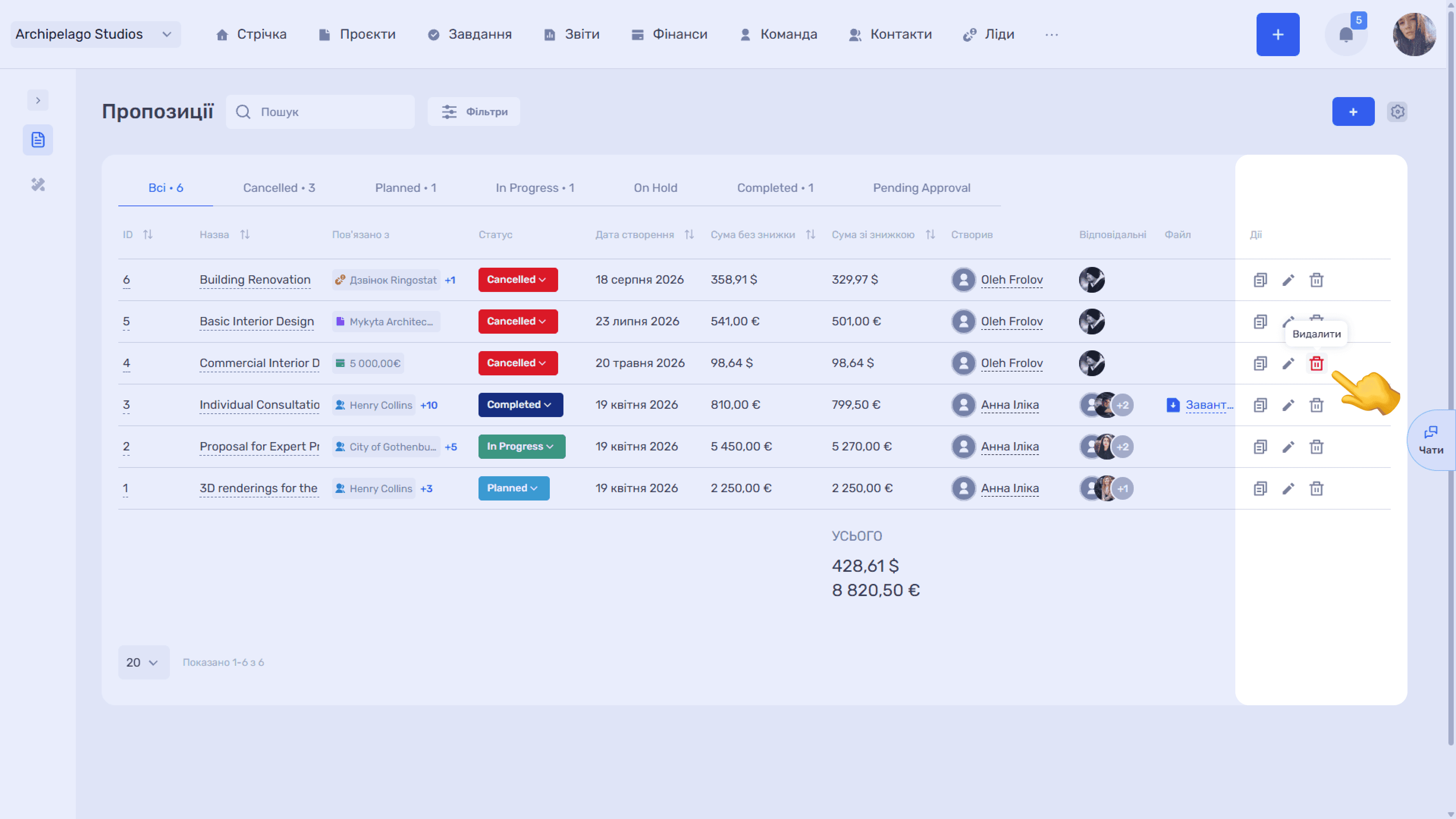
Quotes are grouped by status into tabs above the table — All plus a separate tab for each status from your settings. The number next to a tab name shows how many quotes are in that status.
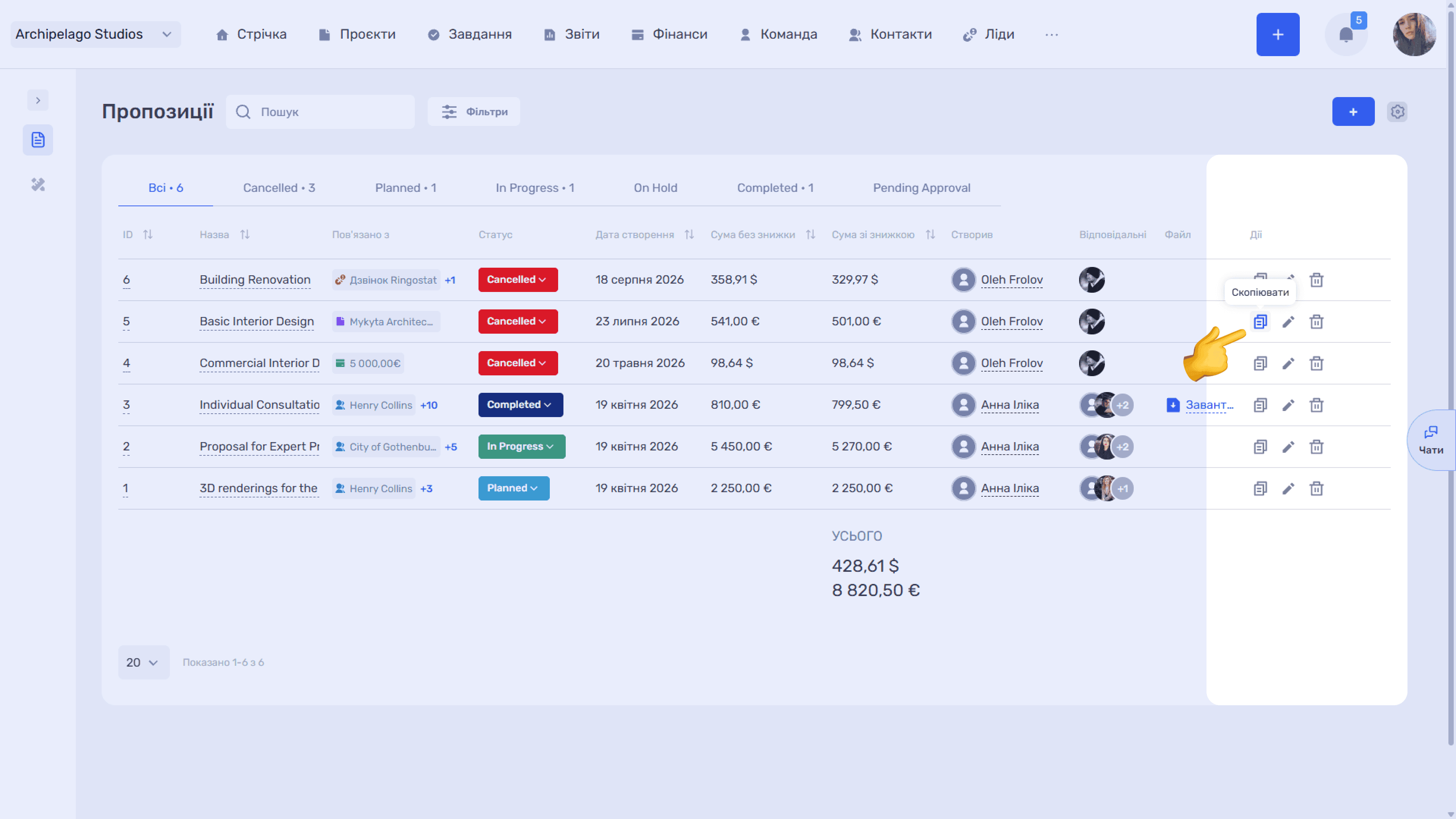
The table has the following columns:
- ID — the quote's sequence number;
- Name — the quote name;
- Linked to — the entity the quote is linked to: a lead, contact, project, or transaction. If there are several links, the extra ones are collapsed into a +N counter;
- Status — the current status (can be changed right from the list);
- Created — the date the quote was created;
- Amount before discount / Amount after discount — totals by line items;
- Created by — the quote author;
- Responsible — assigned employees;
- File — a Download link to the attached file, if there is one;
- Actions — 🗐 copy, edit, delete.
Below the table is the TOTAL block with summary amounts split by currency.
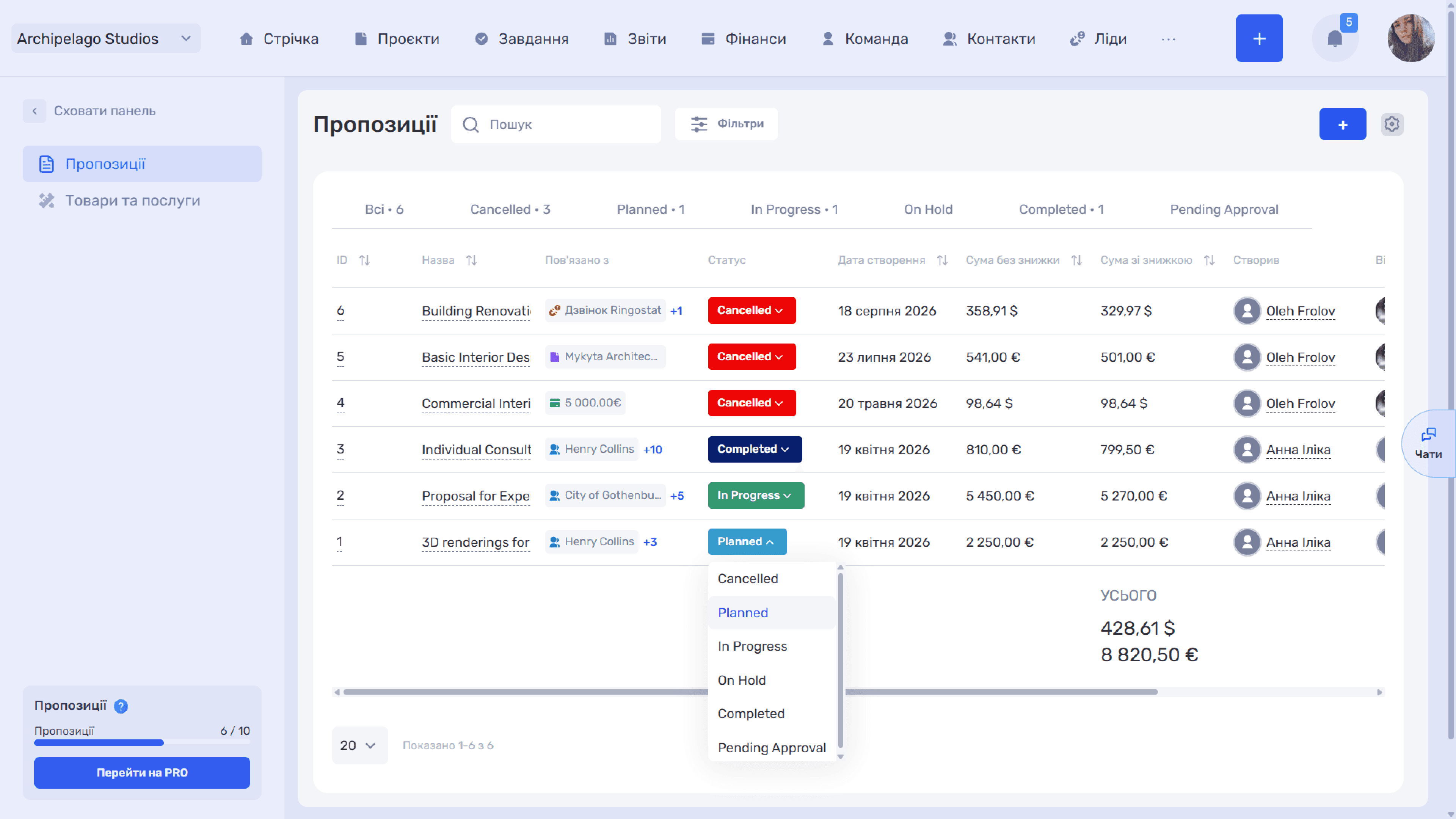
You can resize columns by dragging their borders. The ID, Name, Created, Amount before discount, and Amount after discount columns have a ⇅ icon that sorts the list by that field.
Search, filters, and table view
Search at the top looks up quotes by name.
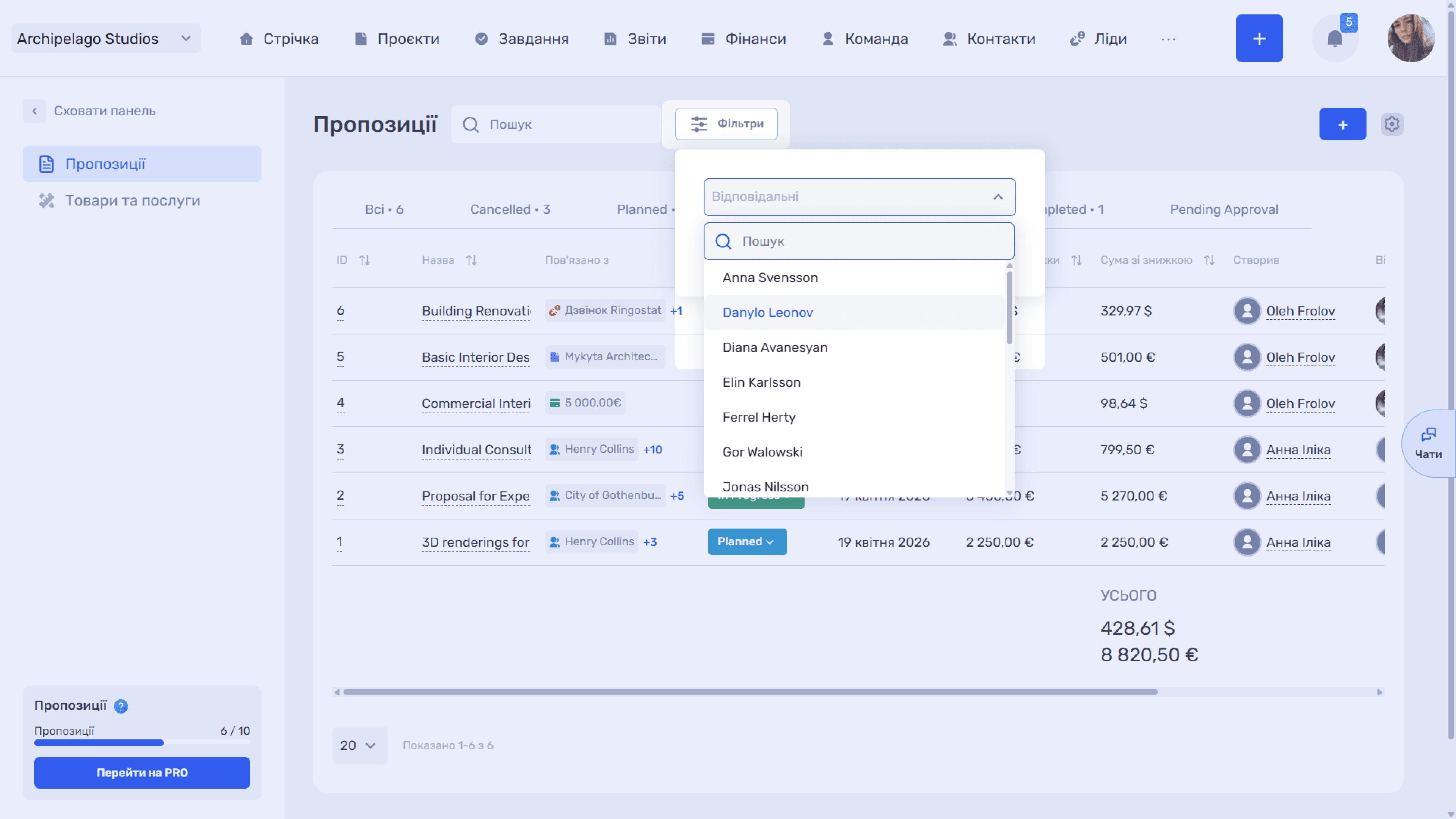
Filters narrow the list by two parameters:
- Responsible — a list of employees with its own search;
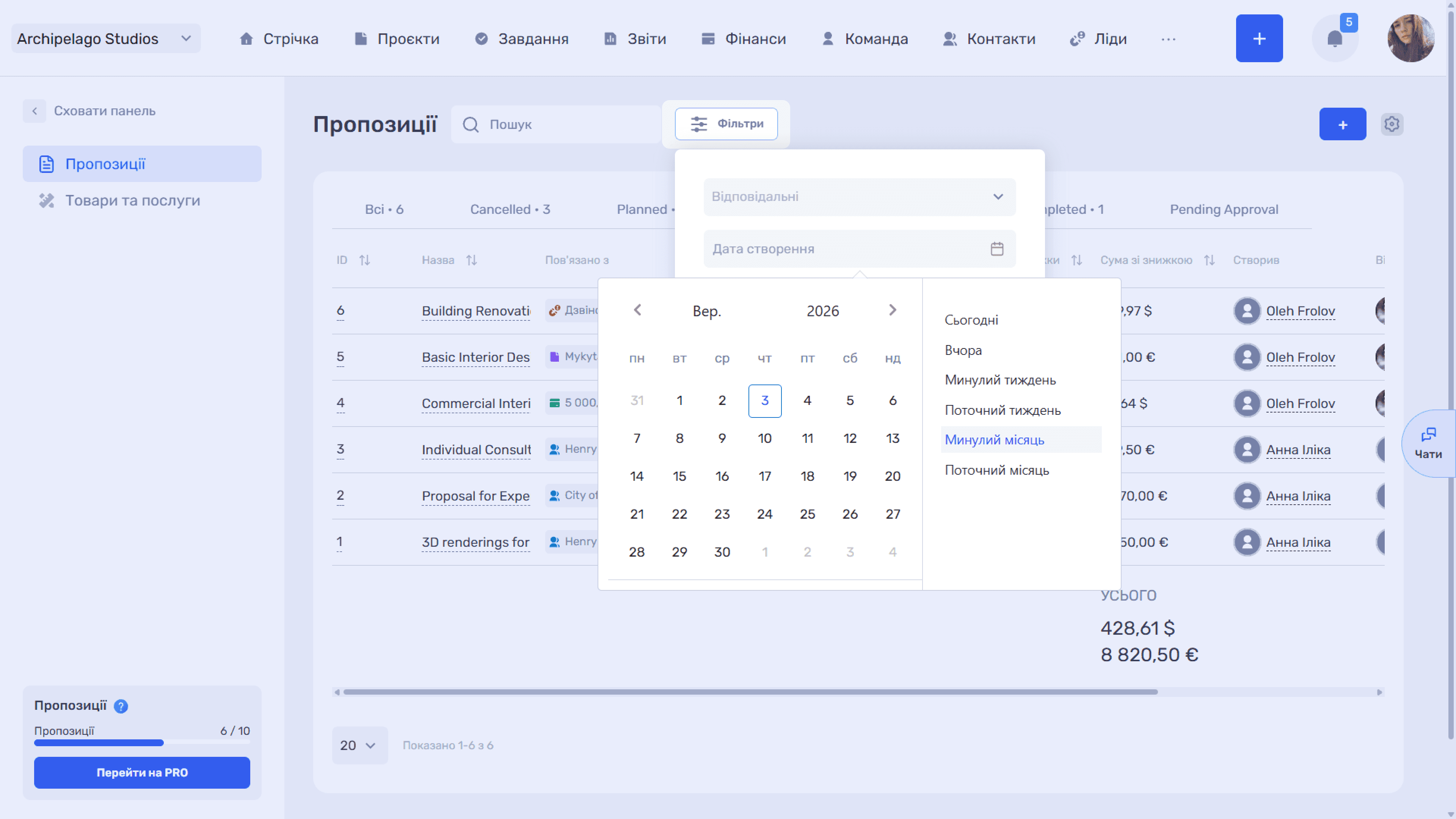
- Created — a calendar with preset periods: Today, Yesterday, Last week, This week, Last month, and This month.
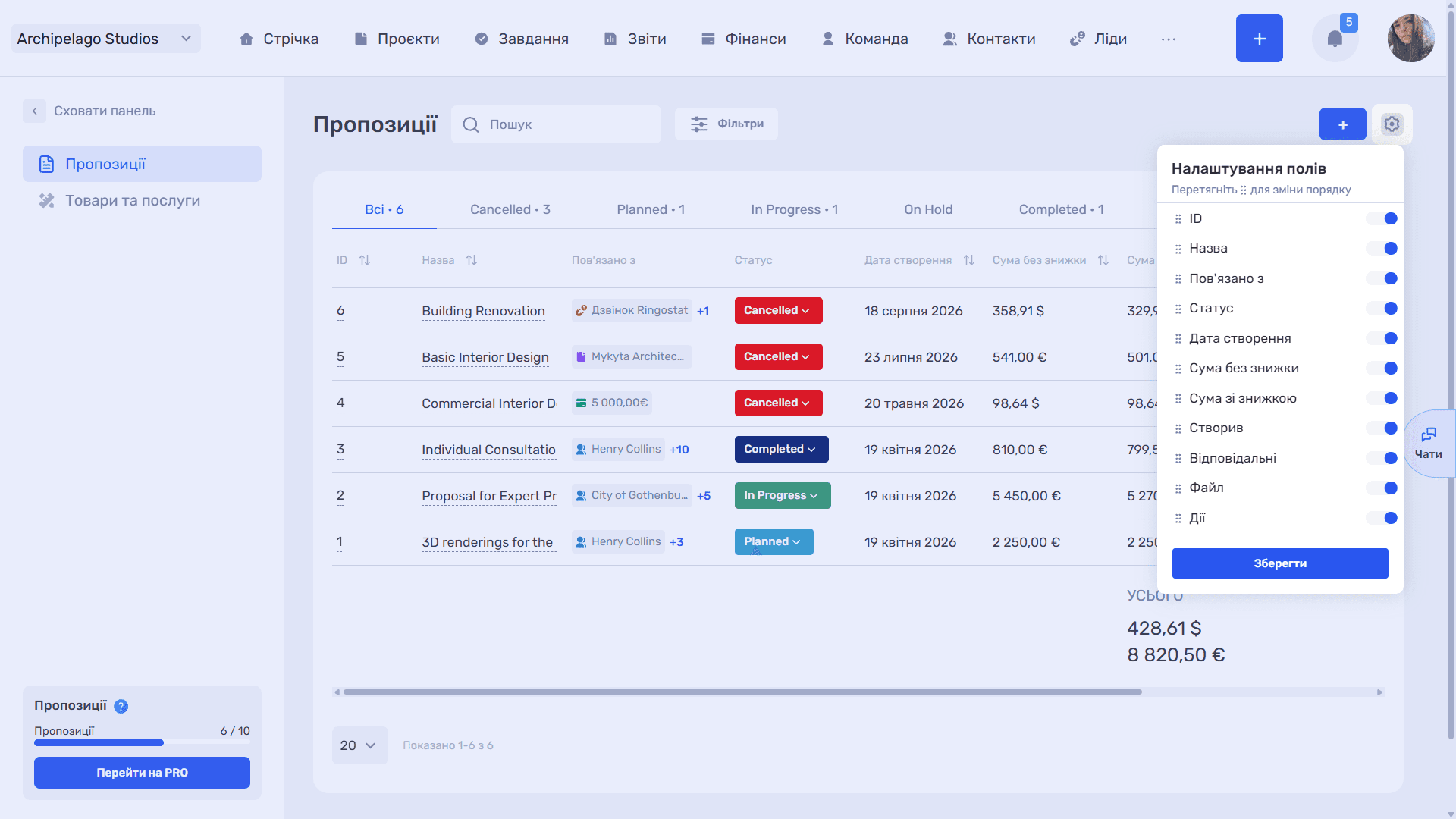
The icon on the right opens Field settings: columns are switched on and off with toggles, and their order is changed by dragging the ⠿ icon. Apply changes with Save.
Please note
On the free plan the number of quotes is limited. The current state is shown in the lower-left corner — for example, Quotes 6/10.
Copying, editing, and deleting
The Actions column has three icons.
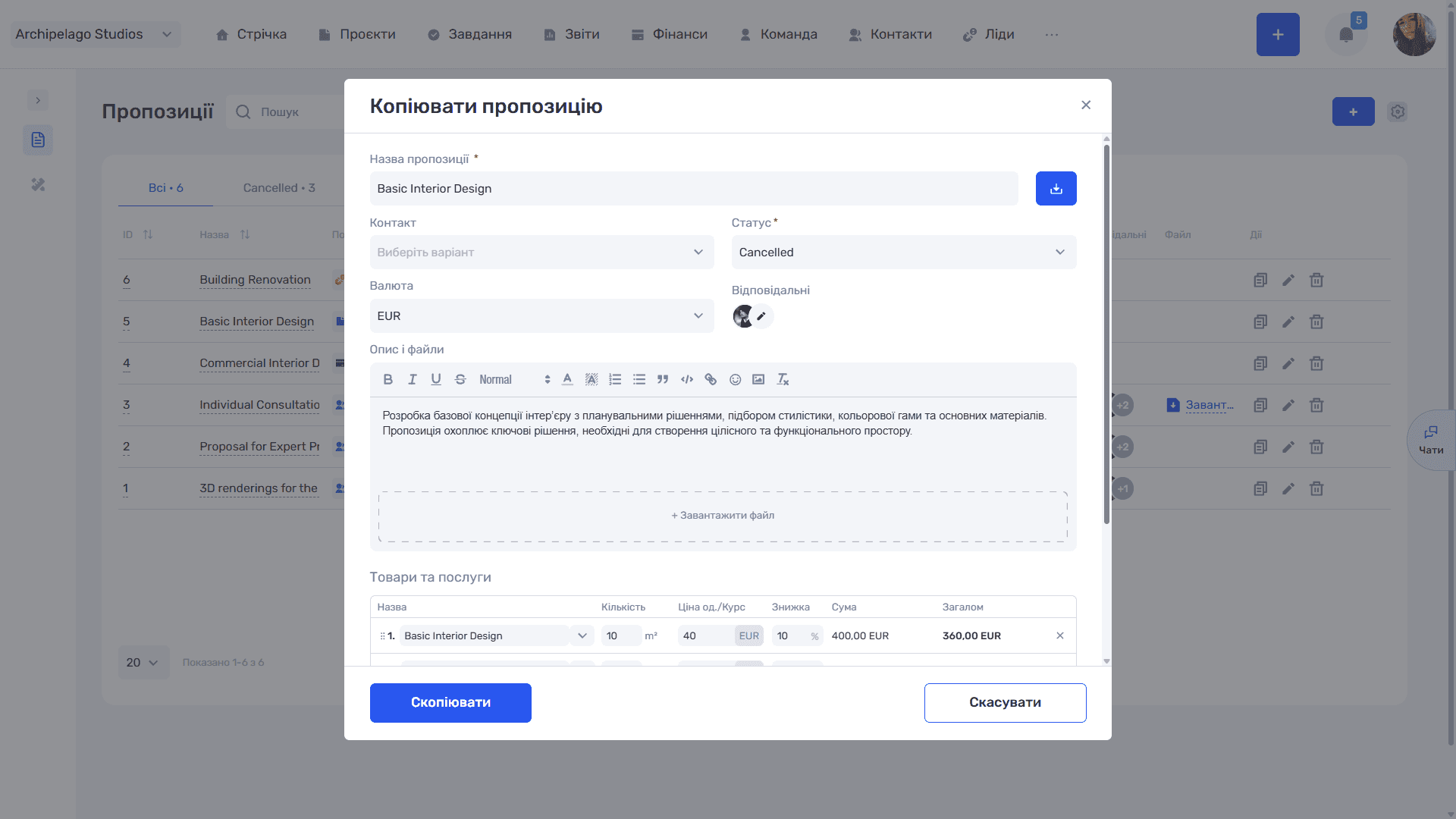
- 🗐 Copy — opens the Copy quote window: a full copy of the original with the description, attached files, and all line items. Before saving you can change anything: the name, status, line items, quantities, prices, and discounts.
The Copy button creates a new quote, and Cancel closes the window without creating one. This is the fastest way to make a quote for a similar order.
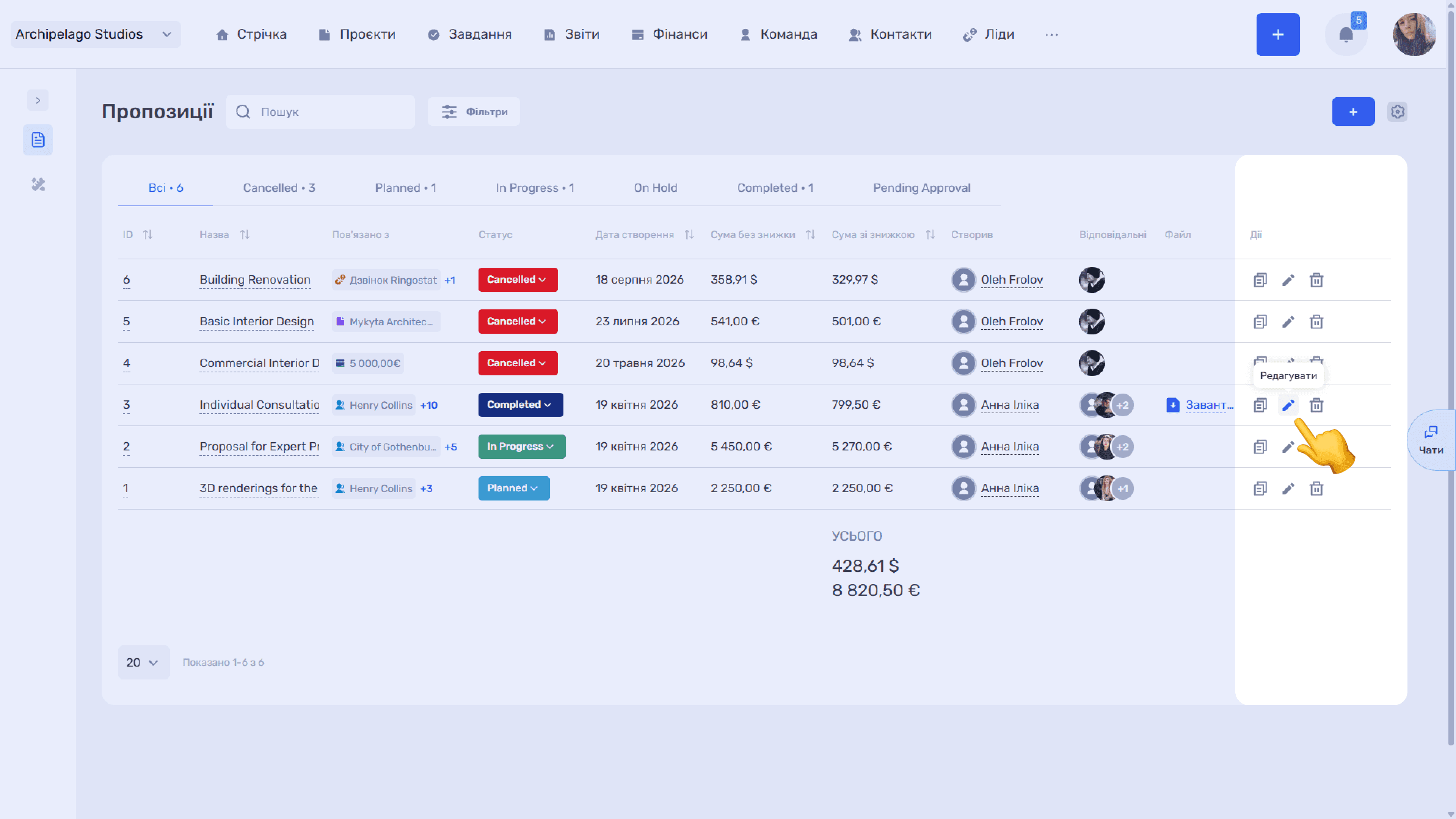
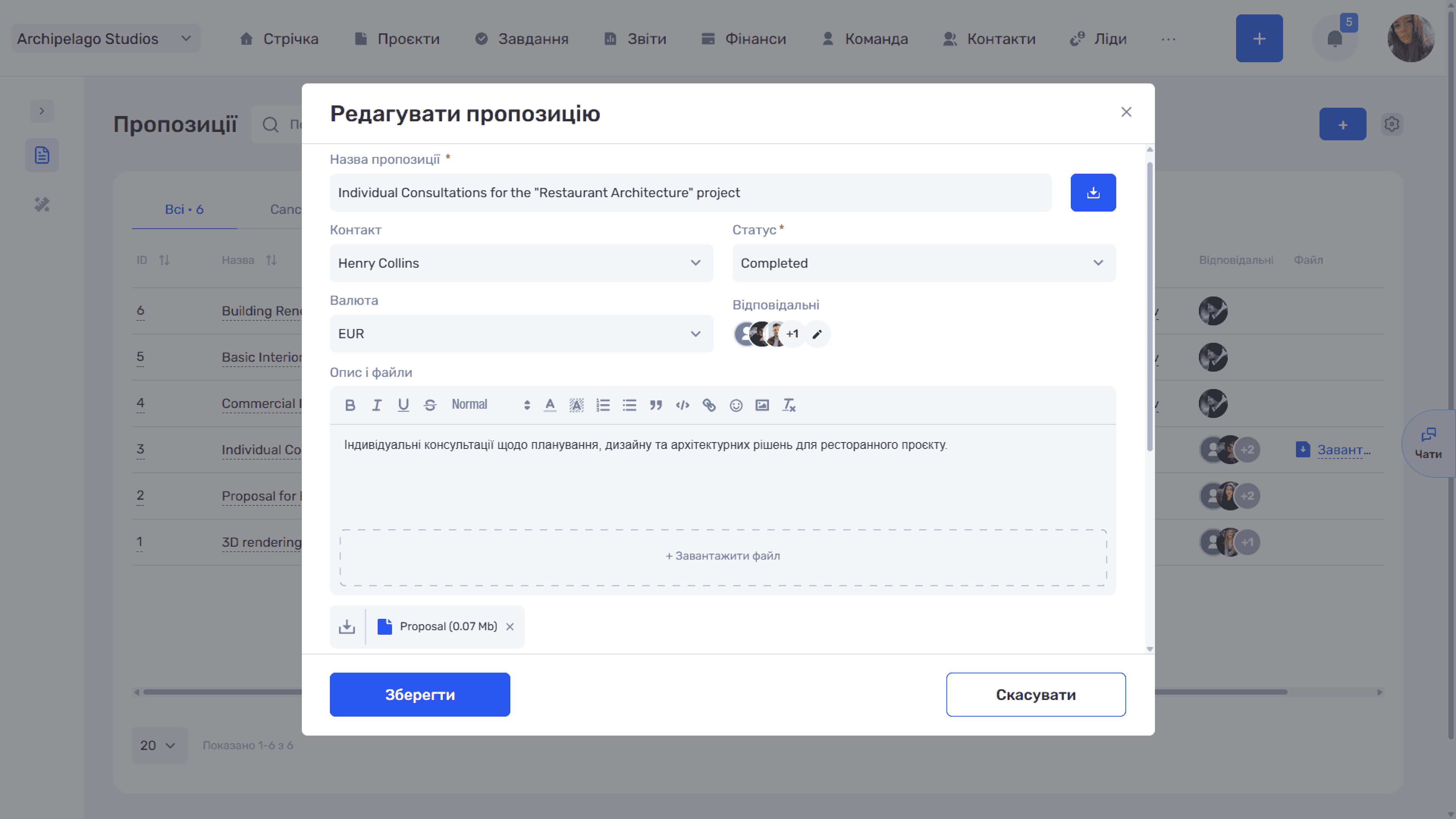
- Edit — opens the Edit quote window with the same fields.
Save changes with Save. Attached files are shown below the upload zone as separate chips with the name and size — the ⤓ icon on the left downloads the file, ✕ on the right detaches it.
- Delete — removes the quote from the system.
To prepare a new quote, follow the Creating a quote guide.
Still have questions?
Maybe we haven't added this information yet. But you can always reach out:
Request a demo
Submit a request and we'll show you how the service works and its capabilities.
Book a demo