Creating a Quote
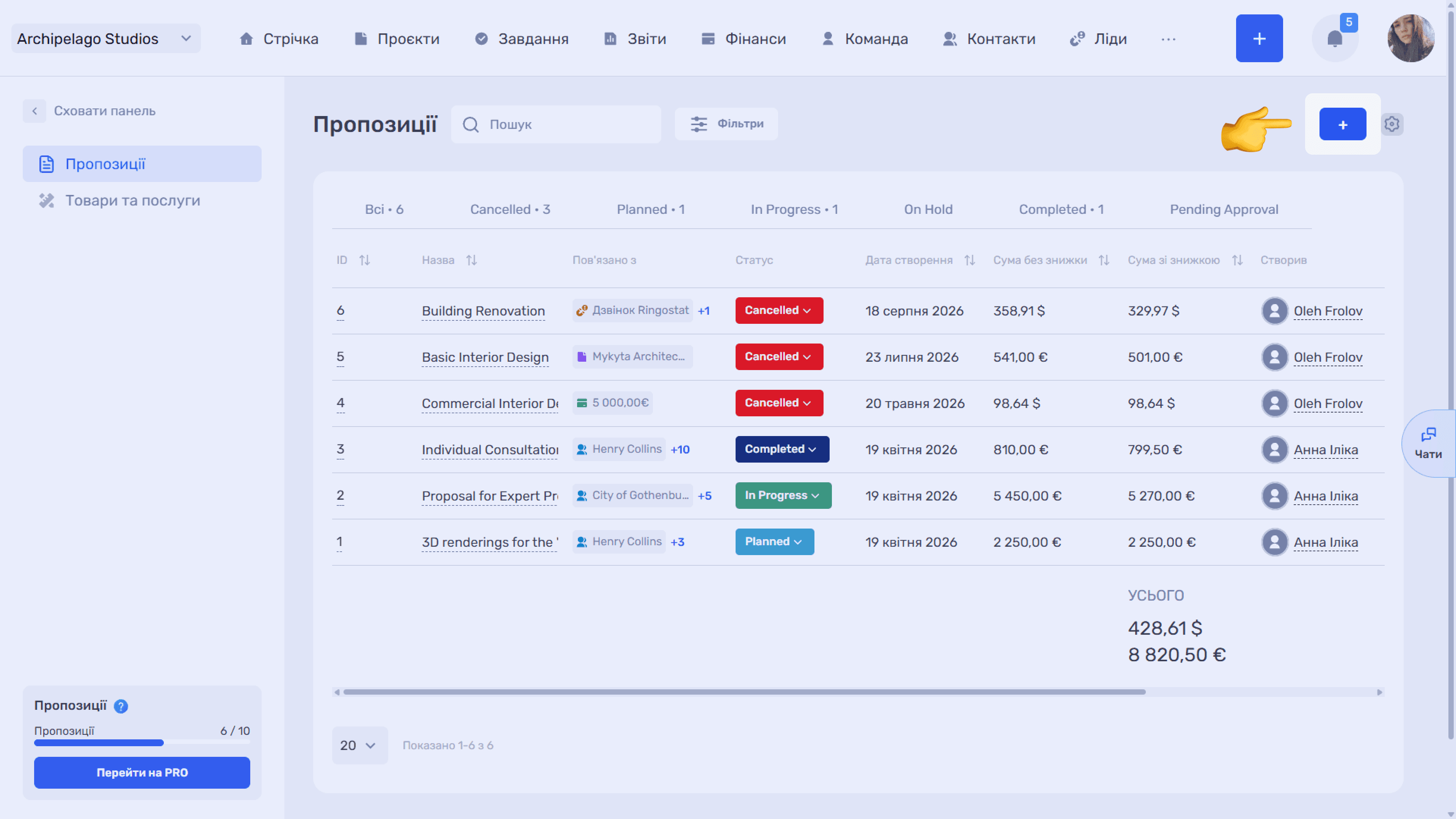
A quote can be created in two ways: with the + button in the module itself, or from the card of the entity it should be linked to.
From the module
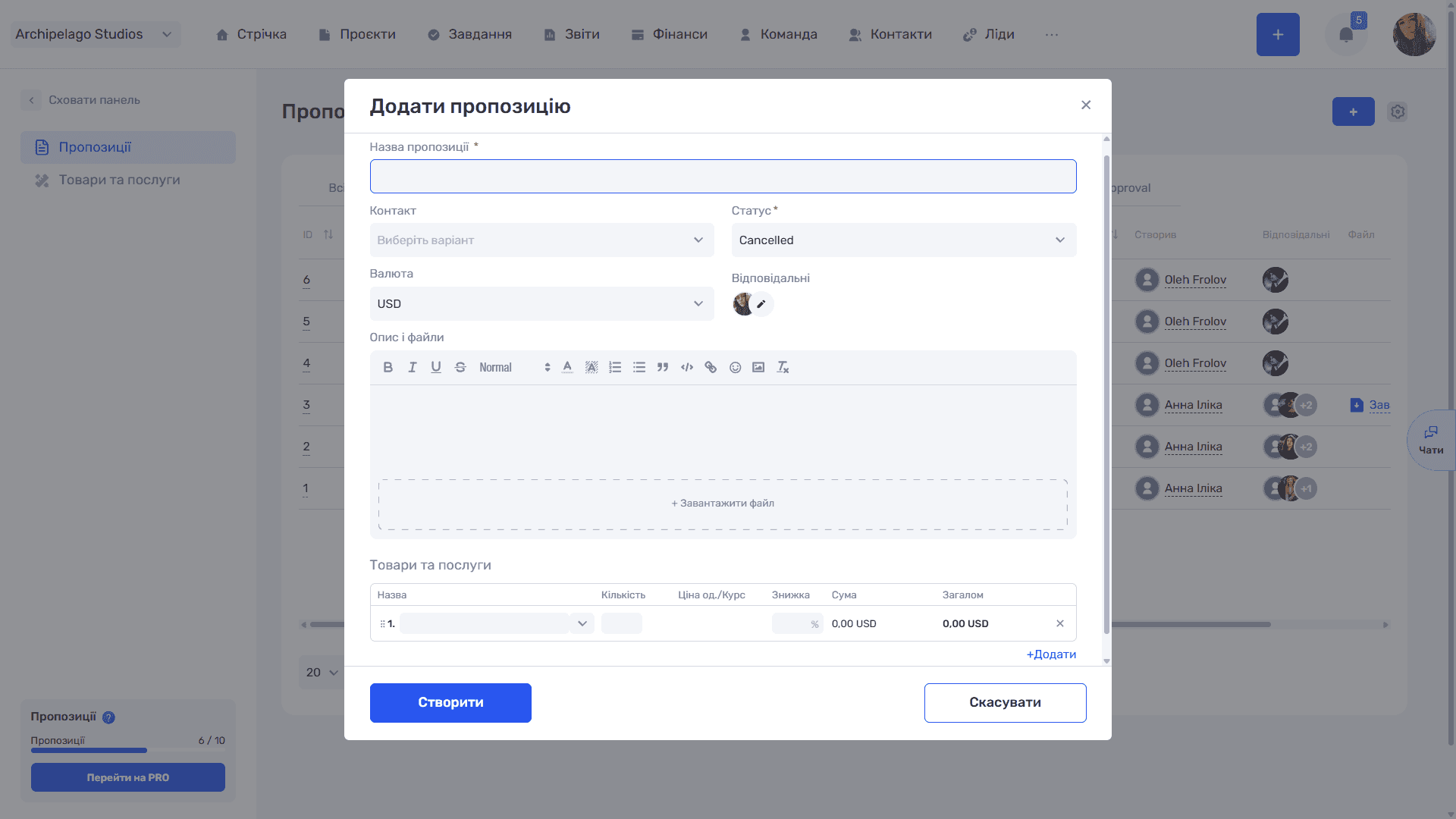
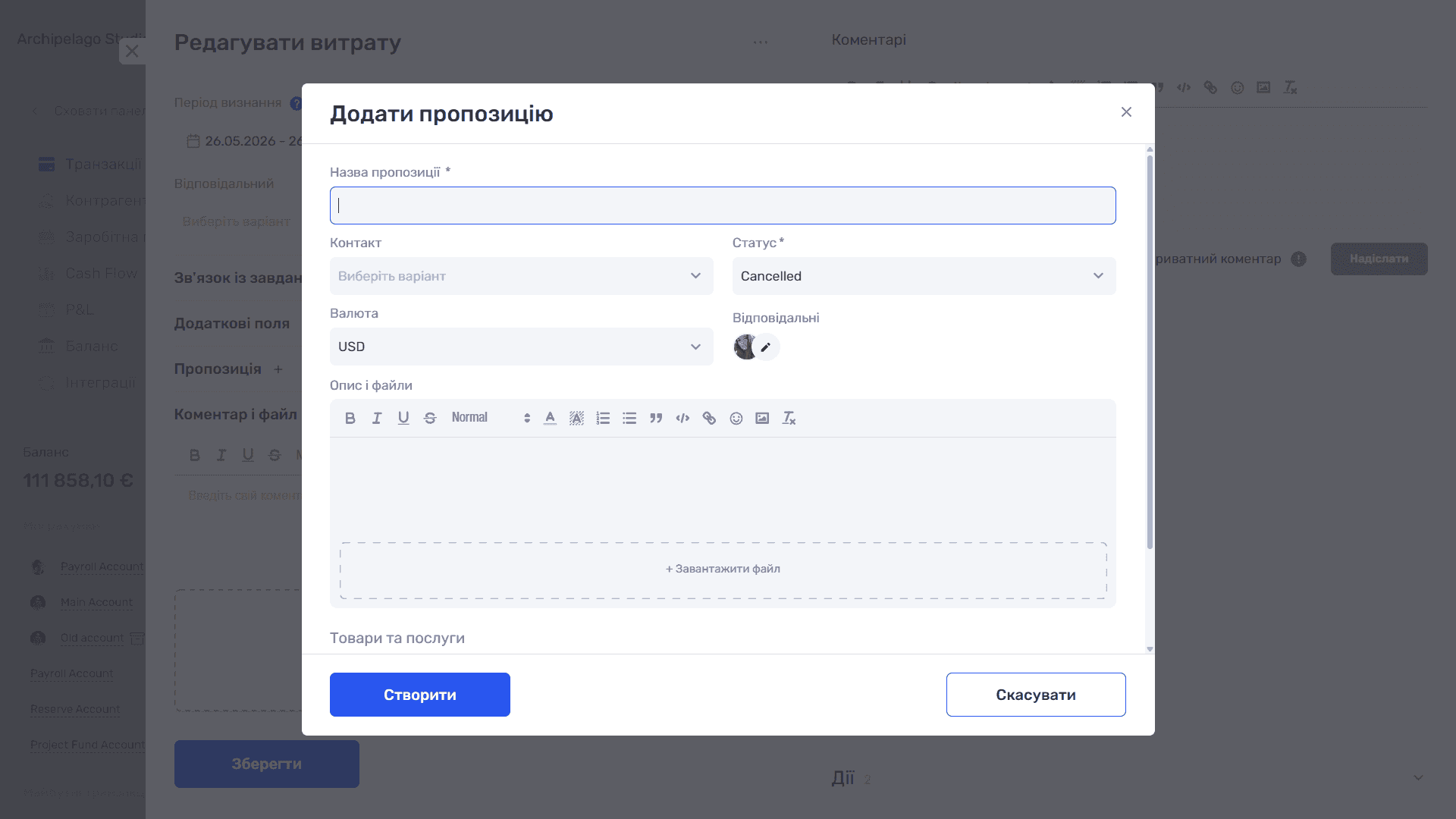
The + button to the right of the filters opens the Add quote window with these fields:
- Quote name (required);
- Contact — the contact the quote is linked to;
- Status (required) — the initial status from the list configured in the admin panel;
- Currency — the quote currency; line amounts and totals are calculated in it;
- Responsible — employees responsible for the quote; the list is changed with the edit icon;
- Description and files — a text editor with formatting and the + Upload file zone;
- Products and services — the line items table.
The Create button saves the quote, Cancel closes the form.
Quote line items
In the Products and services table each row has the columns Name, Quantity, Unit price/Rate, Discount, Amount, and Total.
- Name — the item is selected from the catalog list; the price and unit of measurement are filled in from the catalog automatically.
- Quantity — the item's unit of measurement is shown to the right of the field (m², hrs, project, etc.).
- Unit price/Rate — a dual-purpose field. If the item's currency in the catalog matches the quote currency, it shows only the unit price and currency code. If the currencies differ, a second field appears under the price — the exchange rate — and all row amounts are shown in the quote currency. For example: price 30 EUR, rate 1.16109473, quantity 2 → amount 69.66 USD.
- Discount — set as a percentage and applied to the row.
- Amount — quantity × unit price (taking the rate into account).
- Total — the row amount after the discount.
All row values can be edited manually — item name, quantity, price, rate, and discount. In other words, catalog data is only a starting point: you can adapt it to a specific quote without changing the catalog itself.
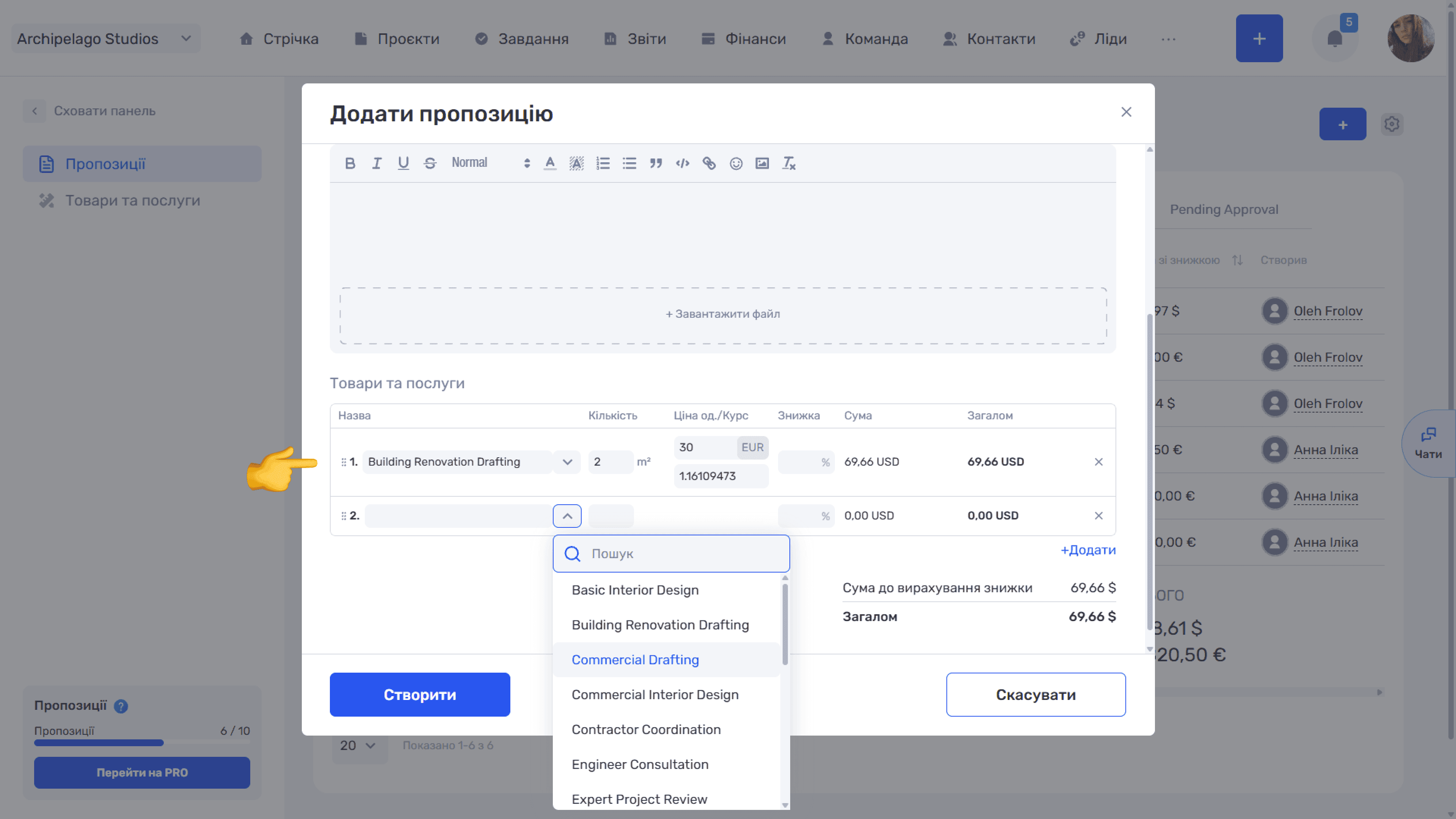
Rows are numbered automatically; drag the ⠿ handle on the left to reorder them. The +Add link under the table adds a new row, ✕ on the right deletes one.
Under the table are two totals: Amount before discount (the sum of all rows without discounts) and Total (the sum after discounts). Both are in the quote currency.
From a lead card
The Quotes block is available both in the lead creation form and in the card of an existing lead.
When creating a lead
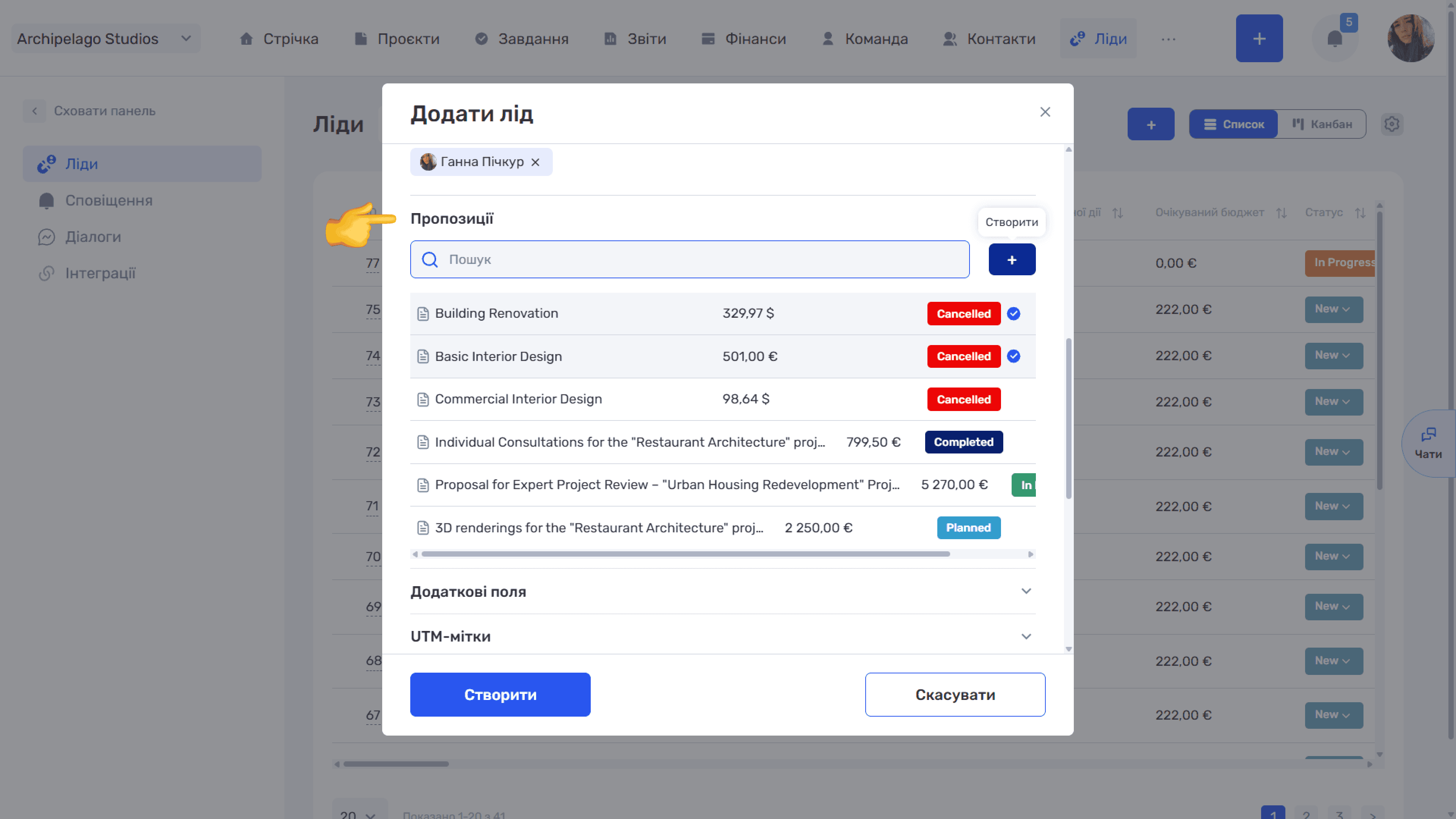
In the Add lead window, expand the Quotes block. Inside are a search by name, a + button on the right for a new quote, and a list of existing ones with the name, amount, and status. Clicking a row links the quote — a blue check mark appears on the right, and clicking again removes it. You can select several quotes at once; they are linked to the lead when you click Create.
In an existing lead card
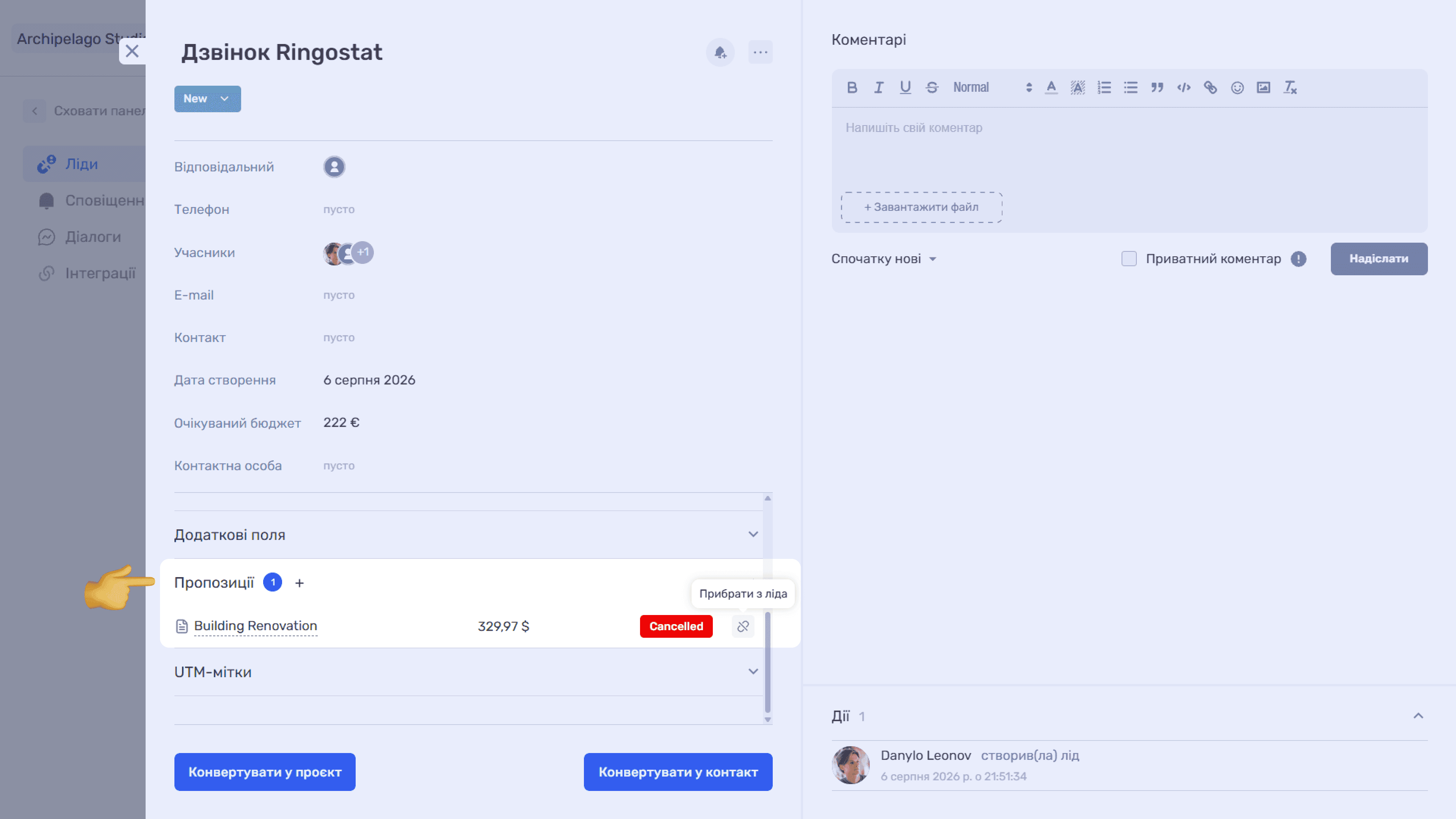
Linked quotes are collected in the Quotes block with a counter in the header. Each row shows the name (a link to the quote itself), amount, and status.
- The + icon next to the header (tooltip Add) opens the Add quote window: search, a list of existing quotes with check marks, and a + button to create a new one. The Add button links the selected quotes.
- The broken-chain icon on the right of a row unlinks the quote from the lead without deleting it from the system.
Please note
A lead keeps its links to quotes during conversion — the Convert to project and Convert to contact buttons at the bottom of the card.
From a project card
The Add project and Edit project windows have a collapsible Quotes block — the quotes related to the project: services, prices, and terms for the client. Inside are a search, a + button to create a new quote, and a list of existing ones with the name, amount, and status. Clicking a row links the quote to the project; changes are saved with Save.
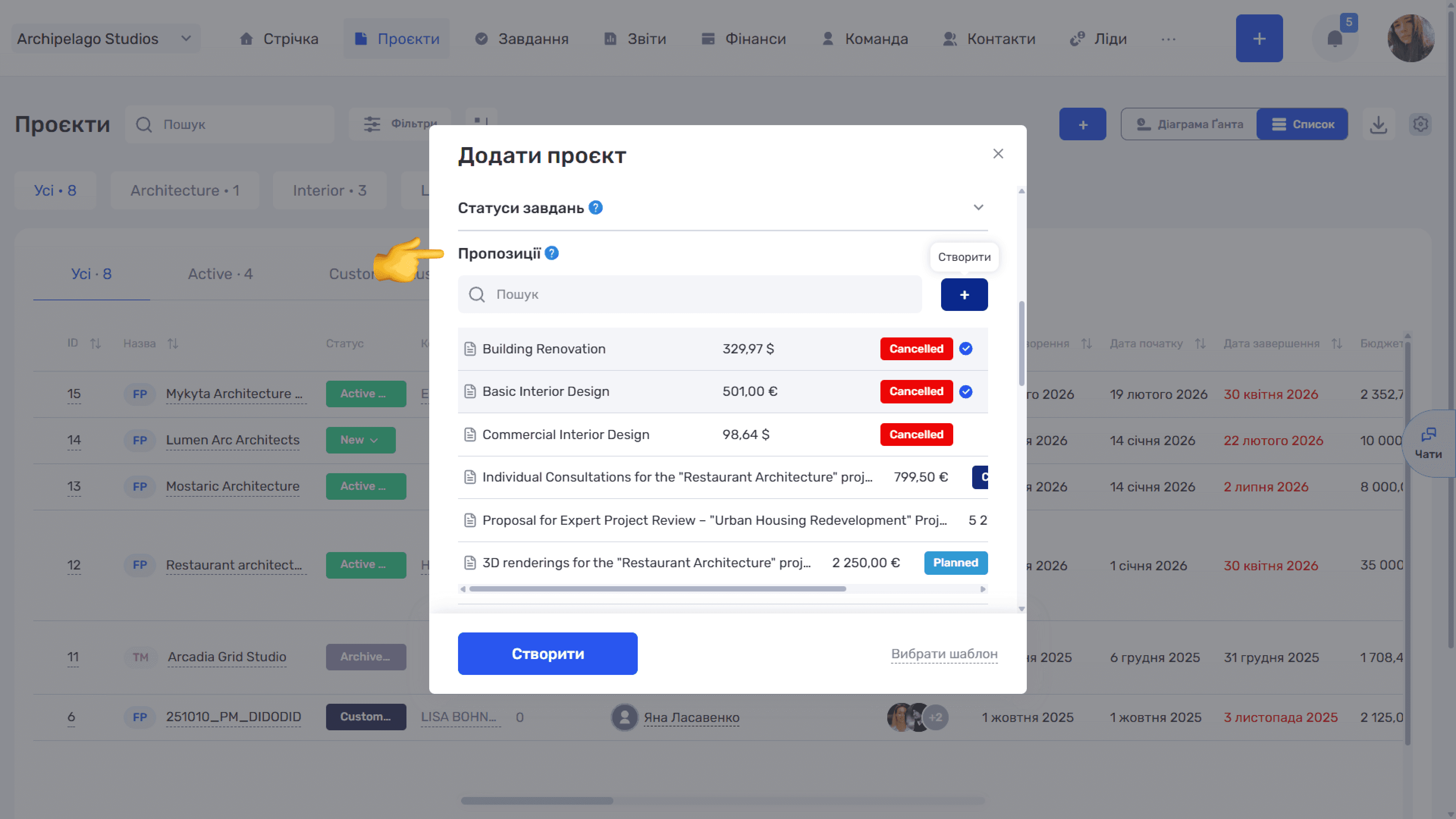
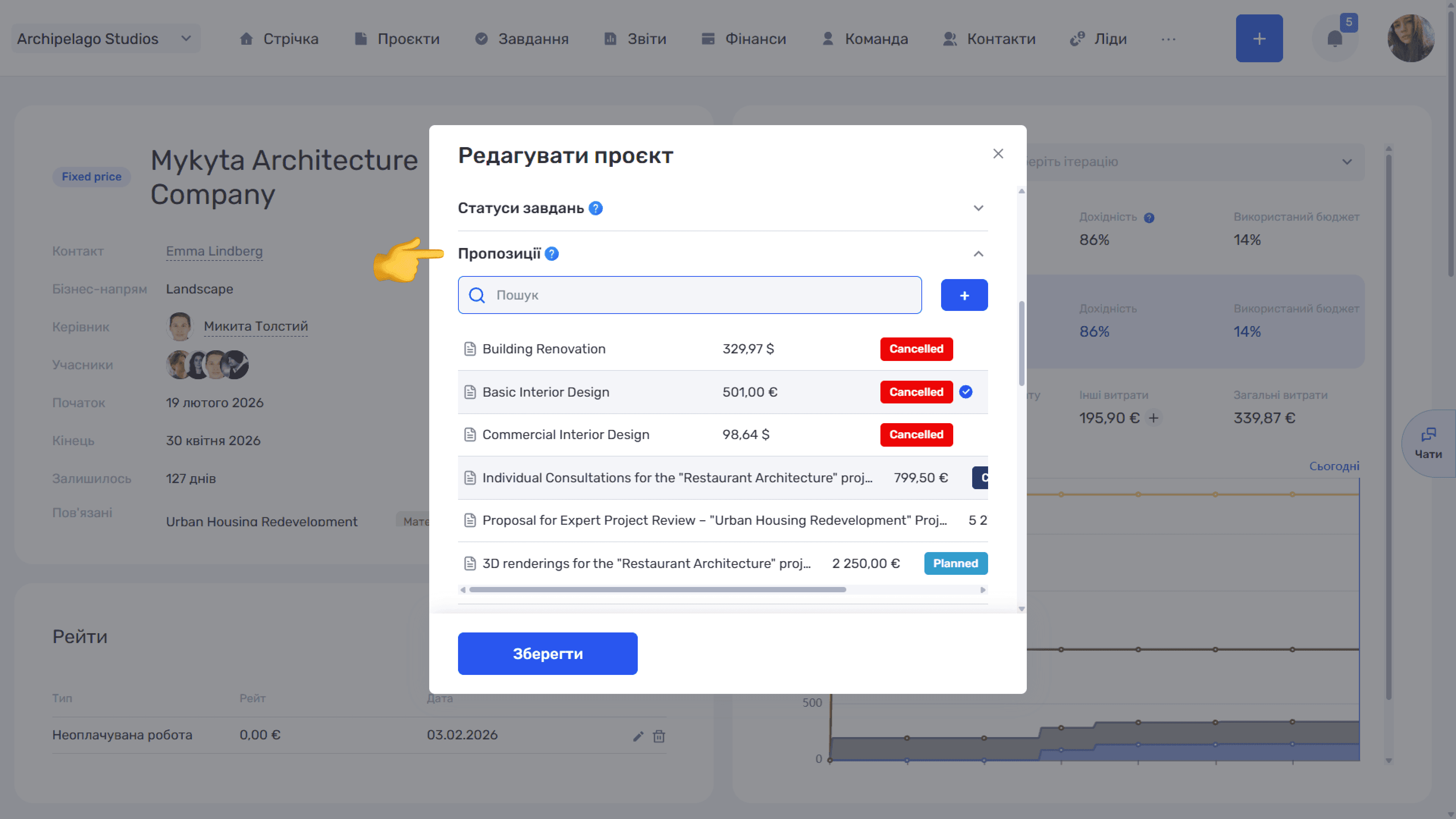
Clicking a row links the quote — a blue check mark appears on the right; clicking again unlinks it. You can link several quotes at once. Save changes with Save.
From a transaction
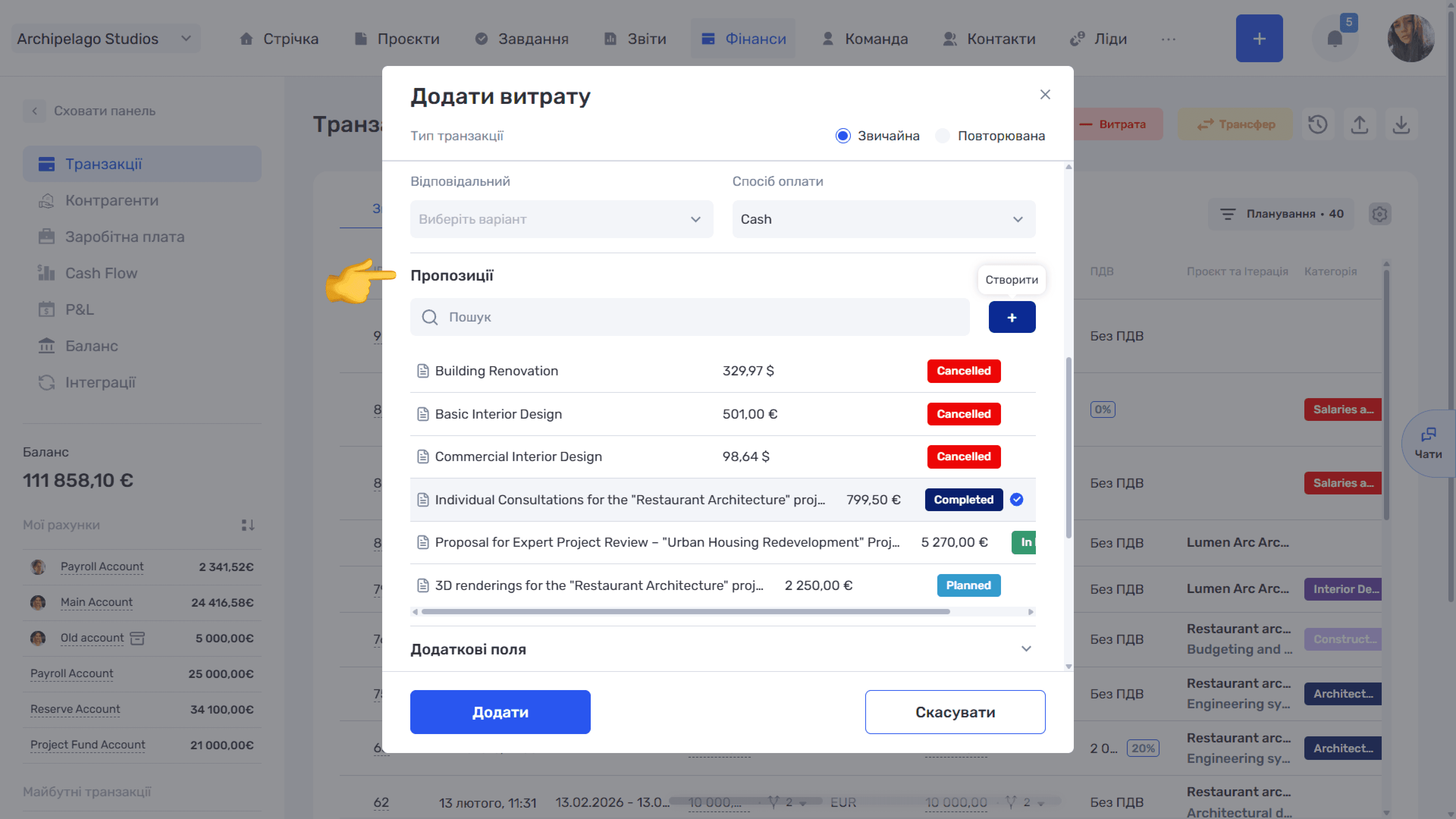
The Quotes block is in the Add income and Add expense forms (Finance → Transactions). Inside are a search, a + button for a new quote, and a list of existing ones with the name, amount, and status.
To link a quote, click its row — a blue check mark appears on the right.
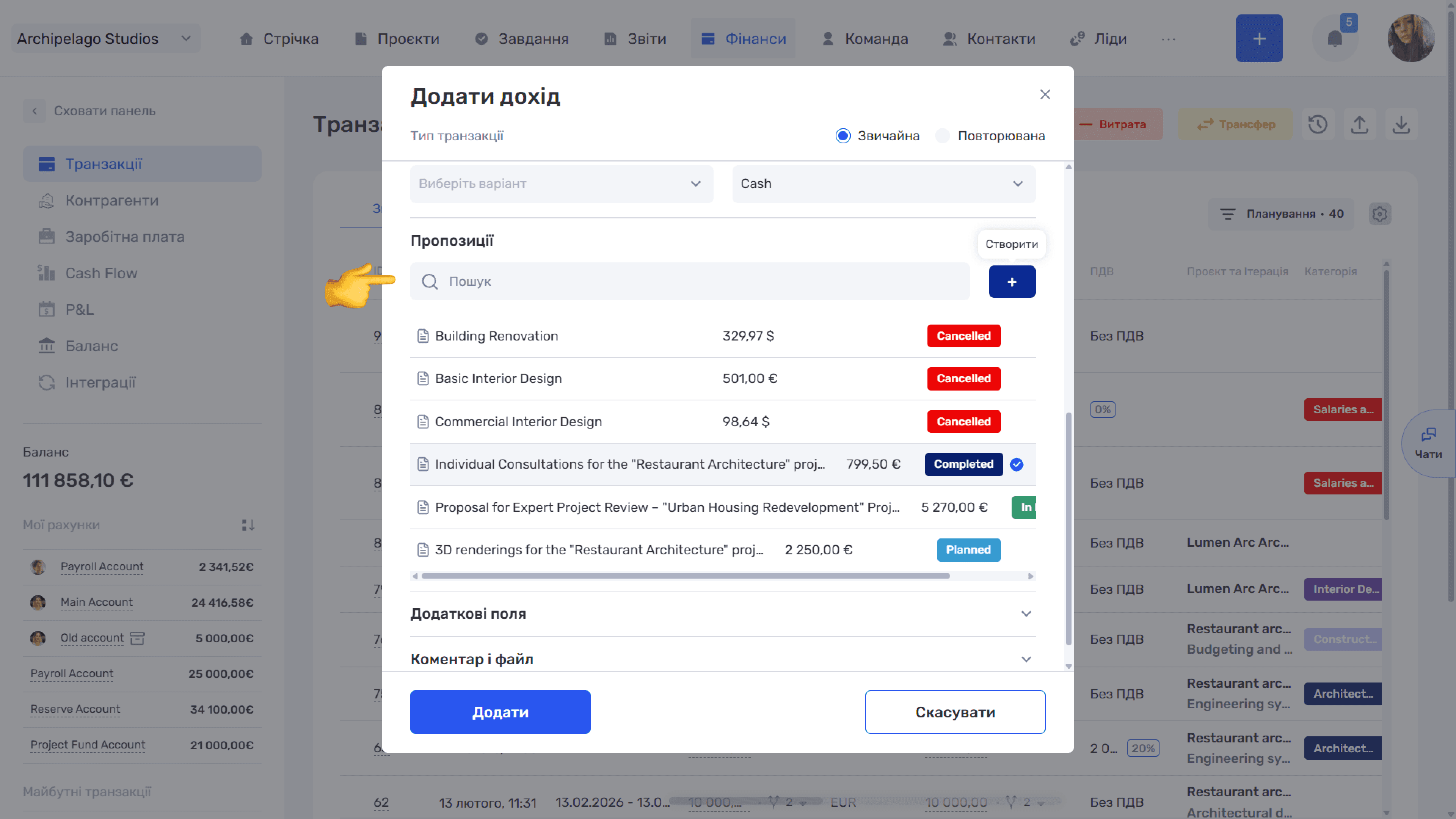
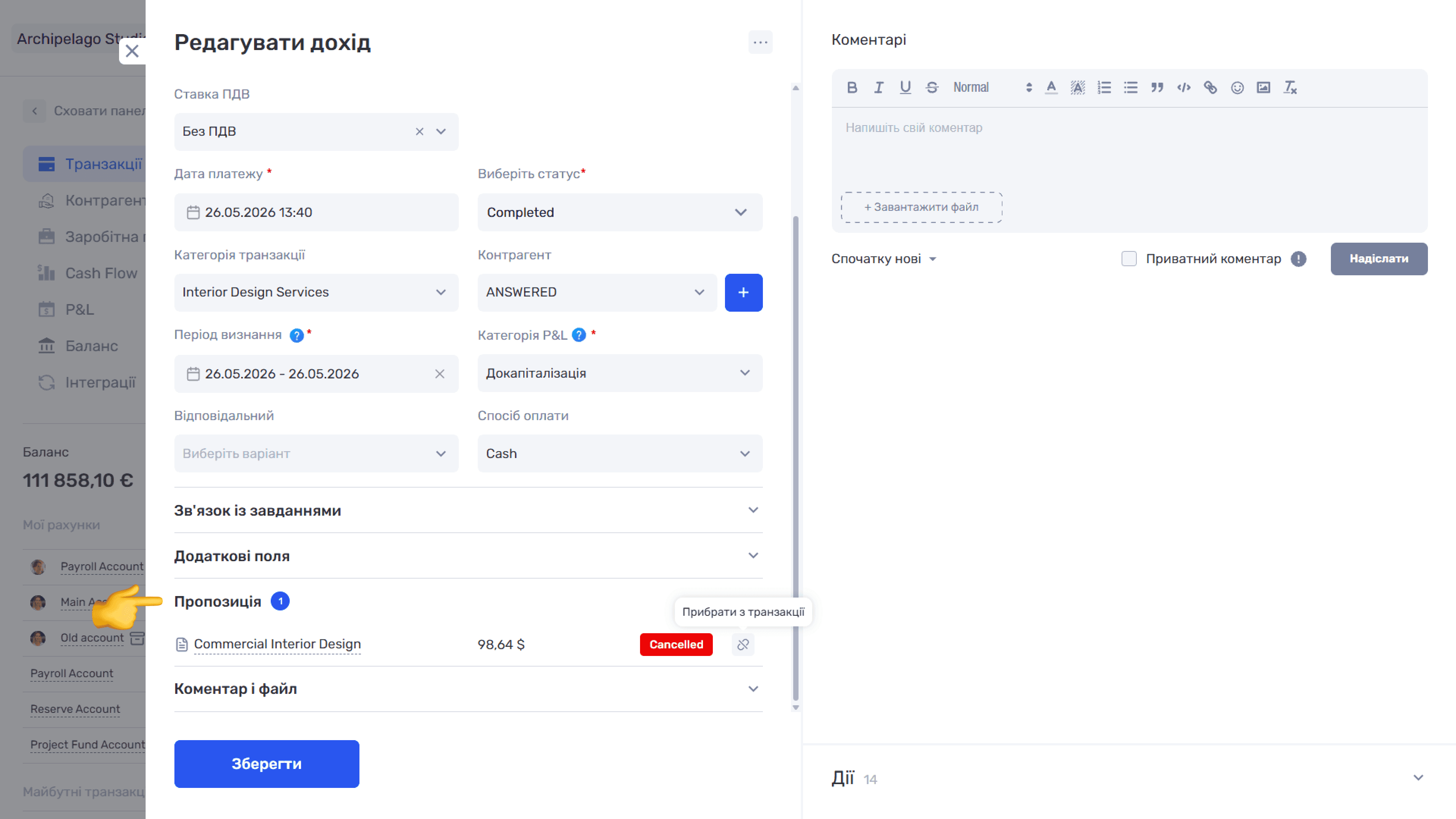
In an already saved transaction, linked quotes are shown in a separate Quote block with a counter — a row with the name, amount, and status. The broken-chain icon on the right unlinks the quote without deleting it from the system.
Please note
The Transfer form has no Quotes block — a transfer moves money between company accounts and has no client side.
To add a quote to an already saved transaction, use the + icon next to the block header — the Add quote window opens with a search, a list of existing quotes, and a + button to create a new one. Clicking a row selects the quote, and the Add button links it.
Please note
Only one quote can be linked to a transaction. Once linked, the "+" icon disappears — to replace the quote, first unlink the current one with the broken-chain icon, and "+" will appear again.
Please note
How many quotes can be linked. To a lead and a project — several, and they can be added both when creating the entity and later in edit mode. To a transaction — only one.
Still have questions?
Maybe we haven't added this information yet. But you can always reach out:
Request a demo
Submit a request and we'll show you how the service works and its capabilities.
Book a demo