
New Planning Features: Recurring Tasks in if.team
if.team has introduced the recurring tasks feature. Now, you can set tasks to repeat daily, on specific weekdays, or on certain dates of the month.
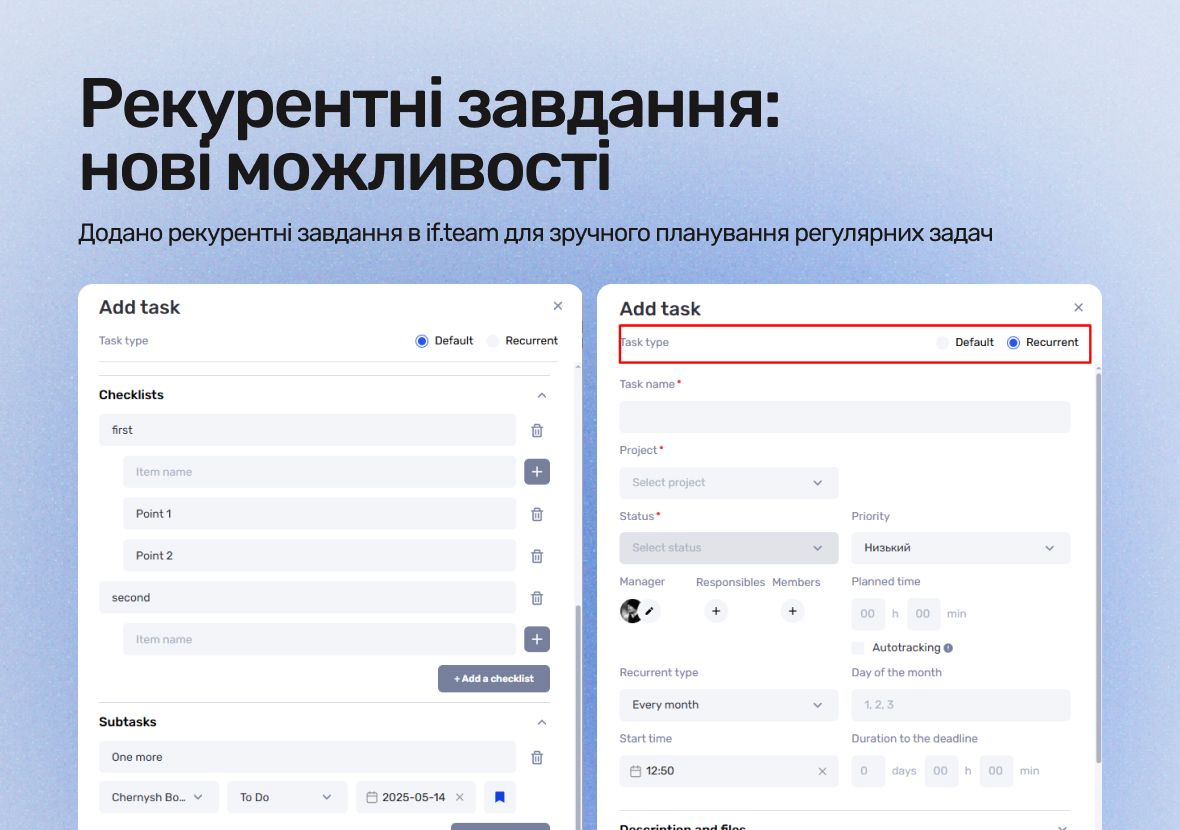
It’s the perfect tool for scheduling regular meetings, daily stand-ups, and other recurring activities. You can specify the exact start time, duration, and deadline for each task. If Google Calendar sync is enabled, tasks will automatically appear in your calendar. Additionally, we’ve updated the task creation interface, allowing you to add checklists and subtasks right away.
What are recurring tasks?
Recurring tasks are tasks that repeat at regular intervals. They can repeat daily, on specific weekdays, or on set dates of the month. This is a convenient way to organize regular activities, such as meetings, daily stand-ups, or other recurring tasks.
For example, if you need to be reminded about a process every day or schedule regular meetings, recurring tasks will help automate this process, saving you time on planning.
How to work with recurring tasks in if.team
Recurring tasks open up many new planning possibilities — from daily meetings to regular reminders and reports. To ensure everything runs smoothly, it’s important to understand how to create and manage them.
How to create a recurring task
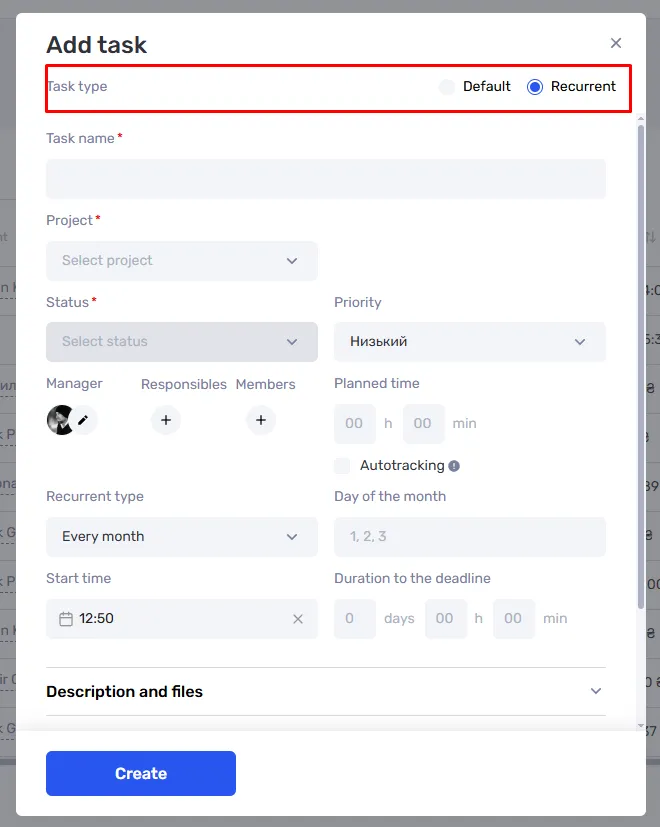
- Open the task creation window. Click on the “Create task” button in the “Tasks” section.
- Set up the repetition. In the task settings, choose how often it should repeat: daily — perfect for daily tasks, such as daily stand-ups, on specific weekdays — for regular meetings or work reports.
- On specific dates of the month — for preparing, for example, financial summaries.
- Specify time and duration. You can set the exact start time (e.g., 10:00 AM) and determine how much time the task will take until the deadline.
- Save the changes. Click “Create” to activate the rule. The task will automatically appear in your task list, and if synced, in Google Calendar as well.
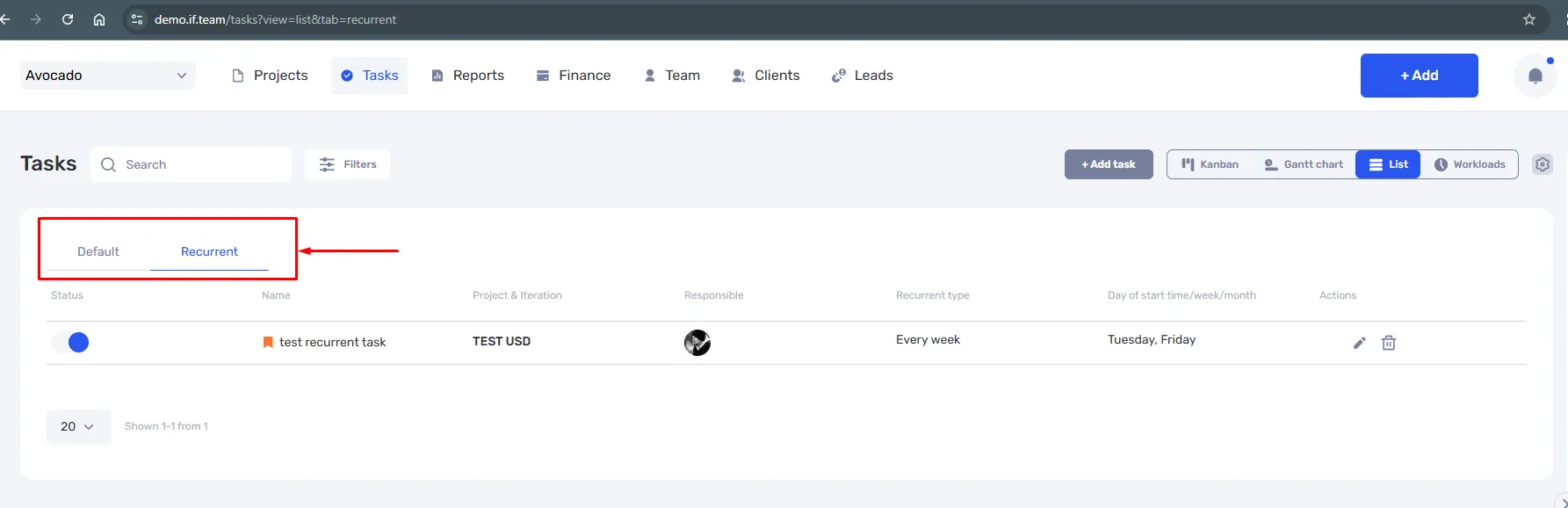
Where to manage recurring tasks
Once you have at least one recurring task, a new tab will automatically appear in the “Tasks” section. This tab helps you easily manage all your recurring tasks from one place.
In the tab, you can:
- Edit — change the time, frequency, or content of the task.
- Enable/Disable — temporarily pause the task.
- Delete — remove unnecessary rules from the list.
This allows you to quickly make changes without needing to search for tasks manually.
Additional interface updates
Along with recurring tasks, we’ve significantly updated the task creation and editing interface, making your work even more convenient.
- Fresh look. We’ve refreshed the design of the task creation window: the interface is cleaner, more minimalist, and easier to understand.
- Checklists during creation. Now you can add checklists directly to a task without opening a separate editor. This helps outline the steps right from the start.
- Subtasks with fewer clicks. Subtasks can now be created while adding the main task. This is especially useful for complex tasks that involve multiple steps or responsible parties.
Author
Vladyslav ChesnokovPublished
May 8, 2025
Was this update helpful?
Your feedback helps us prioritise what to ship next.
Start your free 7-day trial
No credit card required. Get full access to all features and see how if.team can transform your team's workflow.