
Custom Fields in Projects — More Order, Context, and Flexibility
Now, in if.team project cards, you can create custom fields to store the information that truly matters to you.
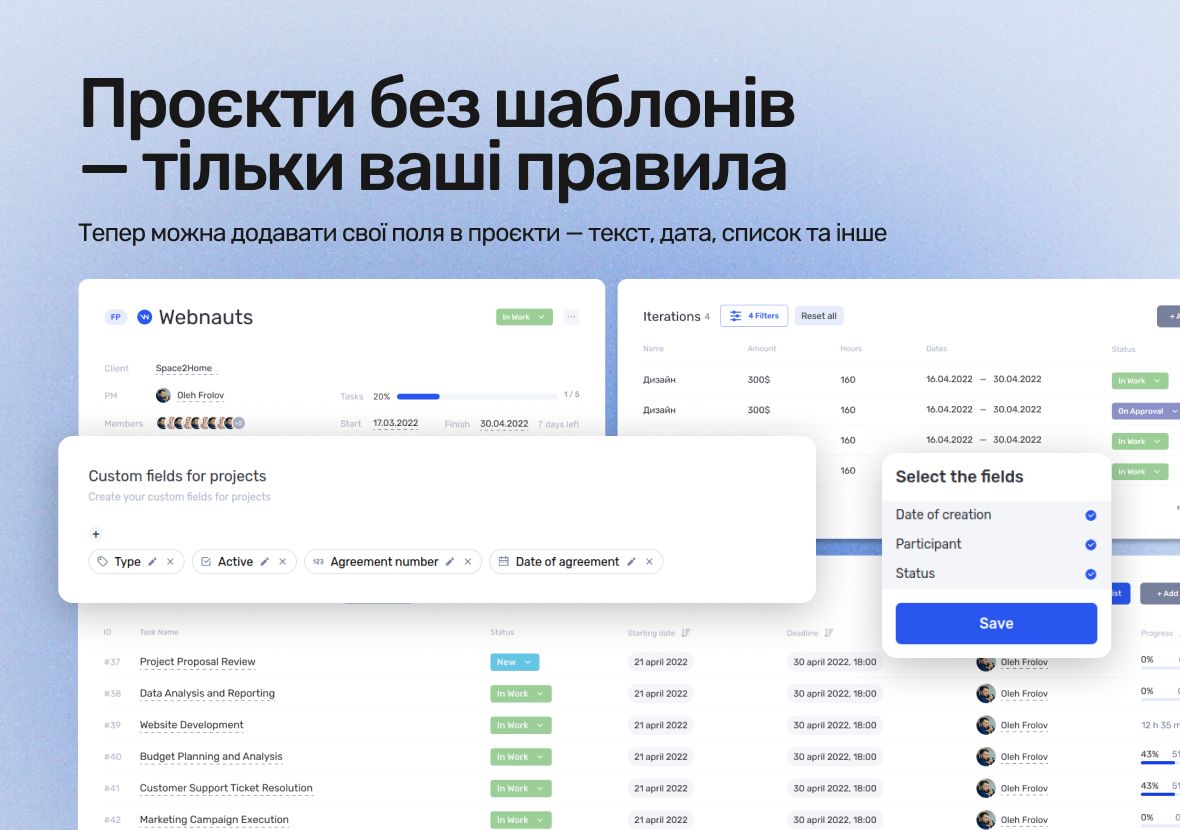
This lets you keep budgets, dates, specifications, and special conditions under control — without relying on external documents or chaotic notes.
You decide which data to keep in your projects. And now you can do it simply, structurally, and all in one place.
What’s new in if.team
Custom fields of various types are now available in projects. You can create:
- Text fields — for short descriptions or titles.
- Long description fields — for terms, technical tasks, or specs.
- Checkboxes — to mark statuses, completion, or approvals.
- Dropdown lists — to standardize options (project type, direction, stage).
- Date fields — for deadlines, checks, launches.
- Links — for tech docs or cloud folders.
- Tags — for categorization.
- Time fields — to record hours or durations.
These are the same fields already available in leads and clients — now extended to projects.
Why use custom fields in if.team projects
Many companies have unique processes — and often standard fields aren’t enough to capture all important details. Custom fields provide:
- Clear storage of specific information for each project.
- CRM adaptation to your unique business workflows.
- Fewer external tables, files, and data losses.
- A structured approach to launches, checks, and project handoffs.
All info stays inside the project card. Nothing gets lost, and everyone knows where to find it.
How to create and configure fields
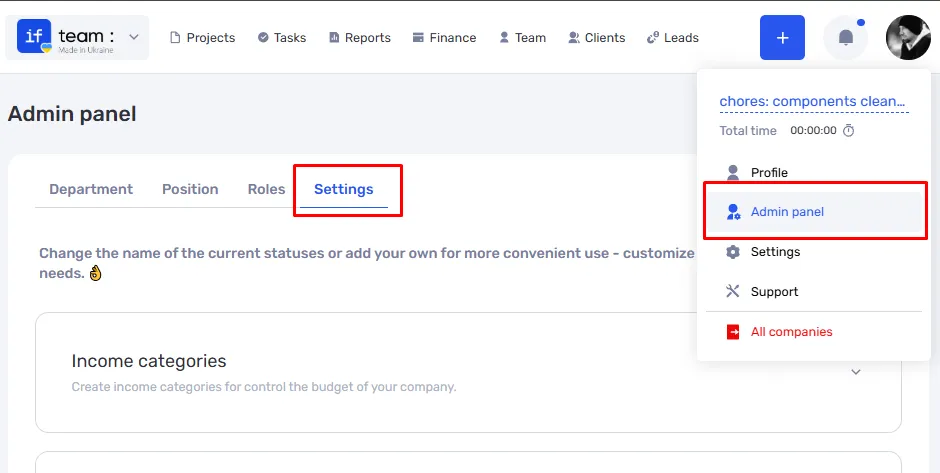
- Go to the Admin Panel → Settings.
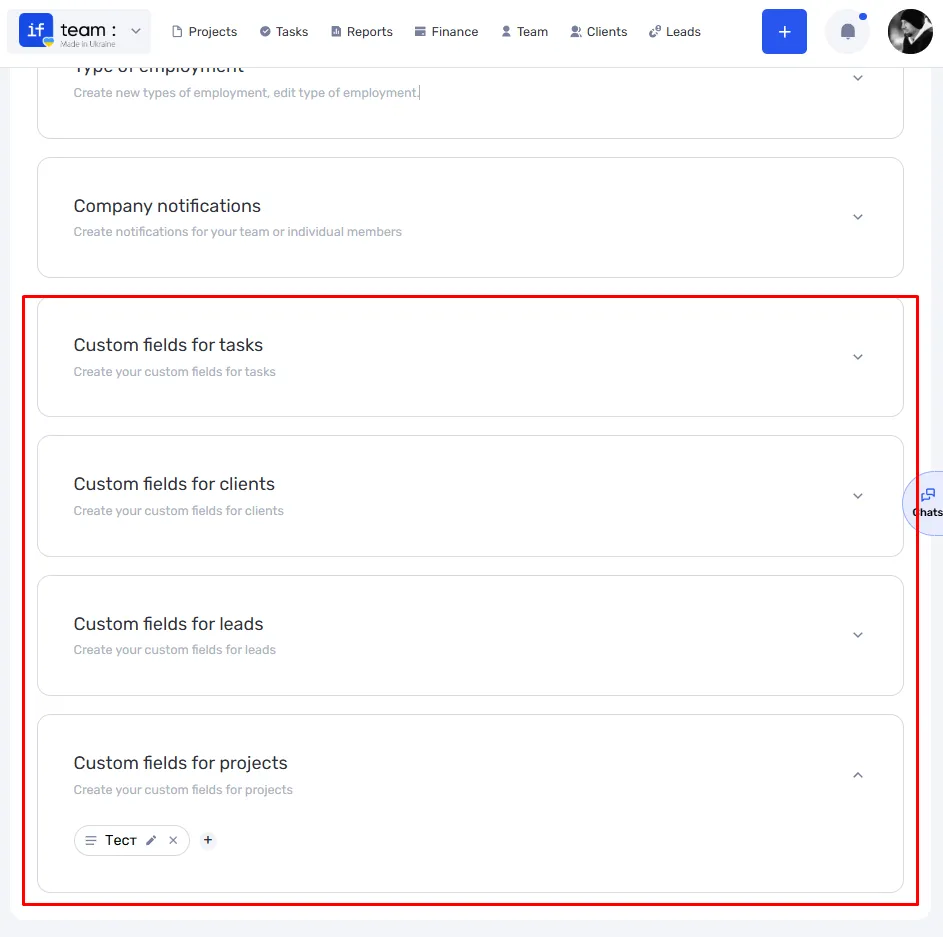
- Open the Custom Fields tab.
- Select Projects as the entity type.
- Click Add Field.
- Specify the type, name, and additional settings (required, order, etc.).
Custom fields will appear in a separate block within the project card. You can collapse or expand this block depending on your needs.
Custom fields — a key part of a flexible CRM
Custom fields are a step toward fully adapting if.team to your team’s business processes. Whether you:
- Manage specific types of projects;
- Work with tenders, contracts, or large budgets;
- Want to keep key info inside the CRM;
Go to settings, create your first fields, and immediately feel the convenience. Instead of extra tables and emails — a clear structure right in the project card.
Try the new feature now and tailor the system to your needs.
Author
Vladyslav ChesnokovPublished
Jun 25, 2025
Was this update helpful?
Your feedback helps us prioritise what to ship next.
Start your free 7-day trial
No credit card required. Get full access to all features and see how if.team can transform your team's workflow.